

Appearance
FluentCRM
FluentCRM is a self-hosted email marketing plugin for WordPress. Unlike Mailchimp, MailerLite, and Flodesk, FluentCRM runs on your own WordPress site — so BridalOp connects directly to your site rather than a third-party service.
Enabling the Module
Before you can connect FluentCRM, enable the FluentCRM module from the Modules settings page.
Requirements
You need a WordPress site with:
- FluentCRM plugin installed and activated
- An admin user with access to create Application Passwords
- The site must be publicly accessible (not behind a firewall or staging password)
Creating an Application Password
Unlike other integrations, FluentCRM uses a WordPress Application Password instead of an API key. This is more secure than sharing your regular password.
- Log into your WordPress admin at
yoursite.com/wp-admin - Go to Users > Profile (or Users > All Users and edit your user)
- Scroll down to Application Passwords
- Enter a name (e.g., "BridalOp") in the New Application Password Name field
- Click Add New Application Password
- Copy the password immediately — it's shown only once and looks like
abcd efgh ijkl mnop qrst uvwx
For detailed instructions with screenshots, see WordPress's official guide: Creating an Application Password in wp-admin.
WARNING
Application Passwords must be enabled on your WordPress site. They're enabled by default on WordPress 5.6+, but some security plugins may disable them. If you don't see the Application Passwords section, check your security plugin settings.
Connecting
- Go to Settings > Integrations > FluentCRM
- Enter the following fields:
- Site URL — your WordPress site URL (e.g.,
https://yourstore.com) - Username — your WordPress username
- Application Password — the password you just generated
- Site URL — your WordPress site URL (e.g.,
- Click Connect
- Select your List from the dropdown
- Click Save
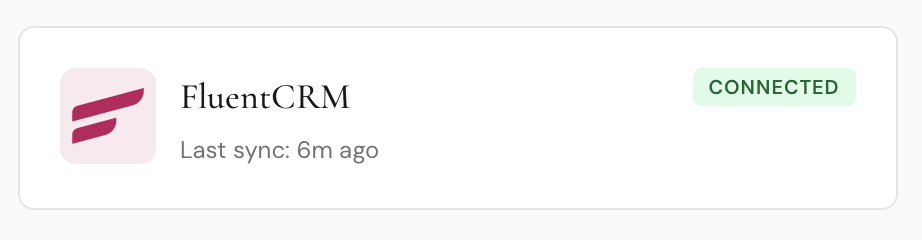
Once connected, the integration shows a Connected badge and the last sync time.
How It Works
Each customer is synced to FluentCRM as a subscriber with:
- Email (primary identifier)
- First Name
- Last Name
- Phone
- Status set to
subscribed - Assigned to the selected List
Native Tag Support
FluentCRM supports tags natively, so BridalOp's customer tags are passed directly:
bridaloplocation:{slug}event:{event_type}source:{source}wedding-{year}
Tags that don't exist in FluentCRM yet are created automatically on the first sync.
Sending a Test Contact
After connecting, click Send test contact to push your most recent opted-in customer to FluentCRM as a smoke test. Log into your WordPress admin and check the FluentCRM contacts list to confirm the contact appeared with the correct tags and list assignment.
Disconnecting
Click Disconnect to stop syncing. Your credentials are cleared, but contacts already synced to FluentCRM remain in your WordPress site.