

Appearance
Online Store (WooCommerce, FluentCart & Shopify)
Sell the gowns and accessories already in your BridalOp inventory through your own online shop. BridalOp publishes the products you choose, keeps the stock numbers right, and records every online sale as a real order in BridalOp — so a dress that sells at midnight on your website is off your racks before you open.
Go to Settings > Online Store to see your connection.
What you need
Whichever shop you run, everything below works the same way once you're connected. Only the way you connect differs.
On WordPress — WooCommerce or FluentCart
- A WordPress website running WooCommerce or FluentCart
- The free BridalOp plugin installed on that website
Download: BridalOp on WordPress.org — or search for BridalOp under Plugins > Add New inside your own WordPress admin, which is the easier route.
On Shopify
- Your Shopify store address, the
yourstore.myshopify.comone
There's no plugin to install. Shopify doesn't let anyone run software inside your shop, so BridalOp connects to it from the outside instead.
You do not need to copy any keys or passwords on either route.
FluentCart: switch Inventory on first
If your shop runs FluentCart, turn on the Inventory feature in FluentCart's settings before connecting.
While that feature is off, FluentCart accepts the stock numbers BridalOp sends and then ignores them completely. Your gowns look correct in the product editor — the counts are all there — but the shop will happily sell a dress that sold months ago, because nothing is checking. There is no warning anywhere.
With it on, a sold gown shows Out Of Stock and cannot be bought.
WooCommerce enforces stock as standard, so there is nothing to switch on there.
Connecting Shopify
Go to Settings > Online Store. The Shopify card shows one of two ways in:
- Install from the Shopify App Store. Click it, install BridalOp on your store, and you're brought straight back, connected. Shopify tells BridalOp which store it is, so there's no address to type.
- Enter your store address. Type
yourstore.myshopify.comand click Connect Shopify. You'll be sent to Shopify to approve the connection, exactly as you would for any app, and then brought straight back.
Either way, that's the whole setup.
Installing from Shopify's side. You can also start from the Shopify App Store or your Shopify admin. The BridalOp app is free and connects your existing BridalOp account, so if you're asked to sign in partway through, sign in with your BridalOp login. That sign-in page names the store you're connecting, and it doesn't offer to create a new account. Once your store is connected, opening BridalOp from your Shopify admin takes you straight to your Online Store page.
Which permissions it asks for, and why
Shopify will list what BridalOp is asking to do: read and write your products, your stock and your orders. Those three are the integration — publishing gowns, keeping their availability right, and reading the sales that come in.
Installing the plugin (WordPress only)
- In your WordPress admin, go to Plugins > Add New
- Search for BridalOp
- Click Install Now, then Activate
A BridalOp item appears in the left-hand menu once it's active.
Connecting WooCommerce or FluentCart
Open BridalOp in your WordPress menu. It looks at what's installed and tells you what it found.
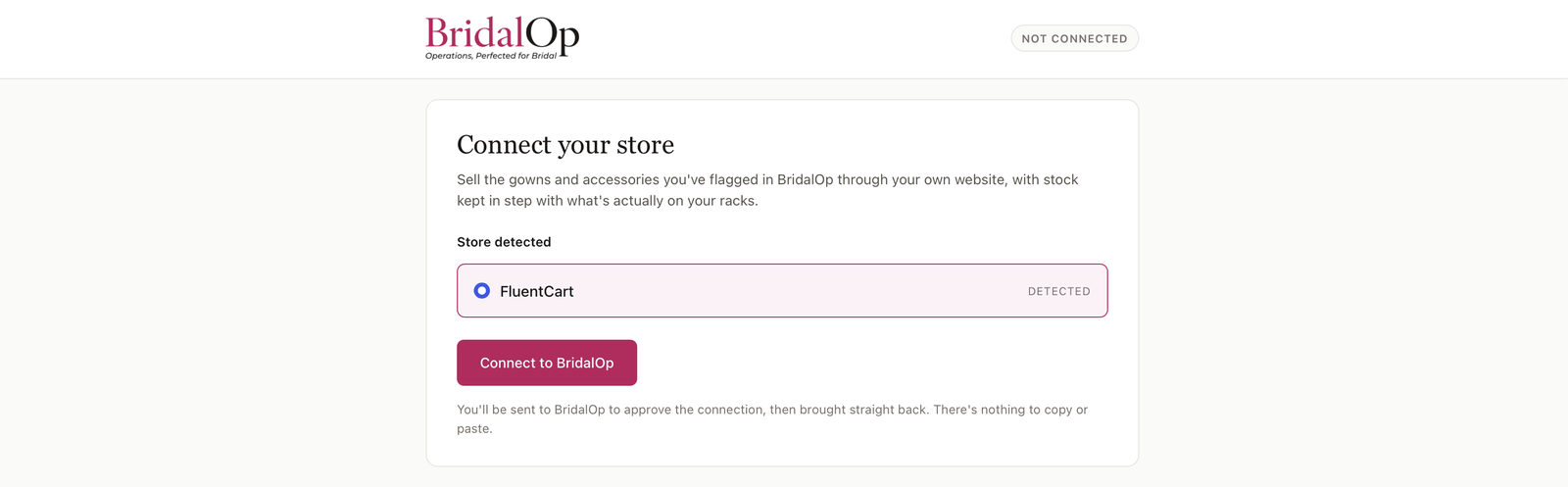
- Confirm the store it detected
- Click Connect to BridalOp
- Sign in to BridalOp and approve the connection
You'll be brought straight back, and the screen will say Connected. That's the whole setup — there is nothing to copy or paste, because the plugin creates the credentials BridalOp needs and hands them over during the connection.
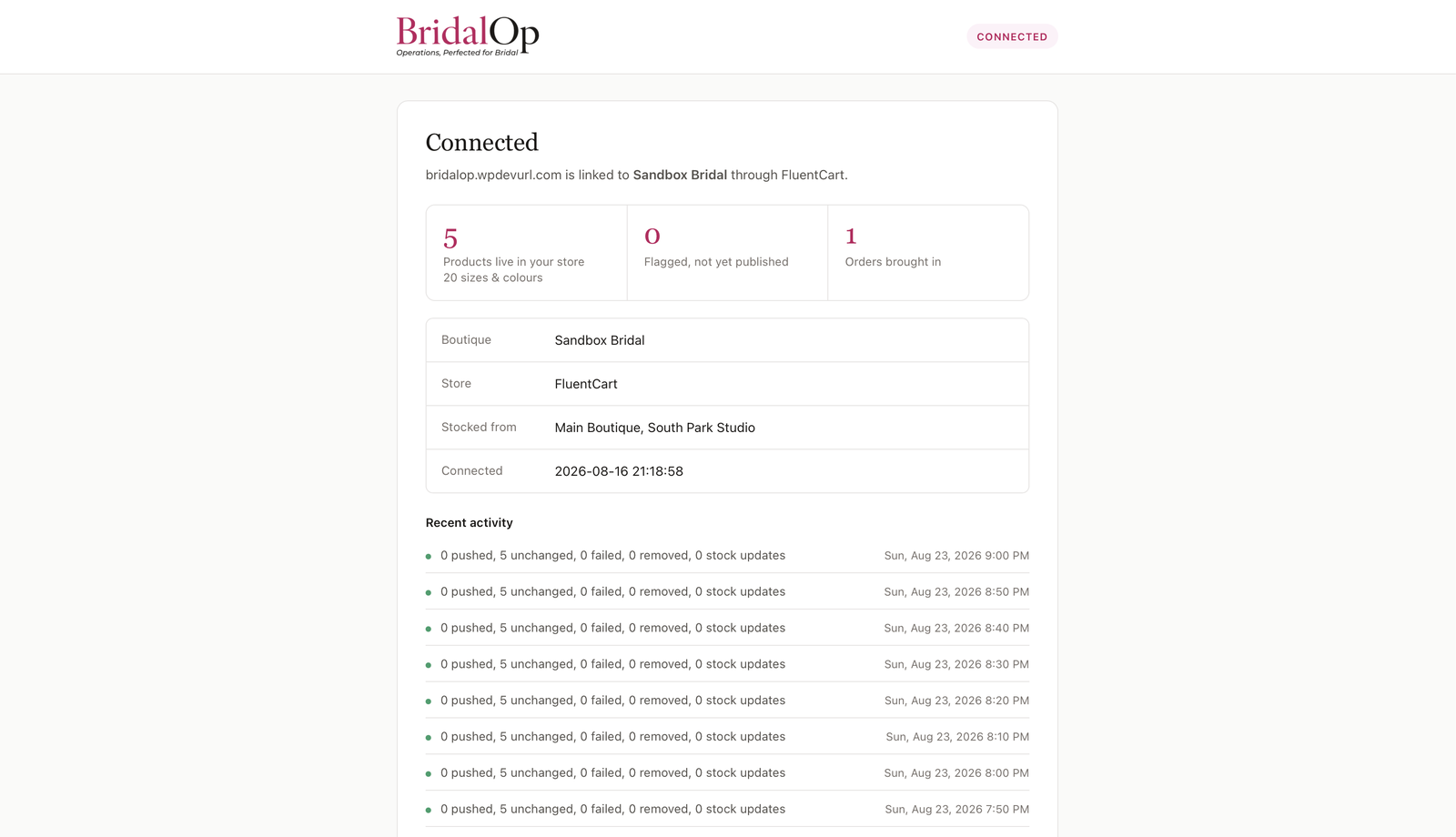
From here the panel shows what's live on your website, what's flagged but not yet published, how many orders have come in, and the recent sync activity.
If you have both WooCommerce and FluentCart
You'll be asked to pick one.
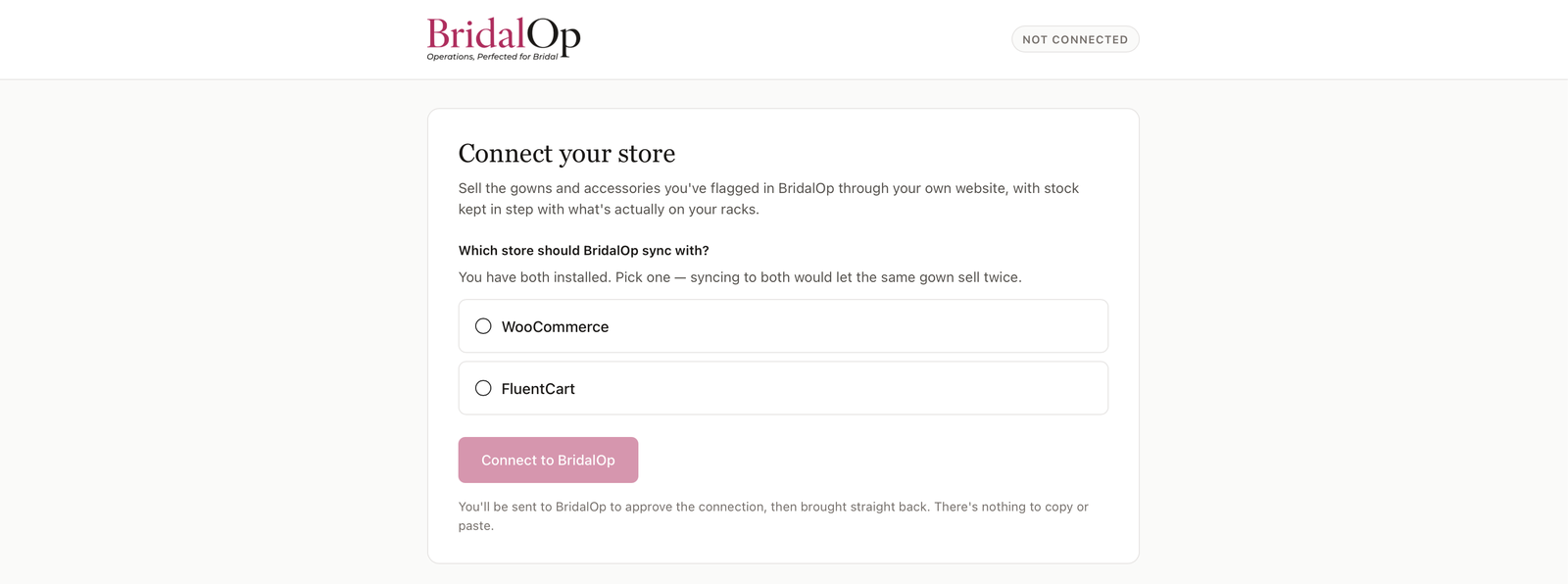
This isn't a limitation so much as a safeguard. Both shops would be drawing from a single pool of gowns, so syncing to both would let the same dress sell twice — and in bridal that means telephoning a bride.
The same rule covers Shopify: one online shop at a time, whichever it is.
To move from one to the other later — including moving to or from Shopify — connect the new store and BridalOp retires the old connection automatically. Products already on the old shop stay where they are; they simply stop receiving stock updates.
Nothing is published until you say so
Connecting does not put your inventory online. Products only appear on your website once you tick Sell online on them.
Choosing what to sell online
On any product in BridalOp, tick Sell online. At the next sync it will be created on your website with its photos, description, price and sizes.
Only gowns marked available in a location you've published from count as sellable. A dress that's on hold, out for alterations, or sold is not offered online.
Sample sale gowns are included. If you don't want a particular one online, untick Sell online for that product.
How quickly things sync
This is the part worth knowing, because the different pieces move at different speeds — deliberately.
| What changed | How fast it reaches your website | Why |
|---|---|---|
| Stock — a gown sold, received, transferred, or its status changed | About 10 seconds | The one that can cost you money. A bride must not be able to buy a dress that sold on the floor an hour ago. |
| Price | Within 10 minutes | Picked up by the regular sync. A price that's a few minutes stale is a much smaller problem than stock that is. |
| Product details — name, description, photos, sizes, colours | Within 10 minutes | Same regular sync as price. |
| A product newly ticked "Sell online" | Within 10 minutes | Same. |
| A product unticked | Within 10 minutes — it's hidden, not deleted | Your website keeps the page as a draft, so re-publishing later keeps the same web address. |
Need it now? Click Sync now on the Settings > Online Store page. That pushes everything immediately rather than waiting for the next ten-minute run.
Why stock is faster than price
Stock changes get their own instant push the moment inventory moves. Prices ride the regular ten-minute sync.
The reason is what goes wrong when each one is late. A stale price means a bride pays last week's price — annoying, and you can honour or correct it. Stale stock means she pays for a gown you no longer have, which means a refund, an apology, and a bride who now has no dress.
If you're running a sale and want prices live immediately, change them and then click Sync now.
Things that go the other way
| What happened on your website | How fast it reaches BridalOp |
|---|---|
| An order is placed and paid | Immediately — usually within a second or two of checkout |
| A refund is issued on your website | Immediately |
| An order is cancelled on your website | Immediately |
If your website can't reach BridalOp at that moment, it keeps trying — up to five times over roughly an hour and a half on WordPress, and repeatedly over a couple of days on Shopify. Nothing is lost to a brief hiccup.
Online orders
Every paid order on your website becomes a real order in BridalOp, with the customer attached. If the customer's email matches someone you already have, it's linked to that person rather than creating a duplicate.
The specific gown is claimed the instant the order arrives, so it can't be sold again in store.
When something sells twice
Occasionally a dress sells in the shop and online at almost the same moment. The card has already been charged by your website before BridalOp ever hears about it, so the sale can't be refused.
When that happens the order is recorded and flagged Needs attention at the top of the Online Store page. You'll need to either source another or refund the customer. BridalOp will not quietly pretend it has a gown it doesn't.
Sending orders out
Paid orders appear in an Orders to send list on the Online Store page.
When you've packed and posted the gown, click Mark as sent. That tells your website the order is complete, which triggers your store's own "your order is on its way" email to the customer.
This is the one action your customer sees
Marking an order as sent emails the bride. There's no unsending it, so only do it once the gown has actually gone.
This is a separate step on purpose. BridalOp counts an online order as complete the moment the money arrives — but paid is not posted, and if the two were treated as the same thing every customer would be told her gown had shipped seconds after she ordered it.
Cancellations
If you cancel an order on your website, BridalOp puts the gown straight back on your racks and marks the order voided.
Cancelling does not refund anyone. All three shops will happily cancel an order they already took payment for, and that money stays in your account until someone actually returns it. When that's the case BridalOp tells you plainly — the notification will say how much the customer has paid that hasn't been refunded.
Shopify: your stock stays yours
When an order is cancelled, Shopify offers to put the items back into its own stock count. BridalOp tells it not to.
That's deliberate. BridalOp owns your stock numbers and pushes them to Shopify — if Shopify also added one back on its own, two systems would be counting the same gown and the one your bride sees would be the wrong one. BridalOp puts the dress back on your racks and sends the corrected number.
Refunds
A refund issued on your website flows into BridalOp automatically: the gown goes back on the racks and the refund appears against the order.
A refund issued in BridalOp on an online order is a little different, because BridalOp never handled that money — your website's payment provider did.
When you refund an online order in BridalOp:
- Refund to original payment method — BridalOp asks your website to return the money through the provider that took it (Stripe, PayPal, Square and similar). The customer gets their money back automatically.
- Cash or store credit — you return the money yourself, and BridalOp records the refund on both systems so your website's records don't still claim the customer paid in full.
When automatic refunds aren't possible
Some payment methods simply can't be refunded by software. Bank transfer and pay on collection are the common ones in bridal, and there's no way around it — there's no card transaction to reverse.
BridalOp knows which of your orders these are, and will tell you before you click rather than failing afterwards. You'll see a message explaining that you need to return the money yourself and then record it as a cash refund, which still puts the gown back on your racks.
Very old orders can also be refused by the payment provider — most cap refunds somewhere between 60 and 180 days after the original charge. If that happens BridalOp tells you what the provider said and nothing is recorded, so you're never left with a refund on your books that never actually happened.
Shopify: orders with no payment behind them
An order marked paid in Shopify doesn't always have a payment Shopify can reverse — an order entered by hand, or marked paid manually, has nothing attached to refund.
BridalOp checks before trying. If there's nothing to reverse, it says so and records nothing, rather than writing a refund onto the order that never actually returned any money. Return it to the customer yourself and record it here as a cash refund, which still puts the gown back on your racks.
Sending online sales to QuickBooks
If you use QuickBooks, you'll see a choice on the Online Store page:
- My website sends them (default)
- BridalOp sends them
Only one system should ever send your online sales to QuickBooks. If both do, every online sale is recorded twice and your revenue looks higher than it is — which usually surfaces months later as tax on money you never made.
Plenty of shops already run their own store-to-QuickBooks connector. If BridalOp can see one on your website it names it for you, so you can tell whether that job is already being done.
Changing this only affects sales from that point on. Past orders are never sent retroactively.
Keeping an eye on the connection
BridalOp checks your storefront every hour.
On WordPress, it checks in two directions:
- It calls your website to confirm it's reachable and the connection still works
- Your website checks in to confirm the BridalOp plugin is still installed and running
The second one matters more than it sounds. If the plugin gets deactivated — during a plugin clean-up, say — your website's stock updates carry on working perfectly, but orders stop reaching BridalOp. From the outside that looks exactly like a quiet week.
On Shopify, there's no plugin to check in, so the hourly call does the whole job. If Shopify stops accepting the connection — because the app was removed from your store, or the connection lapsed — that call fails and you're told.
If a check fails, BridalOp emails you and shows a warning on the Online Store page. You'll only be emailed once per problem, not every hour.
Shopify: your connection needs renewing
Shopify requires apps to have their access renewed periodically. BridalOp renews it automatically in the background, and for almost everyone that's the end of it.
Occasionally it can't — if your store's permissions changed, or the app was reinstalled. When that happens the connection lapses and has to be renewed by a person, because Shopify deliberately doesn't let software grant itself access indefinitely.
So you'll see one of two messages on the Online Store page:
| Message | What it means |
|---|---|
| Your Shopify connection is about to expire | Everything is still working. You have a couple of weeks to renew it before anything stops. |
| Your Shopify store needs reconnecting | It has lapsed. Stock is not syncing and online orders are not arriving. |
Both are fixed the same way: Settings > Online Store > Reconnect, enter your store address, approve on Shopify. It takes a few seconds.
Reconnecting is safe
Reconnecting is not the same as disconnecting and starting again. Your published products keep their links, your order history stays, and nothing is republished. It only renews the permission.
The warning arrives two weeks ahead deliberately — renewing needs whoever holds the Shopify login, and that isn't always the person looking at BridalOp on a Tuesday morning.
Nightly double-check
Every night at 4am, BridalOp compares its own stock numbers against your website's and corrects any that have drifted. It also looks back over the previous two days for any order that never arrived and imports it.
This is a safety net, not the main mechanism — it exists to catch the rare push that failed while your site was briefly down.
Disconnecting
Settings > Online Store > Disconnect storefront stops stock updates and stops online orders reaching BridalOp.
Products already on your website stay exactly where they are — nothing is deleted from your site. To finish tidying up, remove the BridalOp plugin from WordPress, or uninstall the BridalOp app from Settings > Apps in your Shopify admin.
Shopify: removing the app is enough
If you uninstall the app from Shopify's side, BridalOp notices immediately and marks the store disconnected on its own — there's no need to come back here and disconnect as well.
Your gowns, orders and customers in BridalOp are untouched by this. They're your records, not the shop's.
Troubleshooting
| What you're seeing | What it means | What to do |
|---|---|---|
| "BridalOp can't reach your website" | Your site didn't answer our hourly check | Check your website loads normally. If it does, reconnect from the BridalOp plugin in WordPress. |
| "Your website has stopped checking in" | Your site is up but the plugin has gone quiet | In WordPress, go to Plugins and check BridalOp is still active. Deactivating and reactivating it will start it reporting again. |
| A product says "failed to publish" | Your website rejected it | The reason is shown next to the product. A duplicate SKU is the most common cause. |
| Stock numbers look wrong on the website | A push may have failed while your site was down | Click Sync now. The nightly check would also fix it by morning. |
| An order is flagged Needs attention | It sold online and in store at nearly the same time | Source another gown or refund the customer — the money has already been taken. |
| Prices haven't updated yet | The regular sync runs every ten minutes | Click Sync now if you can't wait. |
| FluentCart: a sold gown can still be bought | FluentCart's Inventory feature is switched off, so it ignores the stock BridalOp sends | Turn on Inventory in FluentCart's feature settings. The counts are already correct — nothing was acting on them. |
| Shopify: "Your Shopify store needs reconnecting" | The app was removed from your store, or the connection lapsed | Settings > Online Store > Reconnect. Your products and order history are kept. |
| Shopify: "Your Shopify connection is about to expire" | It still works, but needs renewing within a couple of weeks | Same Reconnect button. Nothing has stopped yet. |
| Shopify: stock is right in BridalOp but wrong on the store | Stock may be going to a location that doesn't serve your online orders | Click Sync now. If it persists, check that your Shopify location is set to stock and fulfil online orders. |
What BridalOp does and doesn't control
BridalOp is in charge of your products, prices and stock. If you edit those directly in WooCommerce, FluentCart or Shopify, the next sync will overwrite your changes — make them in BridalOp instead.
Your shop stays in charge of everything else: how it looks, shipping, tax, discount codes, checkout, and taking payment.