

Appearance
Mailchimp
Sync your BridalOp customers to a Mailchimp audience with full native tag support. Every customer is tagged with their event type, source, location, and wedding year so you can segment your email campaigns by these attributes.
Enabling the Module
Before you can connect Mailchimp, enable the Mailchimp module from the Modules settings page.
Getting Your API Key
- Log into your Mailchimp account
- Click your profile icon in the bottom-left → Account & Billing
- Click Extras → API keys
- Scroll to Your API keys and click Create A Key
- Give it a name (e.g., "BridalOp") and click Generate Key
- Copy the key — it looks like
abc123def456...-us21
For detailed instructions with screenshots, see Mailchimp's official guide: About API Keys.
TIP
The data center (e.g., us21) is encoded in the end of your API key. BridalOp extracts it automatically — just paste the full key.
Connecting
- Go to Settings > Integrations > Mailchimp
- Paste your API key into the API Key field
- Click Connect
- Select your Audience (Mailchimp calls these "lists") from the dropdown
- Click Save
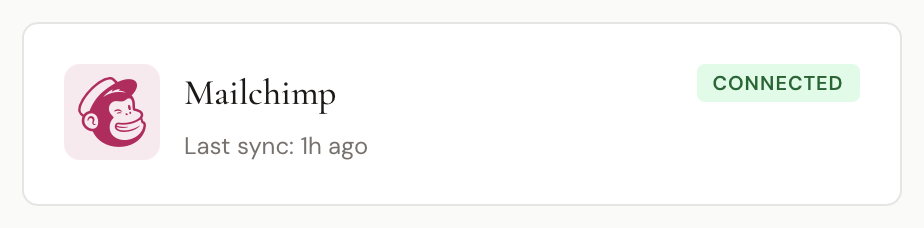
Once connected, the integration shows a Connected badge and the last sync time.
How It Works
Each customer is synced as a Mailchimp member with:
- Email (primary identifier)
- First Name →
FNAMEmerge field - Last Name →
LNAMEmerge field - Phone →
PHONEmerge field
Native Tag Support
Mailchimp's native tagging is used for BridalOp's customer tags:
bridaloplocation:{slug}event:{event_type}source:{source}wedding-{year}
Tags are reconciled on each sync — if a customer's event type changes from "wedding" to "prom" in BridalOp, the old event:wedding tag is removed and event:prom is added.
INFO
Any tags you add manually in Mailchimp (outside of BridalOp's tag namespace) are left untouched. BridalOp only manages the tags it created.
Sending a Test Contact
After connecting, click Send test contact to push your most recent opted-in customer to Mailchimp as a smoke test. Check your Mailchimp audience to confirm the contact appeared with the correct tags.
Disconnecting
Click Disconnect on the Mailchimp settings page to stop syncing. Your credentials are cleared, but contacts already synced to Mailchimp remain in your audience.