

Appearance
Alterations
Track alteration jobs from start to finish — assign a tailor, build a task checklist, record measurements, and notify customers when their garments are ready.
Alteration List
The Alterations page shows all alteration jobs in a searchable, filterable table.
| Column | Description |
|---|---|
| Customer | Customer name (click to view their profile) |
| Tailor | Assigned tailor or "Unassigned" |
| Due Date | Target completion date (shows OVERDUE in red if past due) |
| Price | Alteration price |
| Tasks | Checklist progress (e.g., "2/5") |
| Status | Current status badge |
Filters
- Search — filter by customer name
- Status — All, Pending, In Progress, Ready, Delivered, Cancelled
- Tailor — filter by assigned tailor (only staff with the "Tailor" role appear in this dropdown)
Overdue alterations are highlighted with a red background in the list.
Creating an Alteration
Click New Alteration to open the creation form.
Fields
Details:
- Customer (required) — search by name, email or phone and pick her. If she isn't in the system yet, + Create New Customer at the bottom of the dropdown opens a short name, email and phone form, already filled with what you typed; she's selected on the alteration as soon as you save
- Location (required) — which boutique location
- Assigned Tailor — select a staff member with the "Tailor" role, or leave unassigned
- Due Date — target completion date
- Price (required) — alteration cost
- Notes — special instructions, fabric details, or other internal notes
Task Checklist:
Add the individual tasks that need to be completed for this alteration (e.g., "Hem dress", "Take in waist", "Shorten sleeves"). Click + Add Task to add more. Empty tasks are automatically filtered out when saving.
Measurements:
Record up to 8 measurements (in inches):
- Bust, Waist, Hips
- Shoulder to Waist, Waist to Hem
- Sleeve Length, Back Width, Hollow to Hem
All measurements are optional — only fill in what's relevant.
Viewing an Alteration
Click any alteration in the list to open its detail page.
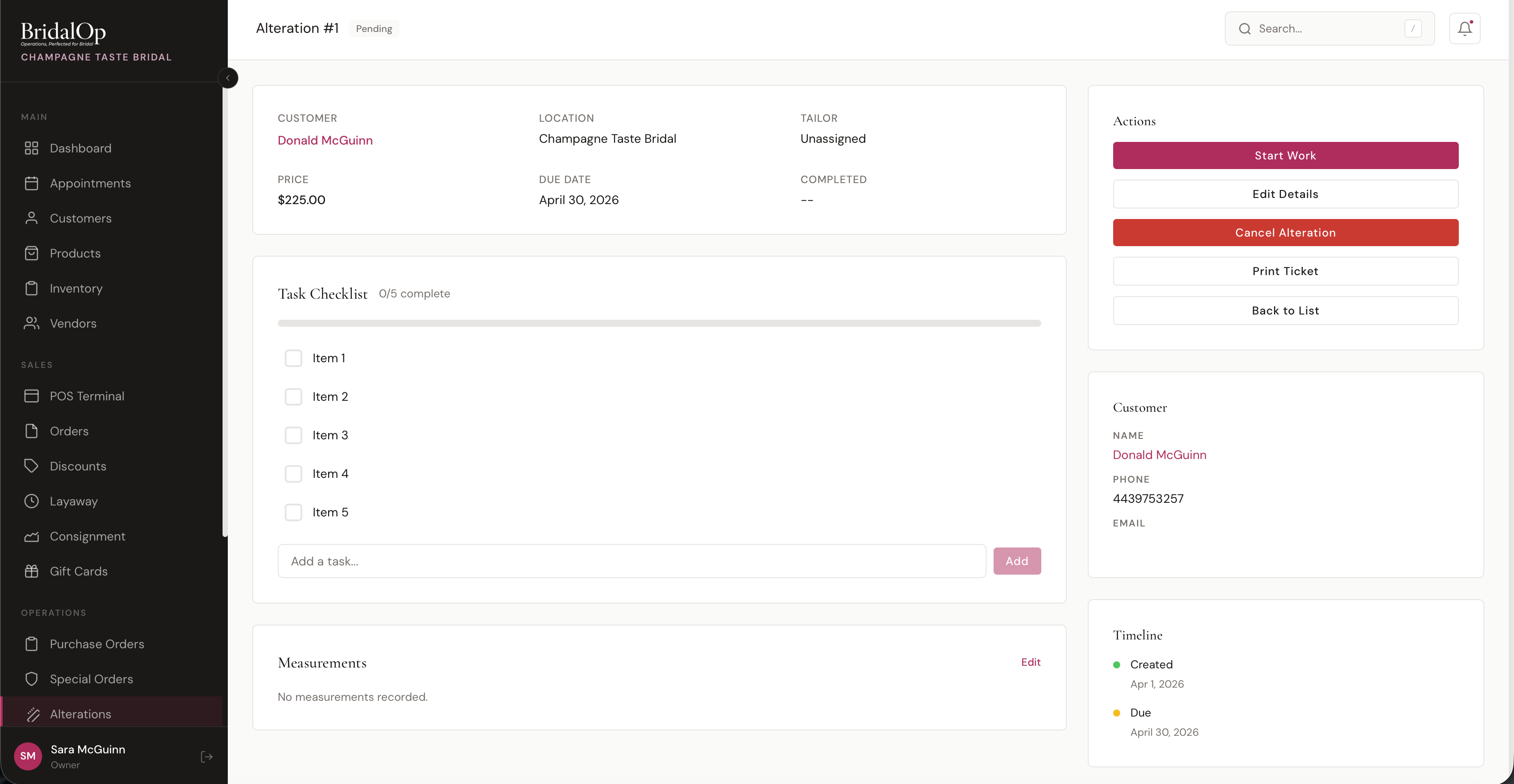
Detail Card
The top card shows:
- Customer (linked to their profile), Location, Tailor
- Price, Due Date (red if overdue), Completed date
- Linked Order and Inventory Item (if applicable)
Task Checklist
A dynamic checklist with a progress bar showing completion (e.g., "0/5 complete").
- Check off tasks by clicking the checkbox — completed tasks get a strikethrough
- Add new tasks using the input field at the bottom
- Remove tasks by hovering and clicking the X button
- The progress bar updates in real-time as tasks are completed
Tasks are disabled once the alteration is delivered or cancelled.
Measurements
Displays all recorded measurements. Click Edit to open a modal where you can update any measurement values.
Notes
Displays any special instructions or notes entered during creation, preserved with original formatting.
Sidebar
Actions — buttons change based on the current status (see Status Workflow below).
Customer — quick reference showing the customer's name (linked), phone, and email.
Timeline — visual timeline showing:
- Created date (green dot)
- Due date (amber dot, red if overdue)
- Completed date (rose dot, shown once marked ready or delivered)
Status Workflow
Alterations follow a linear status progression:
| Current Status | Action Button | Next Status |
|---|---|---|
| Pending | Start Work | In Progress |
| In Progress | Mark as Ready | Ready |
| Ready | Mark as Delivered | Delivered |
Any alteration that isn't delivered or cancelled can also be cancelled via the Cancel Alteration button (requires confirmation).
Notifications
When an alteration is marked as Ready, BridalOp automatically notifies the customer:
- Email — "Your Alterations Are Ready" with store name, location, and contact details
- SMS — a text message letting them know their alterations are ready for pickup
Both are sent automatically if the customer has an email address or phone number on file.
Tailor Assignment
Only staff members with the Tailor role appear in the tailor dropdown — on both the creation form and in the list filter. Tailors can be assigned when creating an alteration or updated later via Edit Details.
To give a staff member the Tailor role, go to Staff > [Staff Member] > Edit and assign the "Tailor" role.
Edit Details
Click Edit Details in the sidebar to update:
- Assigned Tailor
- Due Date
- Price
- Notes
This option is available as long as the alteration isn't delivered or cancelled.
Contracts
An alterations agreement is signed from the work order. Click Create Contract in the sidebar of an alteration and the contract form opens with the customer already chosen, the alteration already linked, and, if you have exactly one active template in the Alteration category, that template loaded. The alteration merge tags (due date, price, tasks, tailor) fill from this work order. Contracts attached to the alteration are listed in its sidebar with their status.
Print Ticket
Click Print Ticket to download a PDF alteration ticket. The ticket includes:
- Store name and ticket number
- Customer name, phone, and assigned tailor
- Due date, status, price, and location
- Task checklist with completion status
- Measurements (if recorded)
- Notes (if any)
Print and pin it to the garment or keep it in your alterations workspace.