

Appearance
Discounts
Create and manage discounts and promo codes for your boutique. Discounts can be applied at the POS by entering a promo code or selecting from a dropdown.
Discount List
The Discounts page shows all your discounts in a searchable table.
| Column | Description |
|---|---|
| Name | Display name (e.g., "Spring 20% Off") |
| Code | Promo code customers or staff can enter (e.g., SPRING20) |
| Type | Percentage or Fixed Amount |
| Amount | Discount value (e.g., "20%" or "$50.00") |
| Applies To | Entire Order, a specific category, or a specific product |
| Usage | How many times it's been used (e.g., "5 used" or "5 / 10" if a limit is set) |
| Status | Active or Inactive |
| Expires | Expiration date, if set |
| Actions | Edit and Delete buttons |
Use the search bar to filter by name or code. Use the status dropdown to show only active or inactive discounts.
Creating & Editing Discounts
Click New Discount to create one, or click Edit on an existing discount. Both open a modal with the same fields.
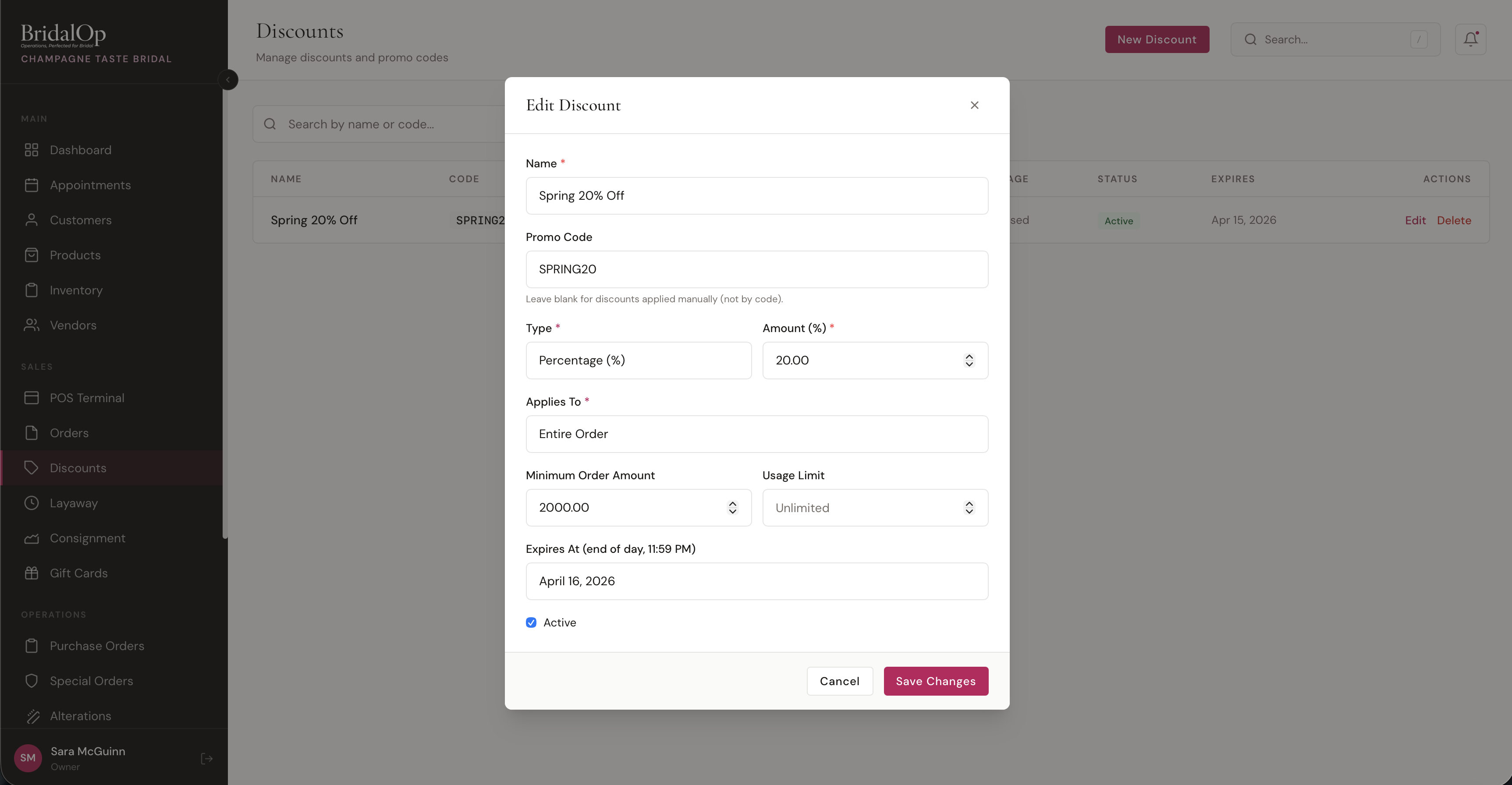
Fields
| Field | Required | Description |
|---|---|---|
| Name | Yes | Display name shown in POS and on receipts |
| Promo Code | No | Code customers or staff enter to apply the discount. Auto-uppercased. Leave blank for discounts applied manually from the dropdown only. |
| Type | Yes | Percentage (%) or Fixed Amount ($) |
| Amount | Yes | The discount value. For percentages, max is 100. |
| Applies To | Yes | Entire Order, Specific Category, or Specific Product. Category/product options appear when selected. |
| Minimum Order Amount | No | Order subtotal must meet this amount before the discount can be applied |
| Usage Limit | No | Maximum number of times this discount can be used. Leave blank for unlimited. |
| Expires At | No | Discount expires at end of day (11:59 PM) on this date |
| Active | — | Toggle the discount on or off |
Applying Discounts in POS
There are two ways to apply a discount at the point of sale:
1. Promo Code
Type the promo code into the PROMO CODE field and click Apply (or press Enter). The system validates the code and applies the discount if it's valid.
2. Discount Dropdown
Select a discount from the dropdown menu next to the promo code field. The dropdown only shows discounts that are currently valid (active, not expired, usage limit not reached).

Applied Discount
Once applied, the discount appears as a green banner on the order showing the discount name, promo code badge, and the calculated savings. Click Remove to take it off.
The order summary updates to show the discount as a separate line item:
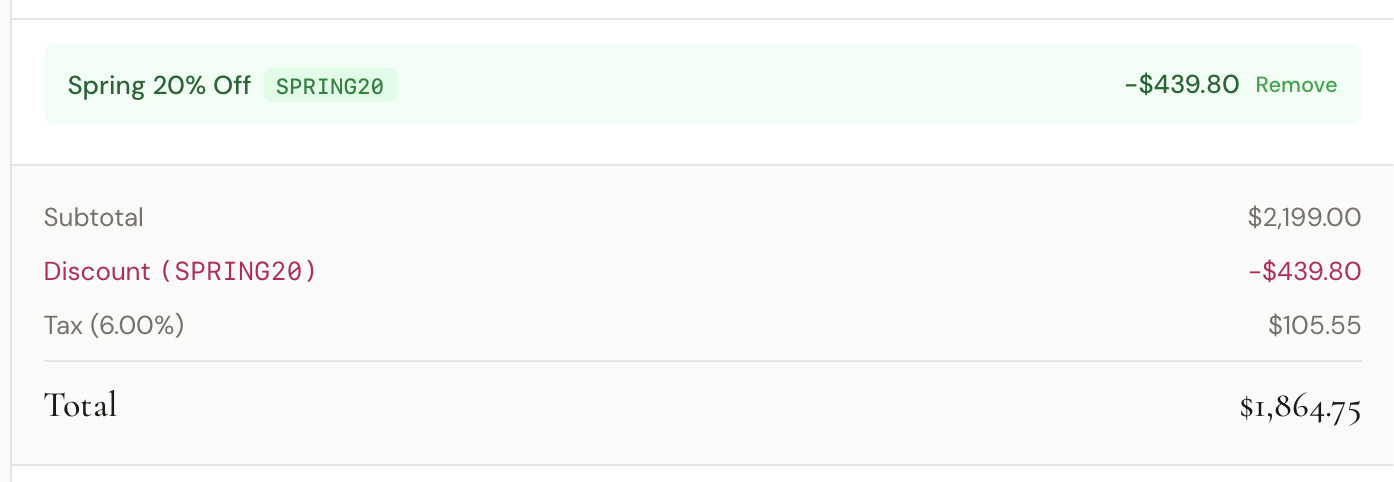
The calculation flow is:
- Subtotal — sum of all line items
- Discount — percentage of subtotal or fixed dollar amount (never exceeds the subtotal)
- Tax — calculated on the amount after discount
- Total — subtotal minus discount plus tax
Per-Line Discounts
In addition to order-level discounts, you can apply a dollar-amount discount to individual line items directly in the cart. These stack with order-level discounts.
Validation
When a discount is applied, the system checks:
- Active — discount must be toggled on
- Not expired — current date must be before the expiration date
- Usage limit — must not have reached its maximum uses (usage count increments when an order is fully paid)
- Minimum order amount — order subtotal must meet the minimum
If any check fails, an error message appears explaining why the discount can't be applied.
Discount Types
Percentage — calculates the discount as a percentage of the order subtotal. A 20% discount on a $2,199.00 subtotal gives $439.80 off.
Fixed Amount — subtracts a flat dollar amount from the subtotal. A $50.00 discount takes exactly $50.00 off (capped at the subtotal so it never goes negative).