

Appearance
Notifications
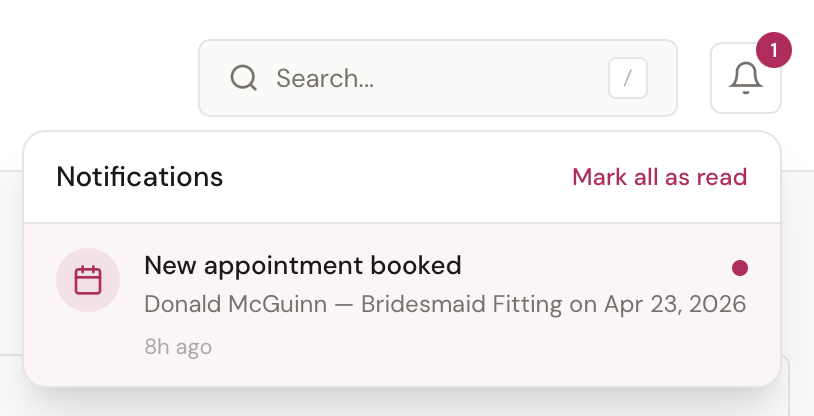
The notification bell in the top-right corner of every page shows recent updates relevant to you — new bookings, payments, contract signatures, alteration completions, and more. A red badge on the bell shows your unread count.
Opening Notifications
Click the bell icon in the top-right of any page to open the notification dropdown. The dropdown shows your most recent notifications, with unread ones highlighted in light pink.
Notification Types
The notification bell can show alerts for any of the following events:
Appointments
- New appointment booked
- Appointment cancelled
Sales & Payments
- Payment received
- Order completed
- Invoice viewed, paid, or overdue
- Refund issued
- Layaway plan created or payment received
- Gift card sold
- Discount created
Customers & Contracts
- New customer added
- Contract viewed or signed
Operations
- Special order created
- Alteration created or marked ready for pickup
- Purchase order created, submitted, or items received
Staff
- Staff clocking in or out
- Staff invited or invitation accepted
Reading and Managing Notifications
Mark as Read
- Click a notification to navigate to the related resource — it's automatically marked as read
- Click the small pink dot next to an unread notification to mark it as read without navigating
- Click "Mark all as read" at the top of the dropdown to clear the unread badge
Unread Count Badge
The badge on the bell icon shows your unread count. If you have 100 or more unread notifications, the badge displays "99+" to keep it compact.
The badge automatically updates every 30 seconds while you're using BridalOp, so you'll see new notifications appear without refreshing the page.
Browser Tab Title
When you have unread notifications, BridalOp updates your browser tab title to show the count — for example, "(3) BridalOp Docs". This makes it easy to see new activity even if BridalOp isn't your active tab.
Browser Push Notifications
If you grant permission, BridalOp can send a browser push notification when new activity arrives while the BridalOp tab isn't active. Your browser will display a system notification — even if BridalOp is minimized.
Notification Bell vs. Activity Feed
The notification bell and the Activity Feed page draw from the same underlying log, but they're scoped differently:
- The Notification bell shows recent notifications for you (the logged-in user) plus store-wide broadcasts. It's optimized for quick personal alerts.
- The Activity Feed shows the full store history — every event, filterable by type and searchable. It's better for auditing and looking back through past activity.
Both use the same data source, so an event you see in the bell will also appear in the Activity Feed (and vice versa).