

Appearance
Invoices
Send professional invoices to your customers for alterations, special orders, custom services, or anything else. Invoices support line item discounts, payment schedules with auto-charge, and a customer-facing payment portal — so customers can pay online without calling the store.
Invoices can also be created automatically from an accepted Quote — the line items, customer, location, tax rate, and notes all carry over.
Invoice List
The main Invoices page shows all invoices with search and filtering.
| Column | Description |
|---|---|
| Invoice # | Unique invoice number (e.g., INV-2026-0001) |
| Customer | Customer name |
| Total | Invoice total |
| Paid | Amount paid so far (green) |
| Balance | Remaining balance (red if unpaid) |
| Status | Draft, Sent, Partially Paid, Paid, Overdue, or Cancelled |
| Due Date | Payment due date |
| Created | When the invoice was created |
Search by invoice number or customer name. Filter by status to find drafts, unpaid invoices, or overdue items.
Creating an Invoice
Click New Invoice to open the creation form.
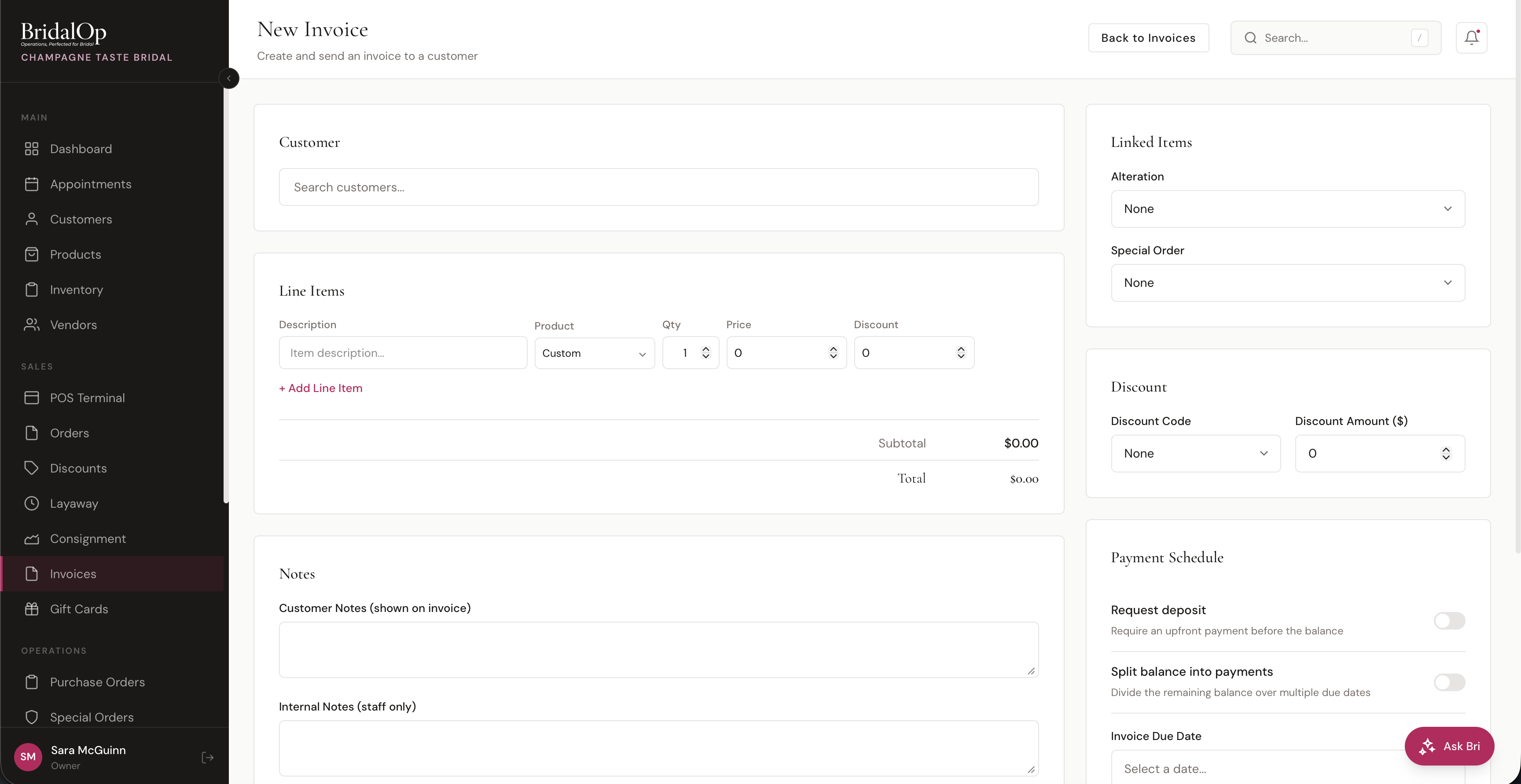
Customer
Search and select an existing customer, or create a new one inline. The customer's saved payment cards are loaded automatically for auto-charge setup.
Line Items
Add one or more line items to the invoice. Each line has:
| Field | Description |
|---|---|
| Description | What the charge is for |
| Product | Optionally link to a product (auto-fills description and price) |
| Quantity | Number of units |
| Price | Unit price |
| Discount | Per-line discount amount — deducted from that line's total |
The subtotal, tax, and total update in real-time as you add and edit lines.
Line Item Types
Lines can be categorized as: Product, Service, Alteration, Fee, Deposit, or Custom — helping you organize what's being charged.
Tax & Discounts
- Tax Rate — defaults to your location's tax rate, but can be adjusted per invoice
- Discount Code — select a pre-configured discount (percentage or fixed amount)
- Manual Discount — enter a flat dollar amount off the invoice
Linking to Alterations & Special Orders
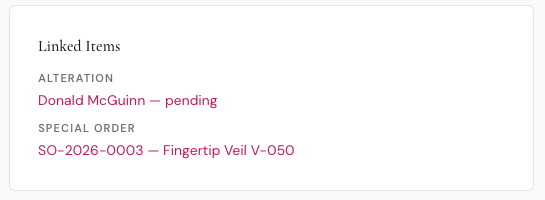
You can optionally link an invoice to an Alteration or Special Order. This creates a direct connection between the invoice and the job — visible on both the invoice detail page and the linked item's page.
- Alterations — only pending and in-progress alterations are available to link
- Special Orders — only active special orders (not picked up or cancelled) are available
Deposit
Toggle "Request deposit" to require an upfront payment before the remaining balance is due.
- Type — Percentage of total or Fixed amount
- Value — the percentage or dollar amount
- Due Date — quick buttons for Today, 7 Days, or 30 Days
Payment Schedule
Toggle "Split balance into payments" to break the invoice into installments.
- Set the number of payments (1–24) and frequency (Weekly, Biweekly, or Monthly)
- Click Generate to auto-calculate due dates and amounts
- Fine-tune individual installment amounts and due dates if needed
- Toggle reminders per installment — sends an email reminder 3 days before each due date
You can also add extra payments manually for custom schedules.
Auto-Charge Card on File
Toggle "Charge card on file" to automatically charge the customer's saved card when each scheduled payment comes due. Select which saved card to use from the dropdown.
When enabled, BridalOp runs a daily process that:
- Finds all scheduled payments due today (or overdue) with auto-charge enabled
- Charges the customer's saved card for each payment amount
- Records the payment and updates the invoice
- Sends a payment confirmation email
If the charge fails, the payment is marked as failed and the schedule item remains unpaid.
CC Recipients
Add additional email addresses to receive a copy of the invoice. Each recipient gets the same invoice email with the payment link.
Notes
- Customer Notes — shown on the invoice and visible to the customer
- Internal Notes — staff-only, not visible to the customer
Send or Save as Draft
- Check "Send to customer immediately" — creates the invoice and emails it right away
- Uncheck it — saves as a Draft. You can review, edit, and send it later from the invoice detail page.
Viewing an Invoice
Click any invoice to open its detail page.
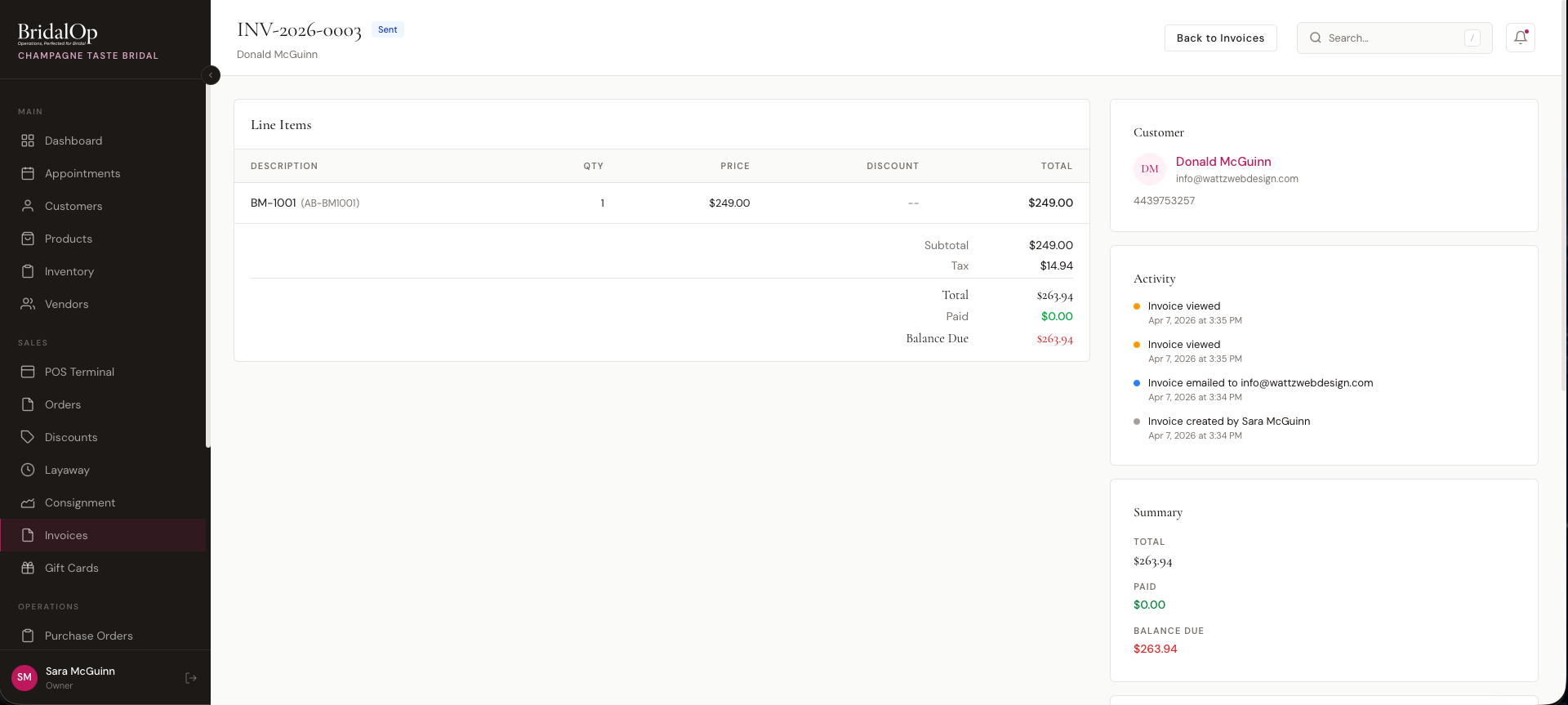
Line Items
A table showing every line item with description, quantity, price, per-line discount, and line total. Below the table:
- Subtotal — sum of all line items
- Discount — total discounts applied (if any)
- Tax — calculated tax amount
- Total — final invoice amount
- Paid — amount received so far (green)
- Balance Due — remaining amount (red if unpaid)
Payment Schedule
If the invoice has a payment schedule, a table shows each installment:
| Column | Description |
|---|---|
| # | Installment number |
| Due Date | When this payment is due |
| Amount | Installment amount |
| Auto | Whether auto-charge is enabled (Yes/No) |
| Status | Pending, Paid, or Overdue |
Each unpaid installment has a Pay button to record a manual payment against it.
Payment History
A log of every payment received on this invoice — date, amount (green), payment method, and who processed it.
Activity Log
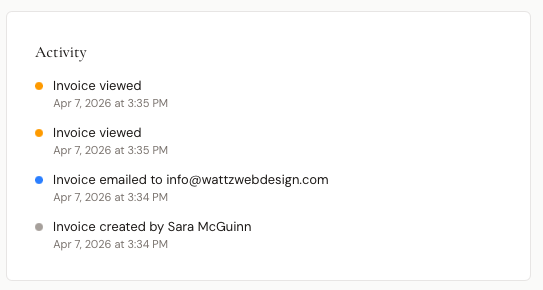
A timeline tracking every event on the invoice:
| Event | Description |
|---|---|
| Created | Invoice created (shows who created it) |
| Sent | Invoice emailed to customer |
| Viewed | Customer opened the invoice (logs IP and browser) |
| Payment Received | Payment recorded (shows amount and method) |
| Cancelled | Invoice was cancelled |
Each event is color-coded (green for payments, blue for sent, amber for viewed, gray for created) and timestamped.
Sidebar
- Customer — avatar, name (linked to profile), email, phone
- Summary — total, paid, balance due, deposit status
- Dates — created, sent, due, and paid dates
- Linked Items — linked alteration or special order (clickable)
- CC Recipients — additional email addresses
- Notes — customer-facing and internal notes
Actions
| Action | When Available |
|---|---|
| Record Payment | When there's a balance due and invoice isn't cancelled |
| Send Invoice | When invoice is a draft |
| Resend Invoice | When invoice has been sent — sends another copy to the customer and all CC recipients |
| Cancel Invoice | When invoice isn't already cancelled or fully paid |
Recording a Payment
Click Record Payment to open the payment modal.
- Amount — defaults to balance due, but can be a partial amount
- Method — Cash, Card, Saved Card, Check, or Other
- Saved Card — if the customer has cards on file, select one to charge directly
- Notes — optional payment notes
When a payment is recorded, the invoice recalculates automatically. If the balance reaches zero, the status changes to Paid.
How Customers Pay
When an invoice is sent, the customer receives an email with a payment link. No login required — they click the link and see:
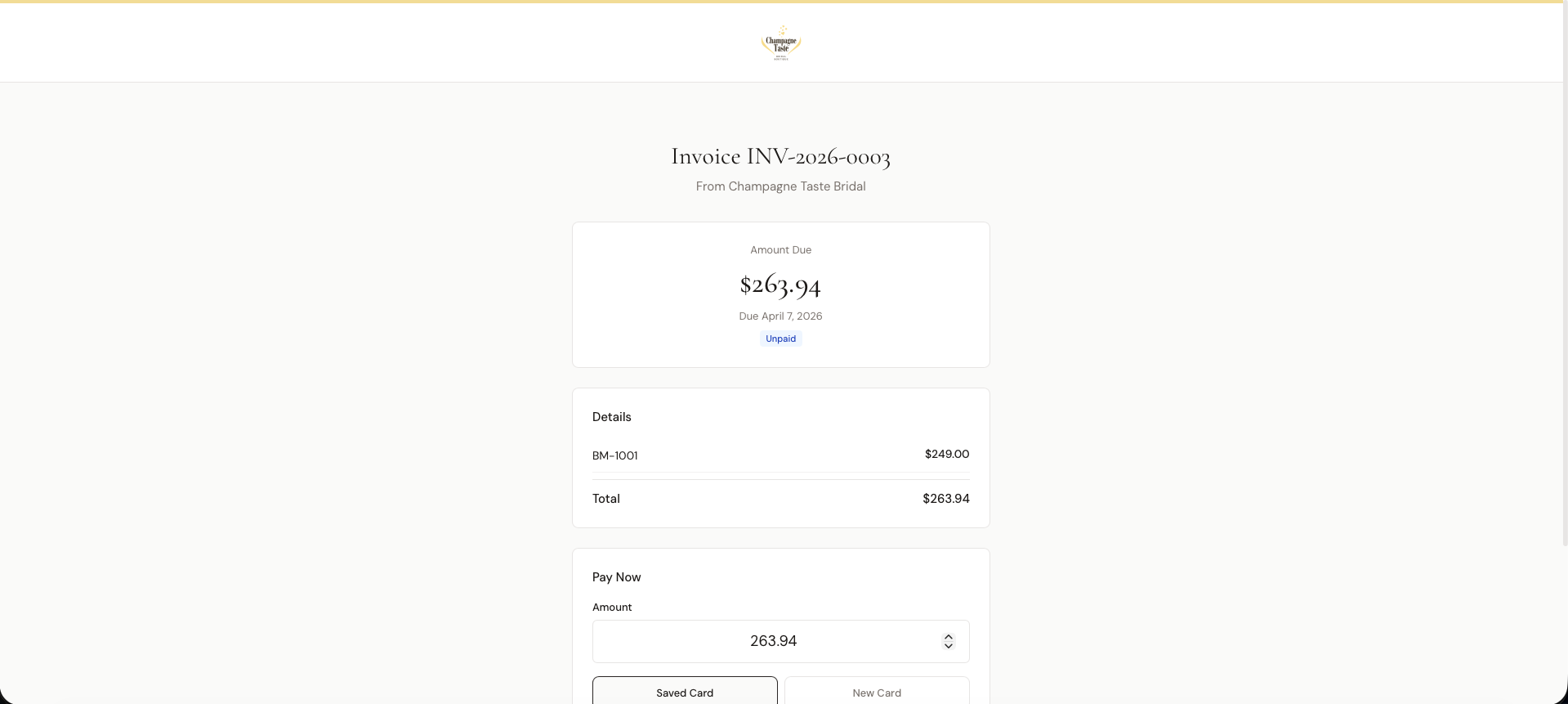
- Invoice summary with line items and balance
- Payment schedule (if applicable)
- Option to pay with a Saved Card or enter a New Card
- Custom amount field (can pay partial or full balance)
- Tip selector — when enabled, see Tipping on Invoice Payments below
After paying, the customer sees a confirmation and receives a payment receipt email.
Tipping on Invoice Payments
When Tip Prompts on Invoice Payment Pages is on under Settings > Payments, the public payment page shows a tip selector with 1%, 3%, 5%, Custom, and No Tip options. The customer's tip is added to the invoice amount and captured in a single charge.
Tips are credited to the invoice's Sold By consultant — the same field used for commissions. If Sold By is empty on the invoice, the tip prompt is hidden entirely (BridalOp won't ask for a tip when there's no one to credit).
Set Sold By on the invoice — or carry it forward from the source order — before sending if you want the prompt to appear. All collected tips show up in the Tips report under Reports, alongside in-store reader tips.
Appointment Payment Requests
When staff create an appointment that requires a deposit or payment, BridalOp can automatically generate and send an invoice to the customer. The invoice is pre-filled with the appointment type as the line item and sent immediately — the customer receives an email with a payment link to pay online.
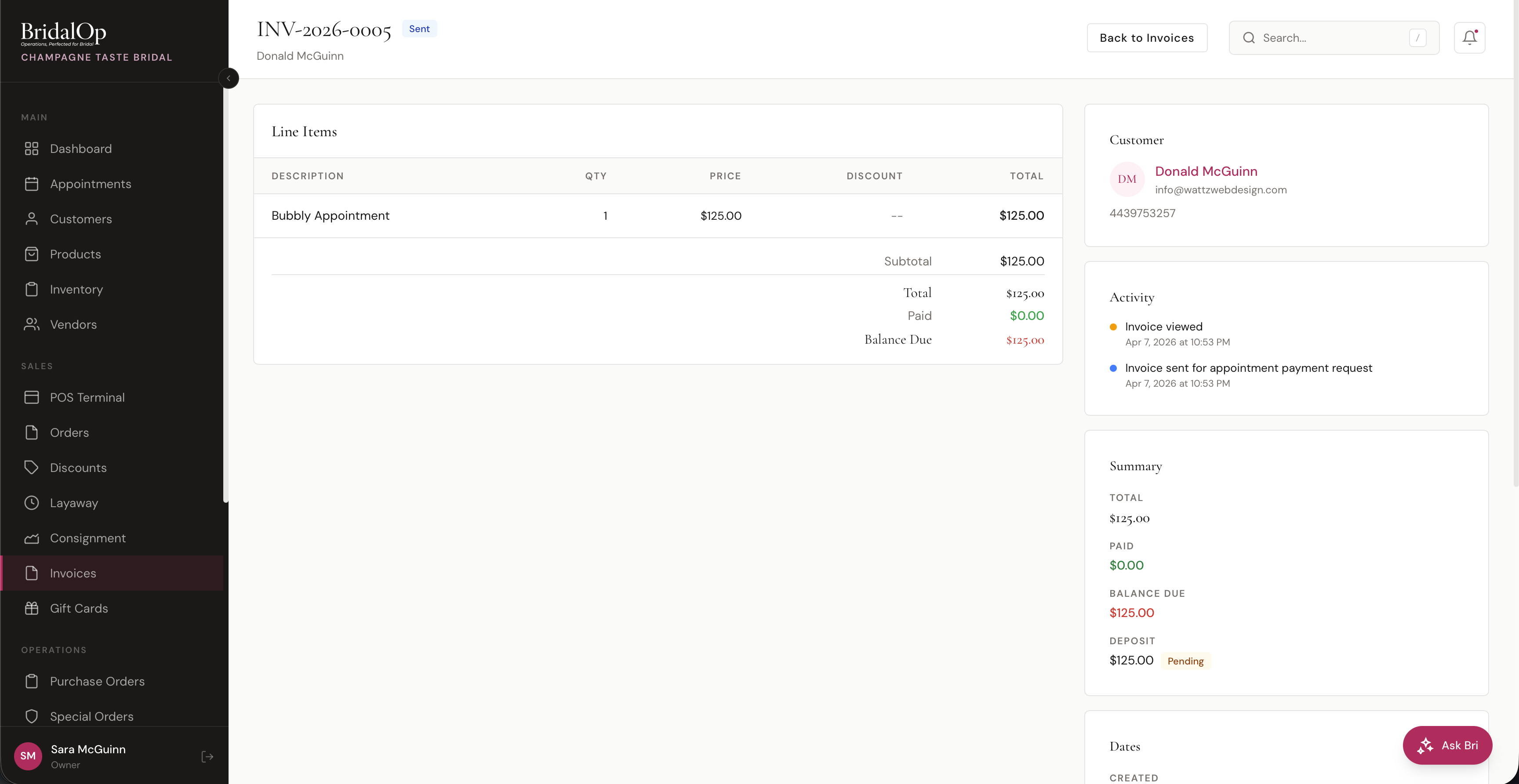
The activity log on these invoices shows "Invoice sent for appointment payment request" to distinguish them from manually created invoices.
Viewing Customer Invoices
You can also view all invoices for a specific customer by going to Customers > [Customer Name] > Invoices tab on their profile page. This gives you a quick way to see a customer's full invoice history without searching through the main list.
Invoice Statuses
| Status | Meaning |
|---|---|
| Draft | Created but not sent — can still be edited |
| Sent | Emailed to the customer |
| Partially Paid | Some payment received, balance remaining |
| Paid | Fully paid — no balance due |
| Overdue | Past the due date with an unpaid balance (auto-detected daily) |
| Cancelled | Manually cancelled by staff |