

Appearance
Products
The Products section is your boutique's catalog — every gown, bridesmaid dress, veil, shoe, and accessory you sell. Each product can have multiple variants (sizes, colors, lengths) and is tied to inventory items that track individual units of stock.
Products List
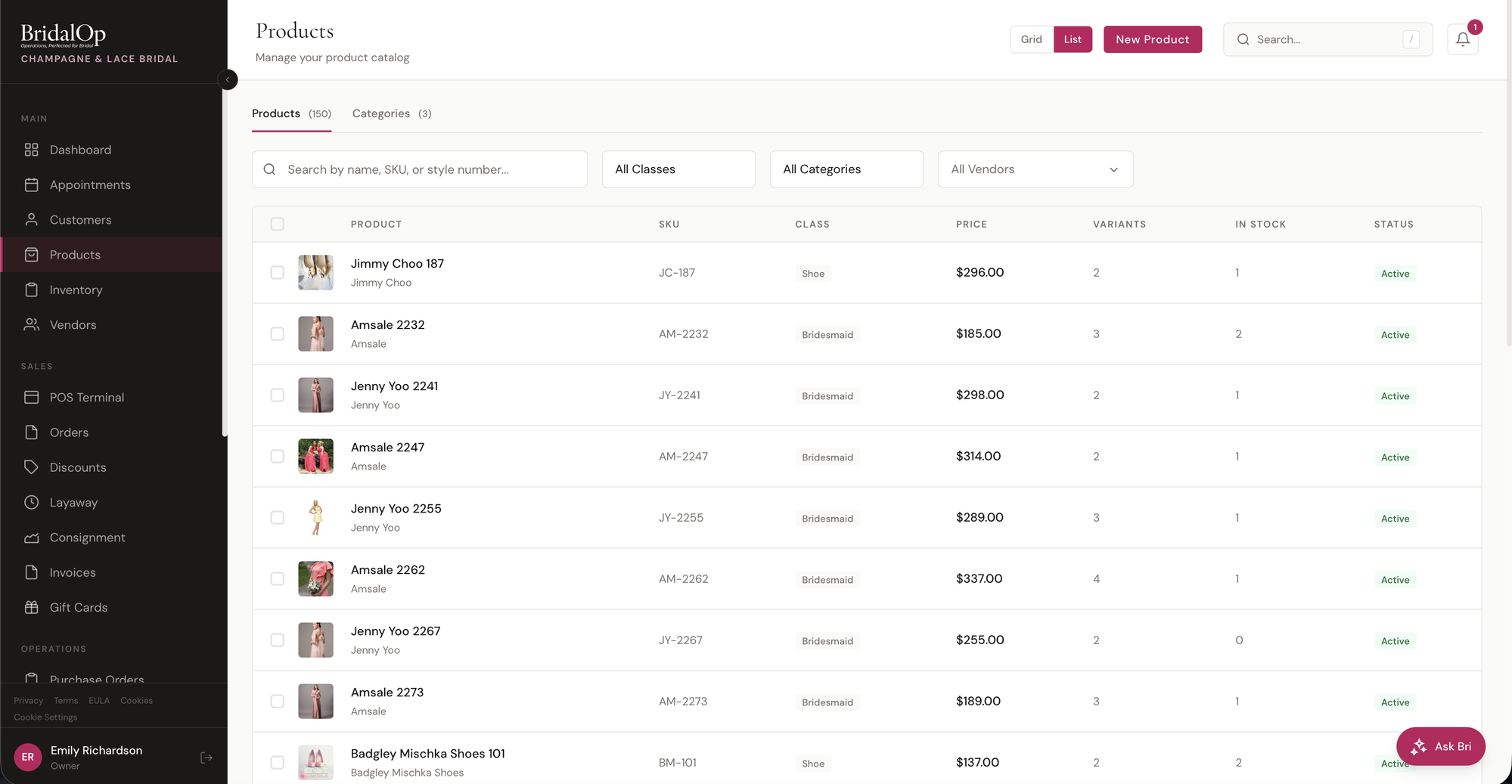
The list shows every product in your catalog with search, filters, and a grid/list view toggle.
Tabs
- Products — the main catalog with all your products
- Categories — manage product categories used to organize your catalog
Columns (List View)
| Column | Description |
|---|---|
| Image | Product thumbnail |
| Product | Product name with vendor as a sub-label |
| SKU | Stock-keeping unit |
| Type | Product type badge (Gown, Bridesmaid, Service, Shoe, etc.) |
| Visibility | LB (green) if shown on Lookbook, EC (blue) if shown on Ecom — see Visibility Badges below |
| Price | Selling price |
| Variants | Number of variants for this product |
| In Stock | Total inventory items in stock |
| Status | Active, Inactive, or Discontinued (red) |
Filters
- Search — by name, SKU, or style number
- All Product Types — filter by product type (15 types)
- Status — Active (the default), Inactive, or All statuses. Products you've retired, and products created for sales history by a data migration, are inactive and stay out of the way until you ask for them
- Category — filter by category
- Vendors — multi-select dropdown to filter by one or more vendors
Visibility Badges
Small badges show where each product is published, and whether it's a private label:
| Badge | Meaning |
|---|---|
| LB (green) | Product is published on the customer Lookbook |
| EC (blue) | Product is published on the public Ecom storefront |
| PL (rose) | Private label — the style number and designer are hidden from customers (see Private Label) |
Lookbook and Ecom are independent — a product can be on one, both, or neither. Toggle each from the product edit sidebar (see Editing a Product) or in bulk from the products list.
Grid vs. List View
Toggle between Grid (card-based with large product images) and List (table layout) using the buttons in the header. Your preference is remembered for next time.
Bulk Actions
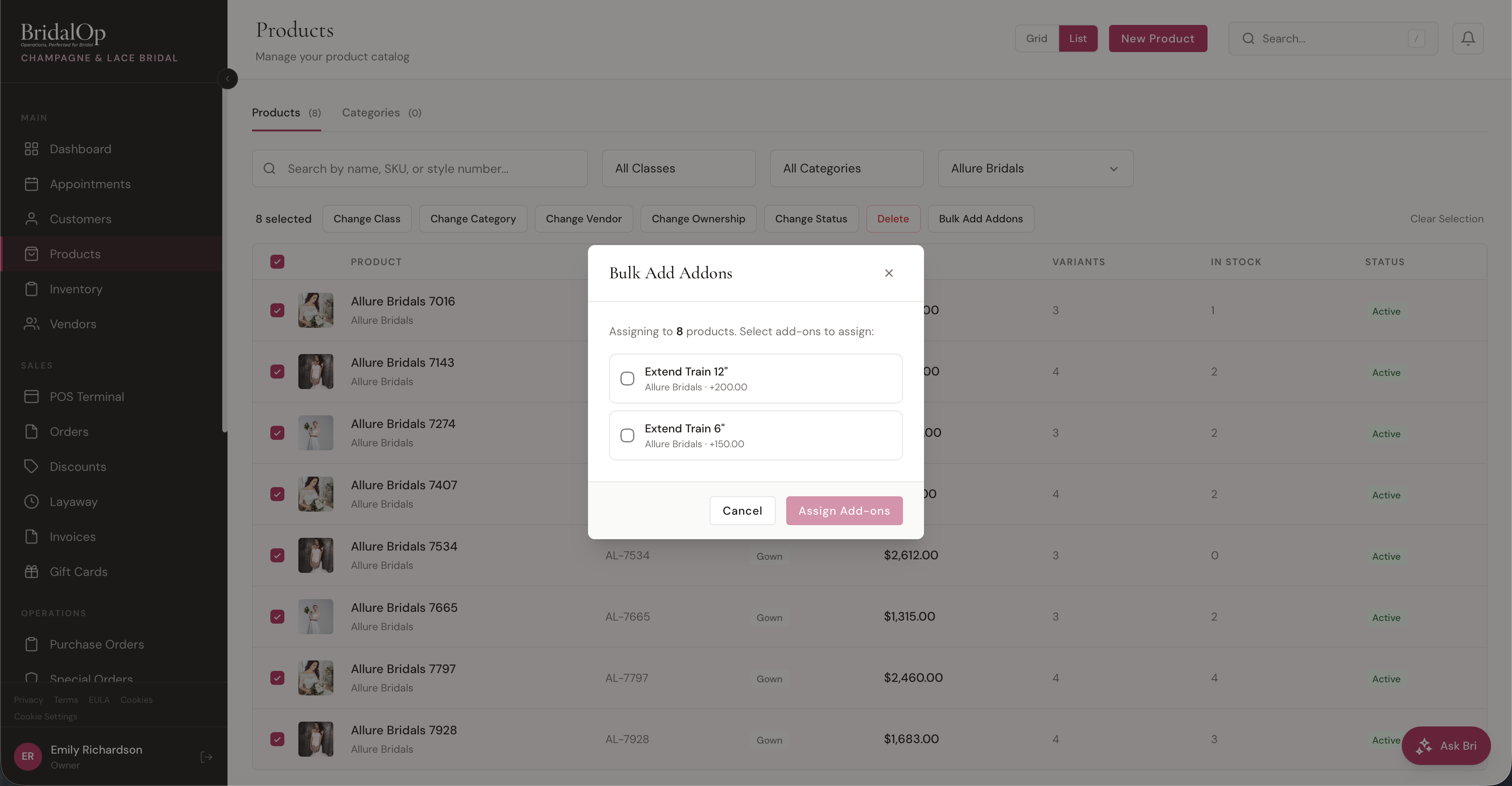
Check the boxes next to multiple products to enable the bulk action toolbar at the bottom of the page.

| Action | What It Does |
|---|---|
| Change Product Type | Update the product type on all selected products |
| Change Category | Move all selected products into a different category |
| Change Vendor | Reassign all selected products to a different vendor |
| Change Ownership | Switch between Store Owned and Consignment |
| Change Status | Set Active or Inactive |
| Toggle Lookbook | Flip the "Show on Lookbook" flag on every selected product |
| Toggle Ecom | Flip the "Show on Ecom" flag on every selected product |
| Bulk Add Addons | Assign vendor add-ons to all selected products at once (see below) |
| Delete | Permanently delete selected products (with confirmation) |
Use Select All in the header to select every product on the current page.
Categories
Click the Categories tab on the Products list to manage your product categories. You can:
- Add new categories with a name
- Rename existing categories inline
- Delete categories that have no products assigned (delete is hidden when products exist)
Each category shows a count of how many products are assigned to it.
The same list is also on Settings → Products & Inventory, which additionally lets you set each category's sort order — the order customers see them in on the lookbook.
Creating a Product
Click New Product to open the creation form.
Basic Information
| Field | Required | Description |
|---|---|---|
| Product Name | Yes | Display name |
| SKU | No | Stock-keeping unit |
| Style Number | No | Designer style reference |
| Product Type | Yes | One of 15 product types (see below) |
| Vendor | No | Wholesale vendor or supplier |
| Private label | No | Hides the style number and designer from customers (see below) |
| Category | No | Product category |
| Description | No | Free-form description |
Private Label
If you sell a line under your own name rather than the designer's, tick Private label on the product.
Your team carries on as normal — the vendor and their style number stay on the record, so purchase orders, receiving, reports and everything else work exactly as they do for any other product. What changes is what a customer is shown. On every customer-facing surface, a private-label product's style number and designer are removed:
- The lookbook grid
- The product detail a customer opens from it
- Their saved favourites
Lookbook search stops matching that product on its style number or its designer as well. That matters more than it sounds: if a search for the designer's style number returned the gown, it would confirm the number to anyone who typed one in, even though the number is never printed on the page.
Two things this does not do:
- It doesn't touch your SKU. If you've typed the designer's number into the SKU field, that's still shown and still pushed to your online store. Give private-label products a SKU of your own.
- It doesn't hide the product. A private label is usually exactly what you want on the lookbook and the storefront — just under your name.
Product Types
BridalOp supports 15 product types:
- Gown
- Bridesmaid
- Mother of the Bride
- Flower Girl
- Prom
- Quinceañera
- Formal / Evening
- Tuxedo
- Rental
- Accessory
- Veil
- Shoe
- Alteration
- Service
- Misc
Use Service for non-merchandise items you sell — a Wedding Day Delivery fee, a steaming or preservation service, a fitting fee, and the like. Services are typically flagged as tax-exempt (see Sales Tax below). If you'd rather organize services under their own category, you can also create a "Services" category on the Categories tab.
Variants
Click Add Variant to add size, color, length, or other variations of the same product. Each variant has:
| Field | Description |
|---|---|
| Size | Variant size (e.g., 8, 10, 12) |
| Color | Variant color (e.g., Ivory, Blush) |
| Length | Variant length (e.g., Standard, Long, Petite) |
| SKU Suffix | Optional suffix appended to the product SKU |
| Additional Cost | Extra cost for this specific variant |
A product without any variants is treated as having a single "Default" variant.
Pricing & Ownership (Sidebar)
| Field | Description |
|---|---|
| Active | Toggle whether the product is active and visible in the catalog |
| Charge sales tax on this item | Whether sales tax is charged when this product is sold. On by default. Turn it off for tax-exempt items — typically Service products like a Wedding Day Delivery fee — so they're never taxed at checkout. See Sales Tax. |
| Show on Lookbook | Publish this product on the customer Lookbook |
| Show on Ecom | Publish this product on the public Ecom storefront. Independent of Lookbook — you can enable one without the other. |
| Discontinued | Mark the product as discontinued. Stamps the discontinue date automatically on save and replaces the Active/Inactive badge with a red Discontinued badge on the products list. Untick to clear the discontinue date. |
| Ownership | Store Owned (you own the inventory) or Consignment (vendor owns it, you sell it) |
| Consignment Vendor | Required for consignment items — auto-fills the split percentage |
| Consignment Split % | Percentage paid to the vendor on each sale (auto-filled from vendor or global default, can be overridden) |
| MSRP | Manufacturer's suggested retail price |
| Cost | Your wholesale cost |
| Selling Price | The price you charge customers. A Calculate from cost & pricing rules link below the field derives the price from Cost × the resolved Pricing Rules — Tariff-as-percent is calculated against cost, not the running total. The price never recalculates automatically when the vendor's defaults change. |
Palette
The Palette card lets you anchor a product's variants to a known set of colors and sizes pulled from the vendor.
| Field | Description |
|---|---|
| Color Group | Pick one of the vendor's saved Color Groups. The selected colors render as reference pills on the card. |
| Size Chart | Pick one of the vendor's saved Size Charts. The selected sizes render as reference pills. |
| Extra Colors | Chip editor for one-off colors that aren't part of any vendor color group — useful for limited runs or special-order items. Type a color and press Enter (or click Add) to append it; click the X on a chip to remove it. |
When a palette is set, the Variant Color and Size inputs become autocomplete fields backed by the palette + extras (HTML datalist). Free-text values still work — the palette only suggests, it doesn't restrict.
Pricing Rules
The Pricing Rules sub-section lets you override the vendor's default markup math on a per-product basis.
| Field | Description |
|---|---|
| Retail Factor | Value + type pair (dollar / percent / multiplier). Leave blank to inherit the vendor default — placeholder text shows the inherited value (e.g., "Vendor: 2.4"). |
| Retail Factor Plus | A second markup applied after Retail Factor. Same value/type pair as above. |
| Tariff | Dollar amount or percent. Tariff-as-percent is calculated against the cost, not the running total. |
Blank fields fall back to the vendor's defaults set on the Vendor edit page.
Sales Tax
Every product carries a Charge sales tax on this item setting (in the sidebar), on by default. It controls whether the product's line is included in the taxable subtotal when it's sold.
Turn it off for tax-exempt items — most often Service products like a Wedding Day Delivery fee, a preservation service, or a fitting fee. When a mixed sale rings up (say a taxable gown alongside a non-taxable delivery), tax is calculated only on the taxable lines — the gown is taxed, the delivery isn't.
The product setting is the default, and it carries into the POS Terminal, where a per-line Tax checkbox lets staff override it for a single sale if needed.
Tags
Add custom tags to help organize and search your catalog. Type a tag and press Enter (or click Add) to add it. Click the X on any tag to remove it.
Bulk Add Addons
Select multiple products and click Bulk Add Addons to assign vendor add-ons in bulk. A modal appears listing all available add-ons from the selected products' vendors. Check the ones you want and click Assign to apply them to all selected products at once.
Product Detail
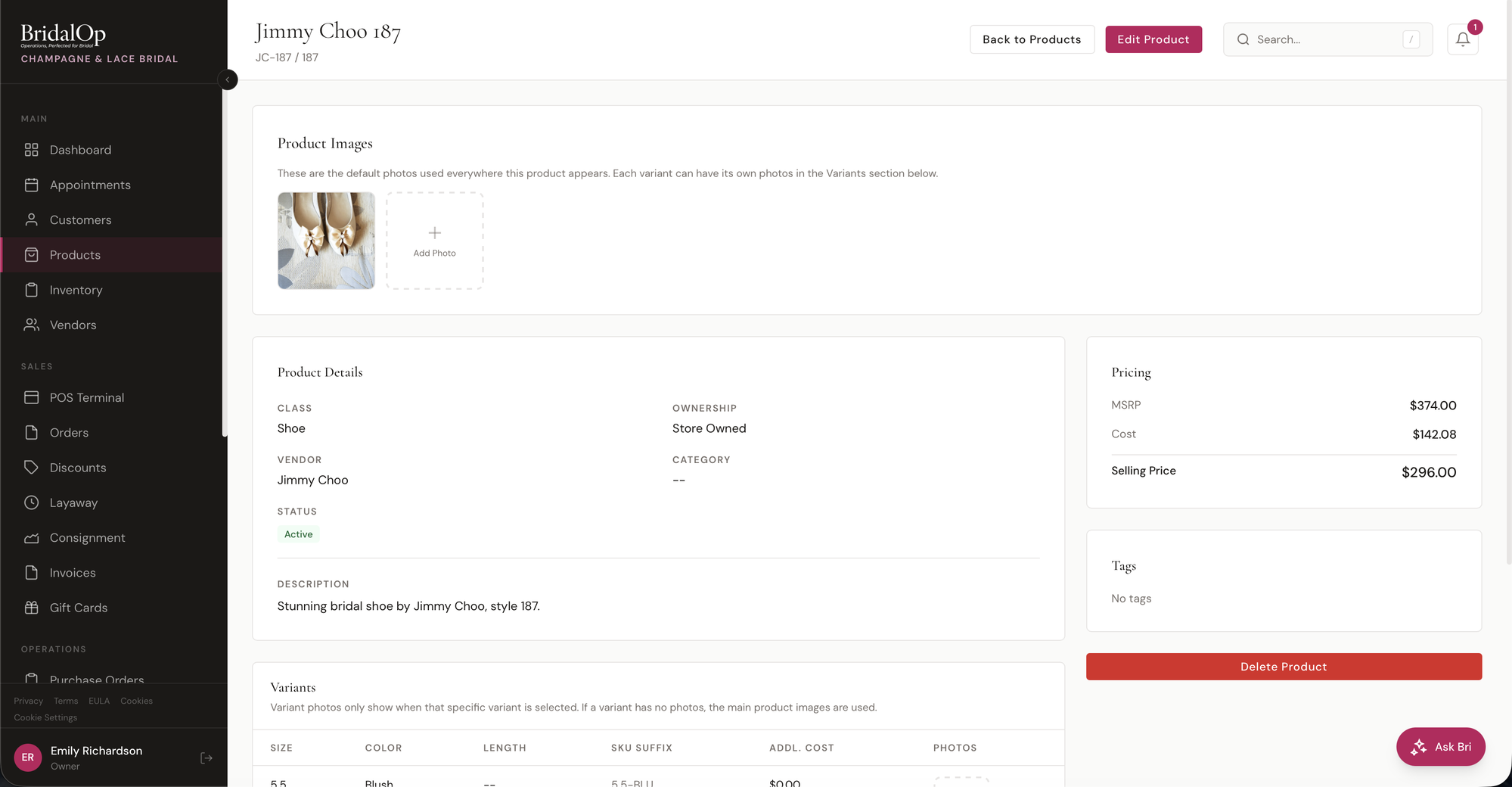
Click any product in the list to open its detail page. The detail page has two tabs:
- Details — all product information, images, variants, inventory, and pricing
- Add-ons — manage which vendor add-ons are assigned to this product
Product Images
The top section shows all product images with an upload tile to add more. These are the default photos used everywhere this product appears — but each variant can have its own photos in the Variants section.
Bulk image upload: the + Add Photos tile accepts multiple files at once. Pick several images from your file picker and BridalOp uploads them in sequence with a Uploading 1/N progress counter. This works on variant photo slots too, not just the main product images.
Photos straight from your phone or tablet. Large photos are resized before they upload, to 2,400 pixels on the longest side, so a photo taken on an iPad goes straight in, and your product pages and website load faster. PNGs stay PNGs, so a transparent background is kept. If a photo still can't be uploaded, like a file that isn't a photo or one over 15 MB, the reason appears under your photos.
Photo order — the first one is the main one. Hover any photo and a drag handle appears in its top-left corner; drag to reorder. The first photo is what the rest of BridalOp reaches for: the thumbnail on the products list, the tile at the POS, the picture on invoice and order lines, and the shot customers see in your lookbook. It carries a small Main badge so you can tell at a glance which one is doing that job.
Uploaded several at once and they came out in the wrong order?
That's the file picker, not BridalOp. When you select several files at once the browser hands them over in whatever order it's sorting by, not the order you clicked them — so a bulk upload usually still needs a drag to get the hero shot first.
Product Details
Shows the product type, ownership, vendor, category, status, and description.
Available Options
When a Palette is set on the product, an Available Options card renders above the Variants table showing the full color set (group colors + extras) and the size chart. This gives staff a quick reference for what's possible without scrolling through every variant. The card is hidden when no palette is configured.
Pricing Sidebar
- MSRP
- Cost
- Selling Price (highlighted)
Sales History Tab
Next to Details and Add-ons, the Sales History tab lists every sale of this product, newest first: date, order number, customer, size and color, quantity, price, line total, order status and who sold it. Four tiles above the list give units sold, revenue, first sale and last sale across all of them. Drafts and voided sales are left out; refunds stay, marked. Sales brought over from a previous system show here too, so a style you've carried for years reads as the full run.
Tags Sidebar
Displays all tags assigned to the product, or "No tags" if none.
Variants Table
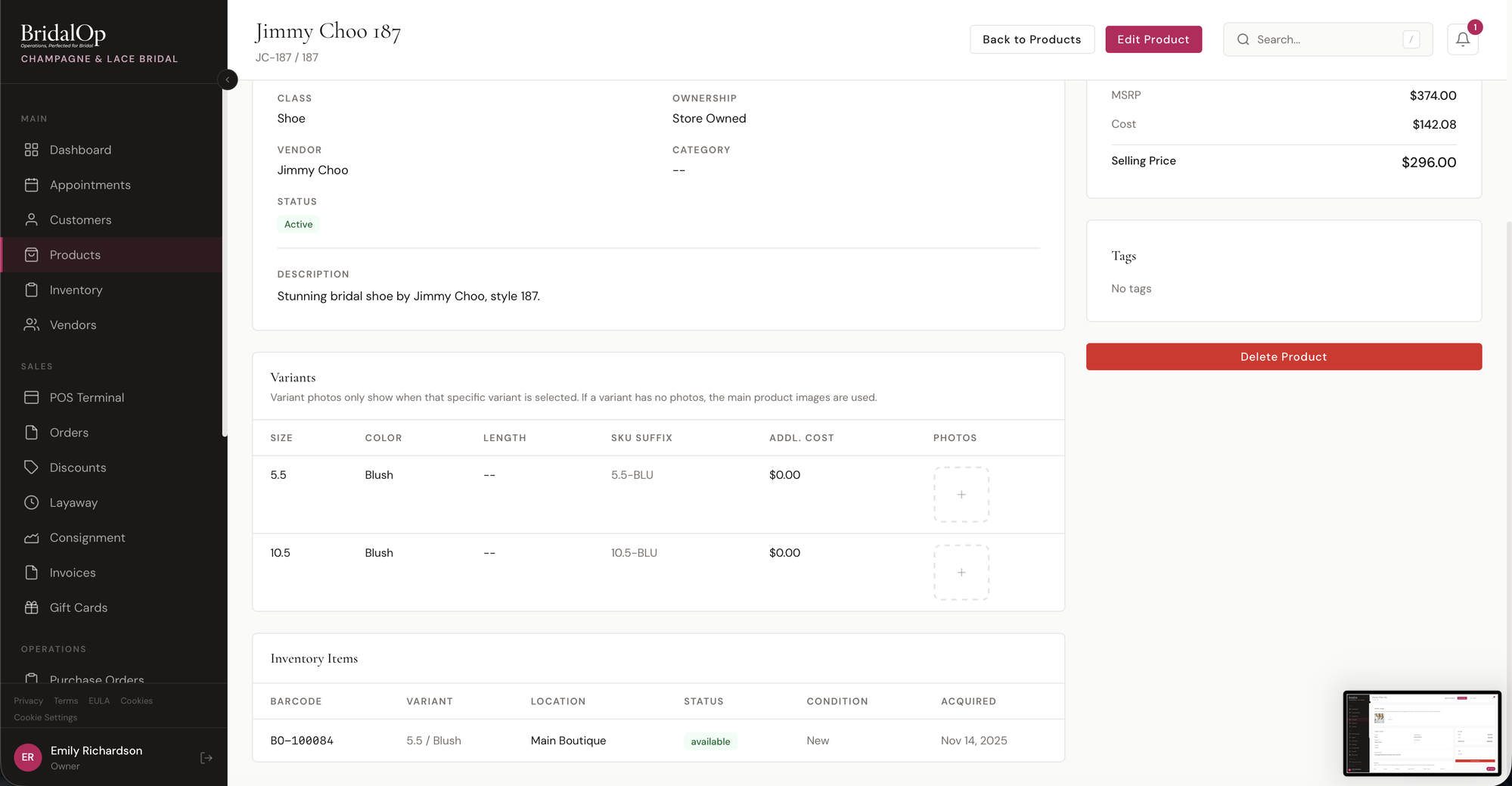
A table of all variants showing Size, Color, Length, SKU Suffix, Additional Cost, Qty on Hand, and Photos. Each variant can carry its own photos, added and reordered the same way as the product's.
Variant photos are narrower than you'd expect
Today they appear on the Special Order screen only — choosing a variant there shows that variant's photo in place of the product's. Your lookbook, the POS, invoices and orders all use the product's photos. If the goal is what customers see, put the photos on the product.
Qty on Hand counts every inventory item attached to this variant whose status is Available. Reserved, Sold, On Order, and Damaged items are excluded.
Inventory Items Table
Shows every individual inventory item linked to this product:
| Column | Description |
|---|---|
| Barcode | Unique barcode (e.g., BO-100084) |
| Variant | Which variant this item is (size / color / length) |
| Location | Boutique location holding the item |
| Status | Available, Reserved, Sold, On Order, Damaged, etc. |
| Condition | New, Floor Sample, or Used |
| Cost | What this particular item cost you |
| Acquired | Date received |
Each item has its own cost, separate from the product's catalog cost, because what you actually paid for a piece can differ with shipping, a vendor discount or a sale. Margin reports use the item's cost when an item is sold.
The Cost column, and the product's cost in the sidebar, are only shown to people who can see costs: owners, managers and accountants by default. See Seeing costs.
Inline editing: each inventory row has an Edit button. Click it and the Status, Location, and Condition cells turn into dropdowns and Cost becomes editable, so you can fill in or correct what an item cost. Adjust them and click Save without leaving the product page. The dedicated Inventory page still exists for bulk operations and the full inventory view.
Actions
- Edit Product — opens the edit form (same as Create with pre-filled data)
- Delete Product — permanently delete the product, all variants, and all inventory items (with confirmation)
Prom Exclusivity
On any product covered by the Prom module, the detail page shows how many schools the dress is spoken for at this season, expanding to the list with the colour and the date it was taken.
This is the surface a consultant uses most: pulling dresses for a Springfield girl, they can see at a glance whether it's worth taking off the rail.
Names are shown as a first name and last initial — enough for staff to have the conversation, never enough to hand out who someone is. The public checker shows no names at all.
Selecting an Inventory Item
When adding a product to a sale, layaway, or special order at the POS, BridalOp opens a Select Inventory Item modal showing all available inventory items for that product.
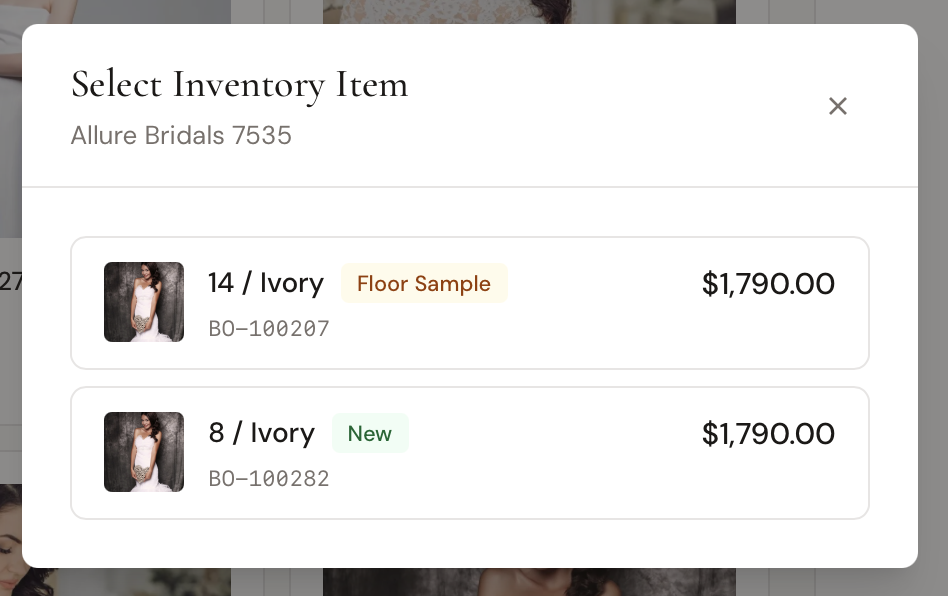
Each item shows:
- Variant — size and color (e.g., "14 / Ivory" or "8 / Ivory")
- Condition badge — Floor Sample (amber) or New (green)
- Barcode — unique barcode (e.g., BO-100207)
- Price — selling price for that specific item
This lets you choose exactly which physical unit you're selling — important when you have multiple of the same variant in different conditions (e.g., a brand new dress vs. a floor sample of the same gown).
Add-ons
Click the Add-ons tab on the product detail page to manage which vendor add-ons are assigned to this product.

The tab shows a two-column layout:
- Assigned Add-ons (left) — add-ons currently on this product, with a Remove button on each row
- Available from {Vendor} (right) — unassigned add-ons from this product's vendor, with an Add button on each row
Click Add to assign an add-on to the product, or Remove to unassign it. Add-ons assigned to a product will appear as options in the POS Terminal when that product is in the cart.
To create new add-ons, go to the vendor's profile and use the Add-ons tab.
Editing a Product
Click Edit Product on the product detail page to update any field. The edit form is identical to the create form, pre-filled with the current values.
When you save, BridalOp:
- Updates the product details
- Adds any new variants you created
- Updates existing variants (matched by ID)
- Deletes any variants you removed