

Appearance
My Profile
Every BridalOp user has a personal profile page where they can update their own contact information, change their time clock PIN, and connect their personal Google Calendar. This page is available to all staff regardless of role — managers, consultants, tailors, and receptionists can all manage their own profile.
Accessing Your Profile
Click your name in the bottom-left corner of the sidebar to open your profile. This works from any page in BridalOp.
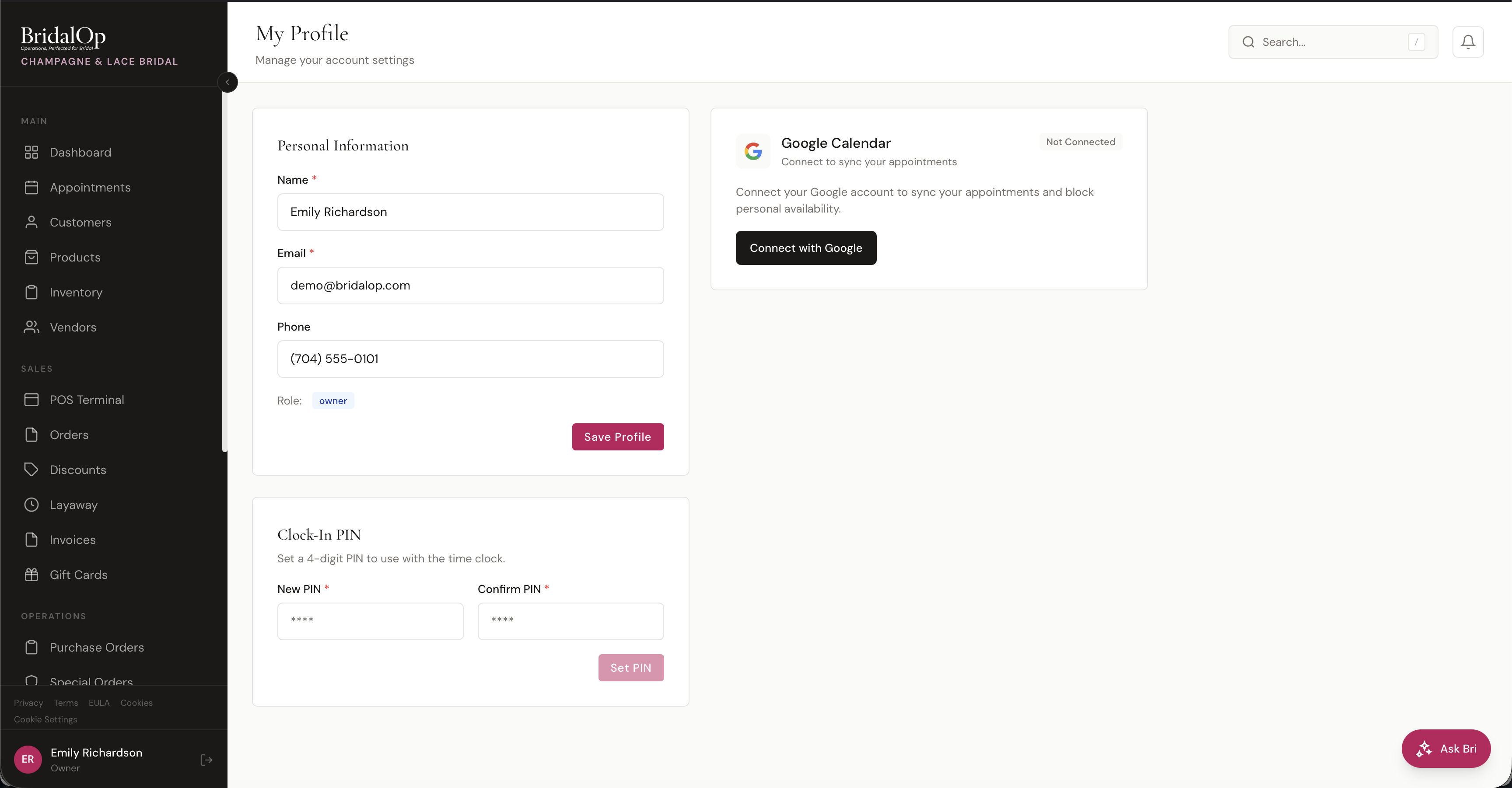
Personal Information
Update your basic contact details:
| Field | Description |
|---|---|
| Name | Your full name as it appears throughout BridalOp |
| Your login email address | |
| Phone | Your contact phone number |
| Role | Your assigned role (display only — only managers and owners can change roles via Staff) |
Click Save Profile to save changes.
Clock-In PIN
Set a 4-digit PIN to use with the Time Clock. This PIN is separate from your login password and is used to clock in and out at a shared device (like a tablet at the front desk).
To set or change your PIN:
- Enter a 4-digit number in the New PIN field
- Enter the same number in the Confirm PIN field
- Click Set PIN
Your PIN is stored securely and is never displayed on screen — even to you. If you forget it, just set a new one.
Connect Google Calendar
You can connect your personal Google Calendar to BridalOp so your appointments sync to a calendar you can view from your phone, watch, or anywhere you check your schedule.
Click Connect with Google to authorize access. You'll be redirected to Google to sign in and approve the connection, then sent back to BridalOp.
TIP
This is a personal connection — separate from your boutique's overall Calendar Sync configuration. Connecting here syncs your appointments to your Google Calendar, ideal for consultants who want to see their schedule on their personal devices.
Once connected, the card shows a Connected status. To disconnect, return to your profile and click the disconnect option on the Google Calendar card.