

Appearance
Customer Portal
The Customer Portal is a self-service area where your customers can log in to view their appointments, orders, invoices, and payment methods — without needing to call or email your boutique. Every BridalOp account includes a customer portal at no extra cost.
Logging In
Customers access the portal via a magic link — no passwords to remember. They enter their email or phone number, and BridalOp sends a secure login link.
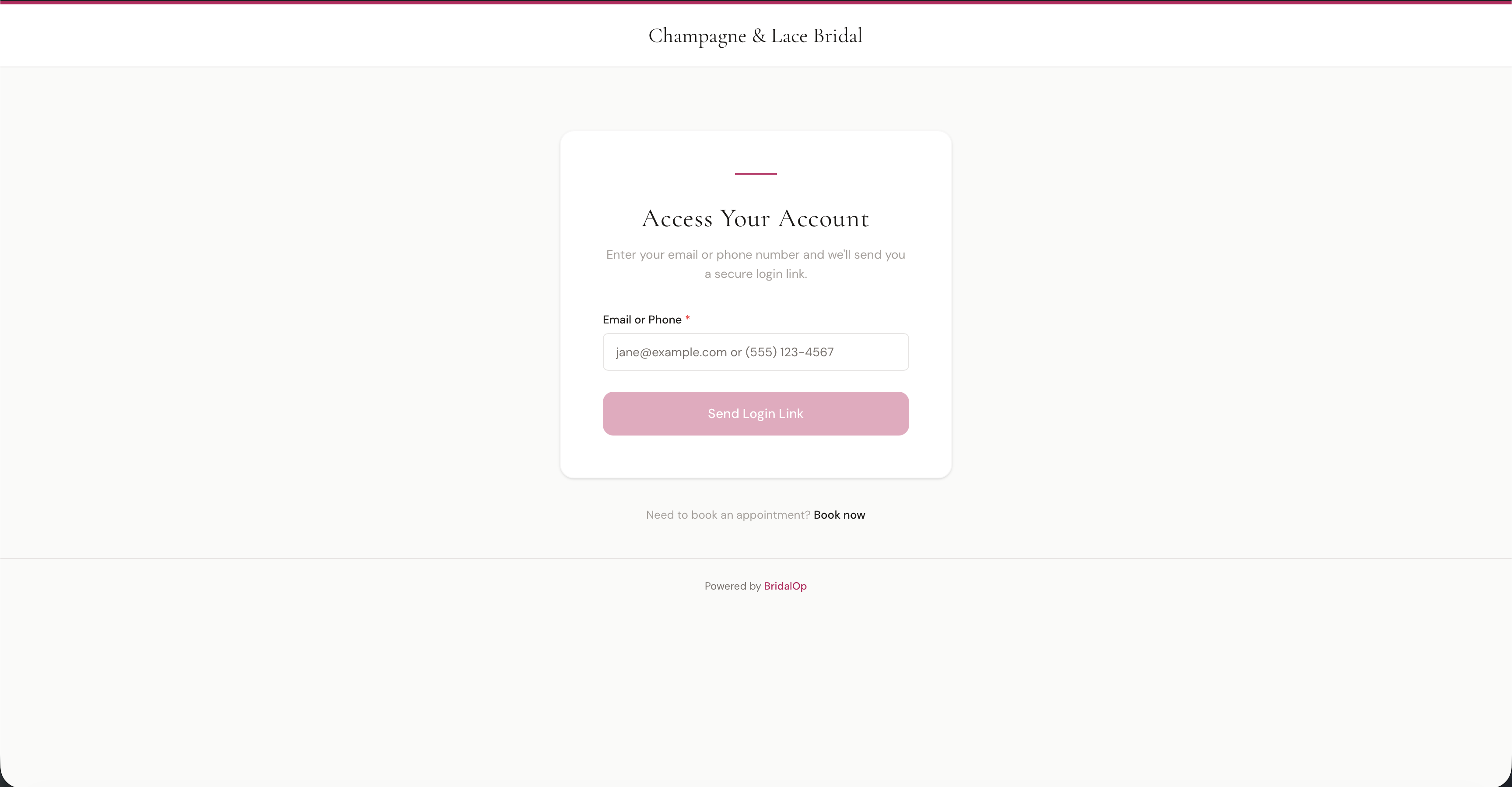
The login page also includes a Book now link that takes customers directly to your public booking portal if they need to schedule an appointment instead.
You can copy your portal link from the Dashboard using the Copy Portal Link quick action.
Dashboard
After logging in, customers see a personalized dashboard with:
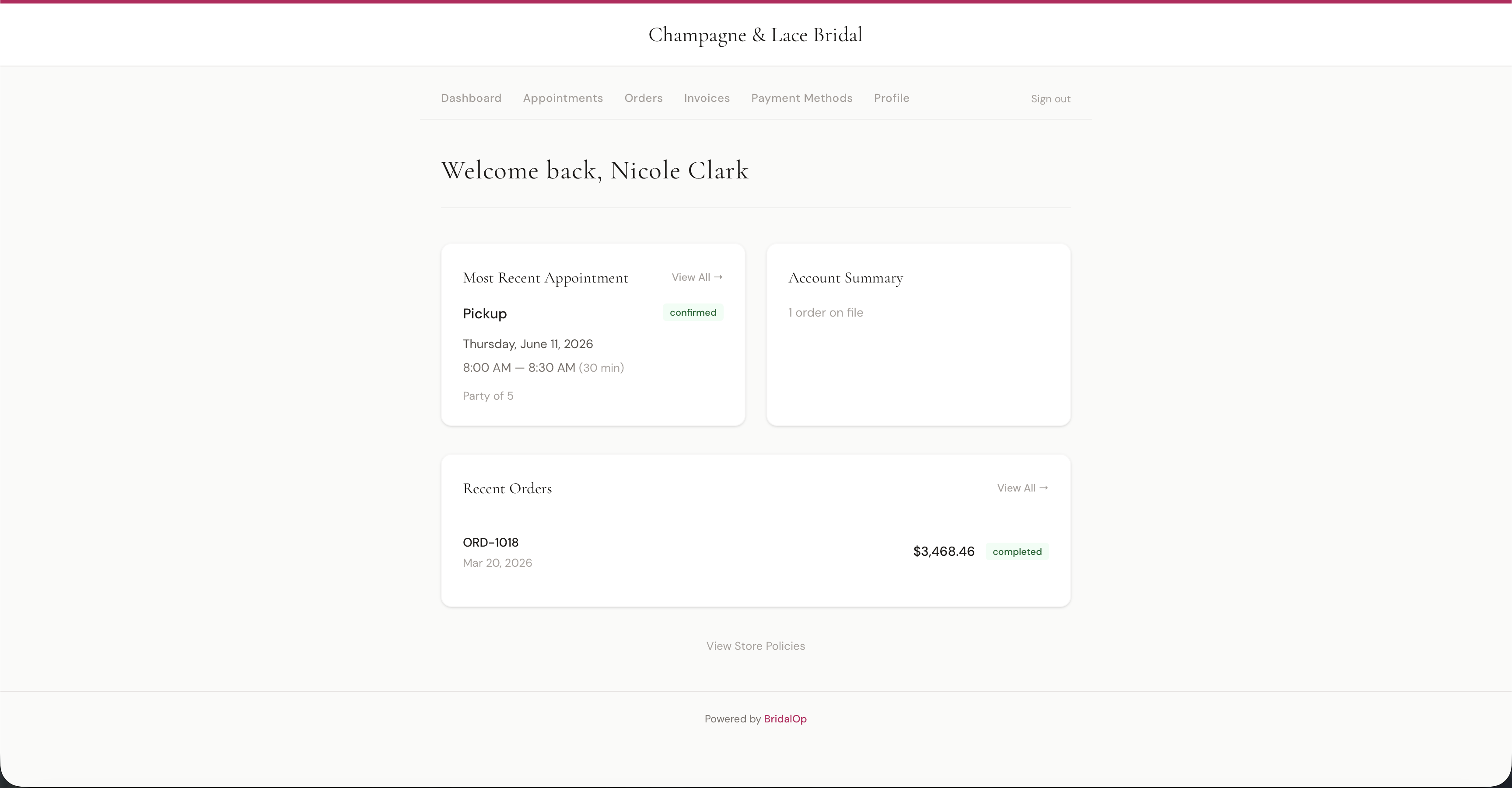
- Most Recent Appointment — the next upcoming appointment with type, date, time, duration, party size, and status badge (confirmed, pending, etc.). Click View All to see all appointments.
- Account Summary — a quick count of orders on file.
- Recent Orders — the latest order with order number, date, total, and status. Click View All to see all orders.
- View Store Policies — link to your boutique's store policies.
Navigation
The portal navigation includes:
| Tab | What It Shows |
|---|---|
| Dashboard | Overview with recent appointment, account summary, and recent orders |
| Lookbook | Browse your product catalog, search, filter, and favorite items |
| Favorites | Saved items from the lookbook with notes |
| Appointments | All upcoming and past appointments |
| Orders | All orders with totals and statuses |
| Invoices | All invoices with balances and payment status |
| Payment Methods | Saved cards on file |
| Profile | Customer's contact information |
Additional tabs may appear under the More dropdown depending on which features are enabled in Customer Portal Settings.
Lookbook
The Lookbook lets customers browse your product catalog directly from the portal — a pricing-free (or pricing-included) showcase of your dresses, accessories, and more.
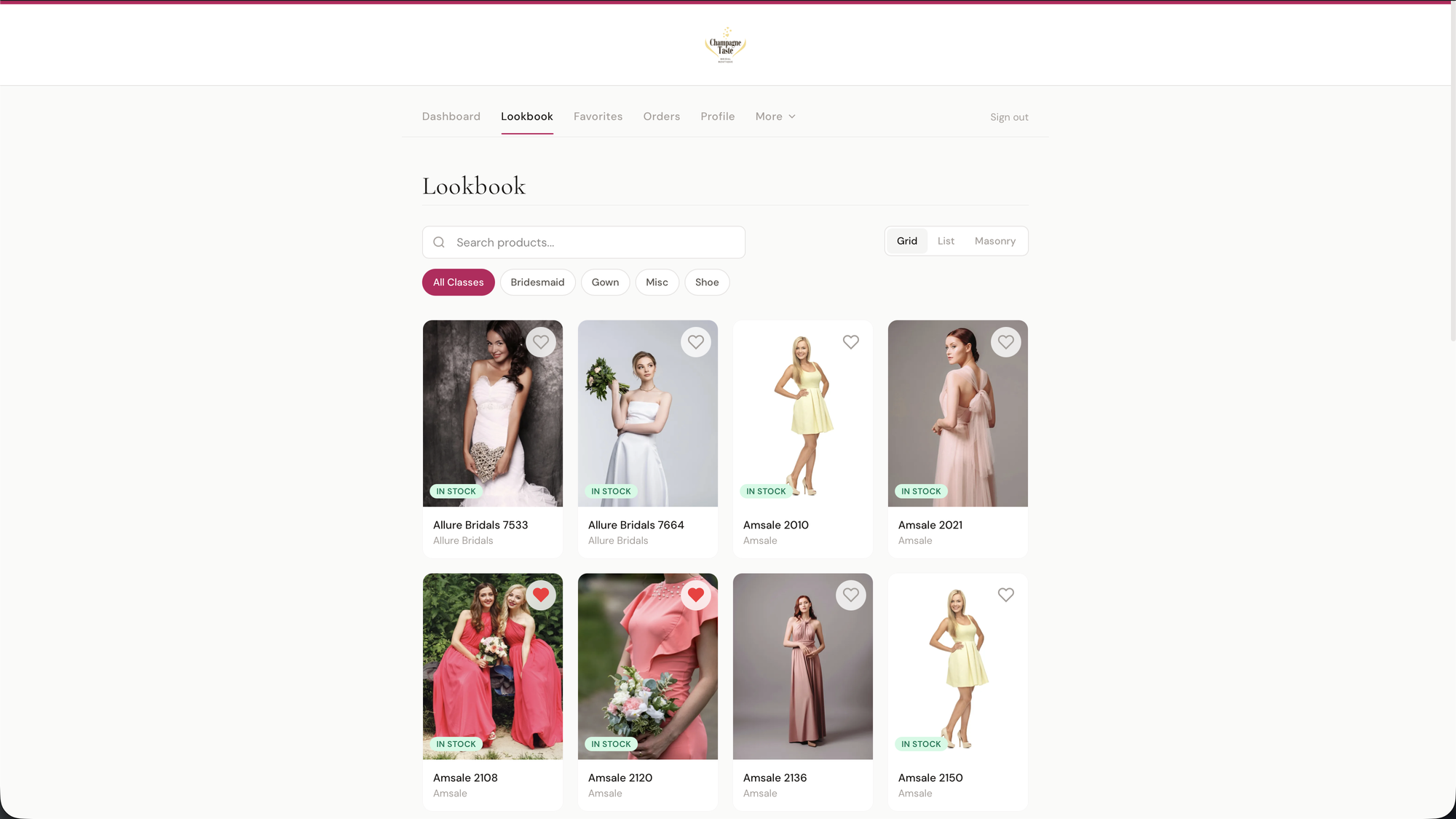
Customers can:
- Search products by name
- Filter by class (All Classes, Bridesmaid, Gown, Shoe, etc.)
- Switch views — Grid, List, or Masonry layout
- Favorite items by clicking the heart icon — favorited items appear with a filled red heart and are saved to their Favorites tab
- View stock status — "In Stock" badges show which items are available (if enabled in Products & Inventory Settings)
What customers see in the lookbook (prices, availability, product titles, filters, search) is controlled by your Products & Inventory Settings. Products must have "Show on Lookbook" enabled to appear.
The lookbook can also be made publicly accessible (no login required) from Products & Inventory Settings — useful for sharing on your website or social media.
Favorites
Items favorited from the Lookbook are saved to the Favorites tab. Customers can review their saved items and add personal notes. Staff can also see these favorites on the customer's Favorites tab in the admin panel.
Appointments
The Appointments page shows all appointments split into Upcoming and Past sections.
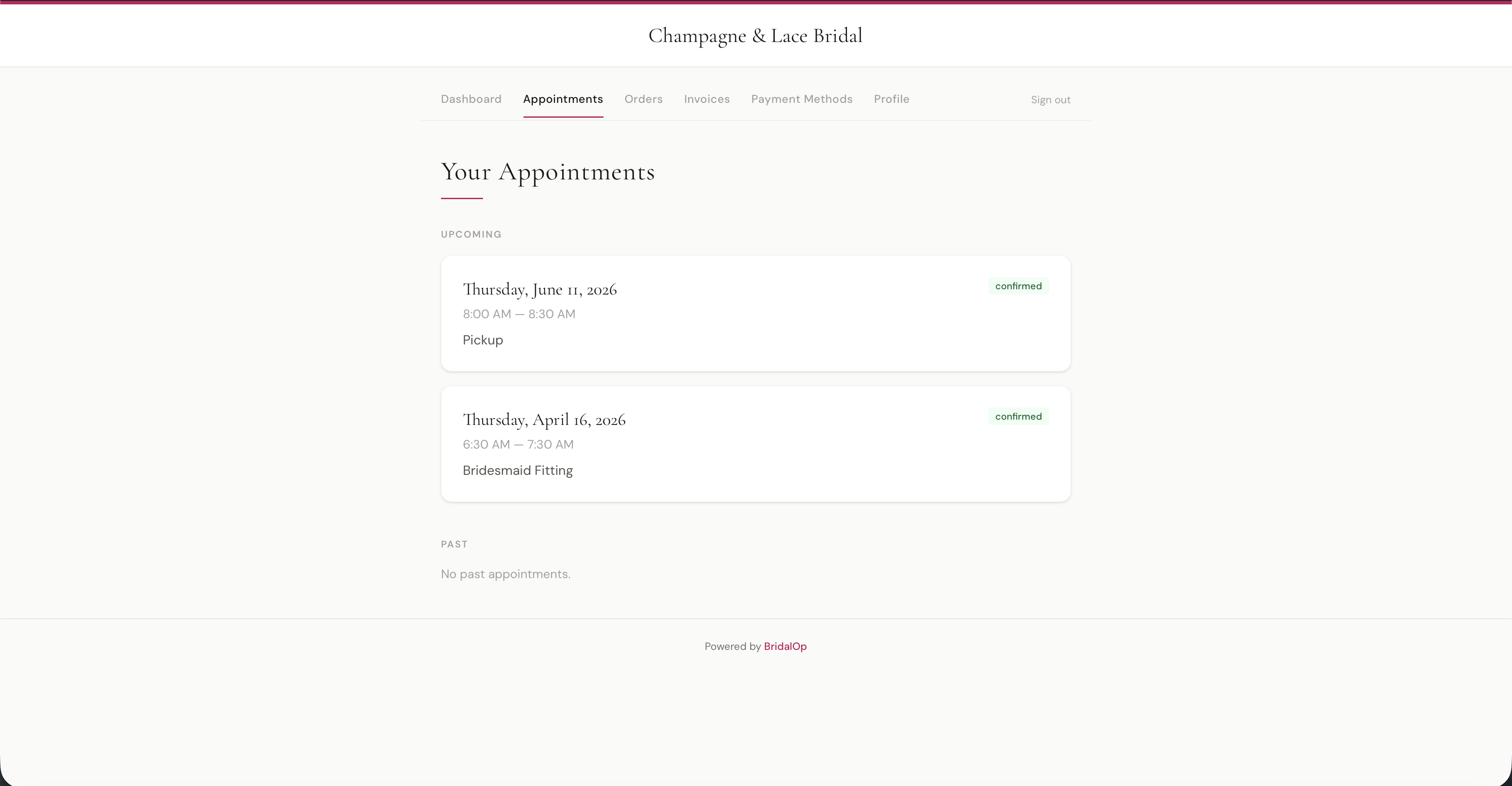
Each appointment card shows the date, time range, and appointment type. Click any appointment to see its full details:
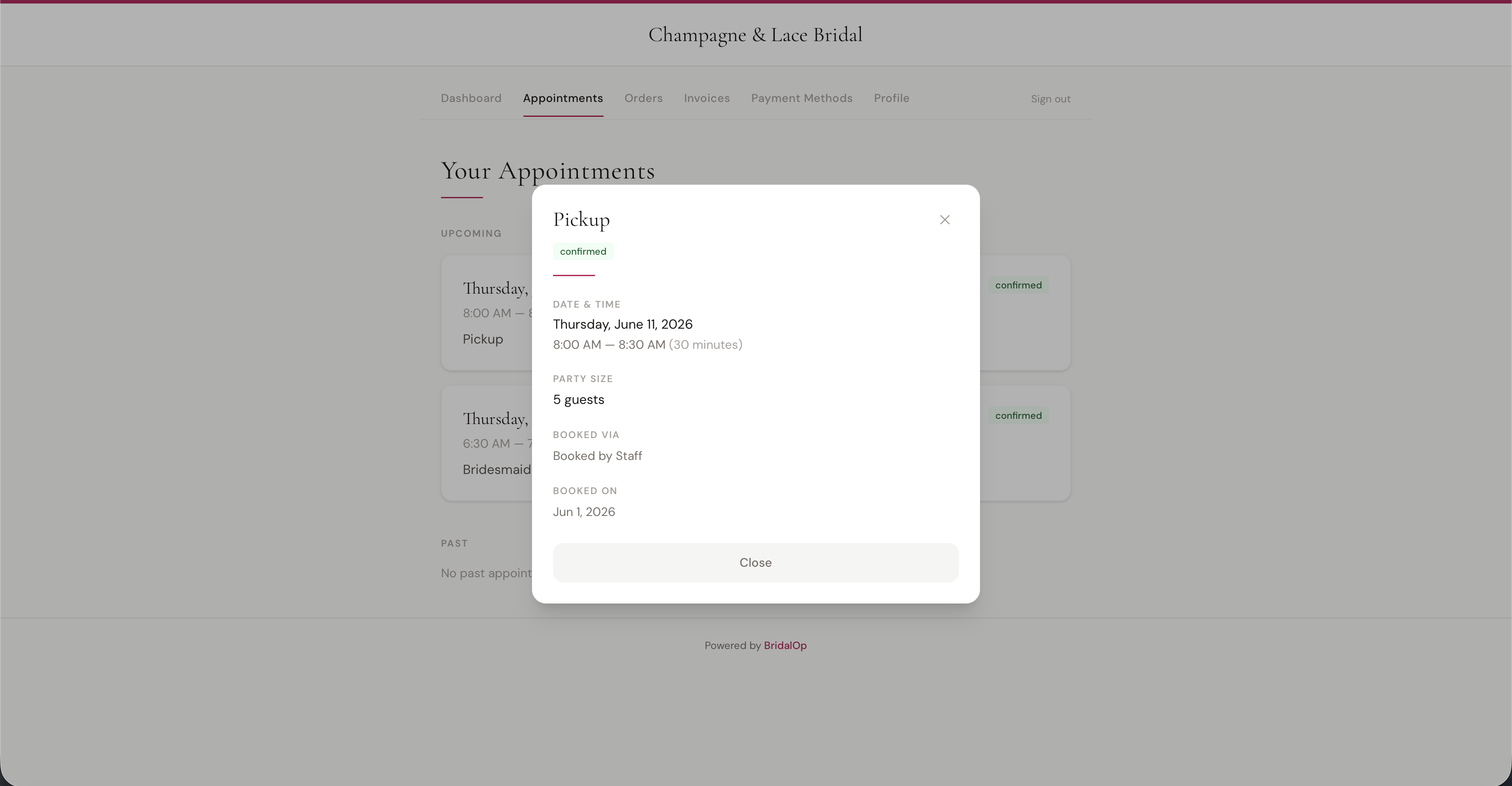
The detail modal shows:
- Appointment type and status badge
- Date and time with duration
- Party size
- How it was booked (by staff or online)
- Date it was booked
Orders
The Orders page lists every order the customer has placed, showing the order number, date, total, and status (completed, active, draft).
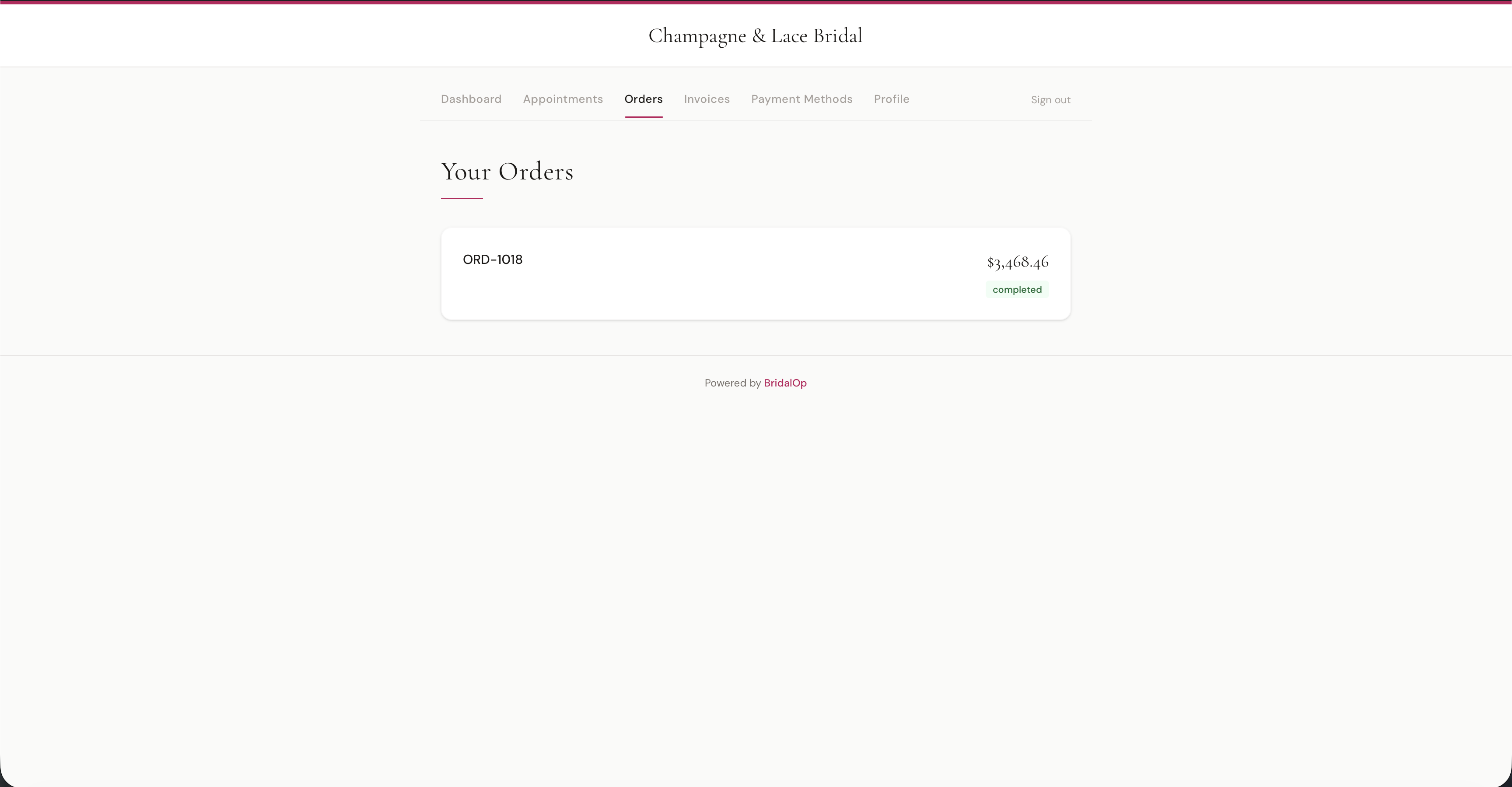
Click any order to see the full breakdown:
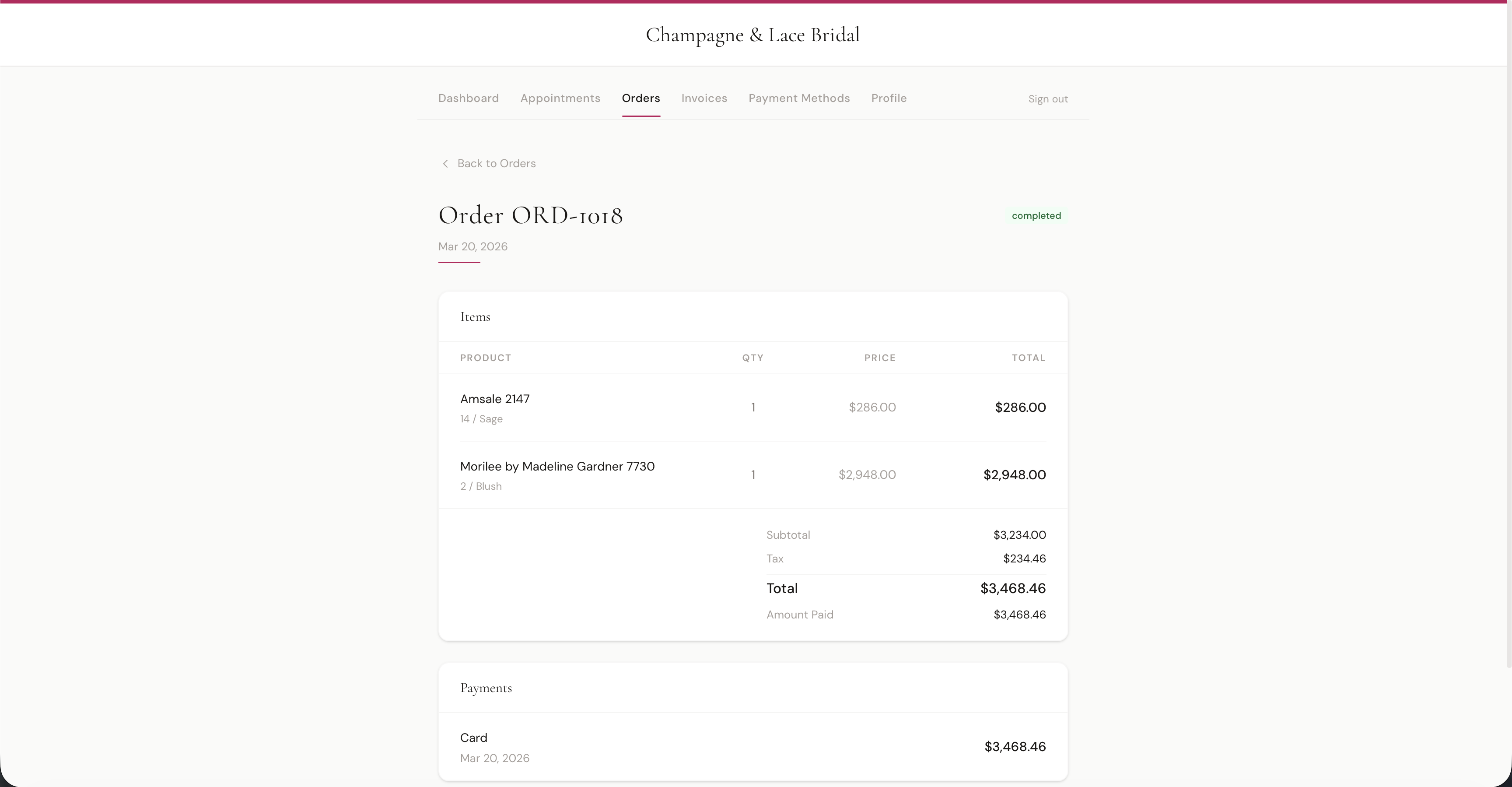
The order detail shows:
- Items — each product with variant, quantity, price, and line total
- Totals — subtotal, tax, and total with amount paid
- Payments — payment method, date, and amount for each payment made
Invoices
The Invoices page lists all invoices sent to the customer, showing invoice number, date, total, amount due, and status (paid, overdue, pending).
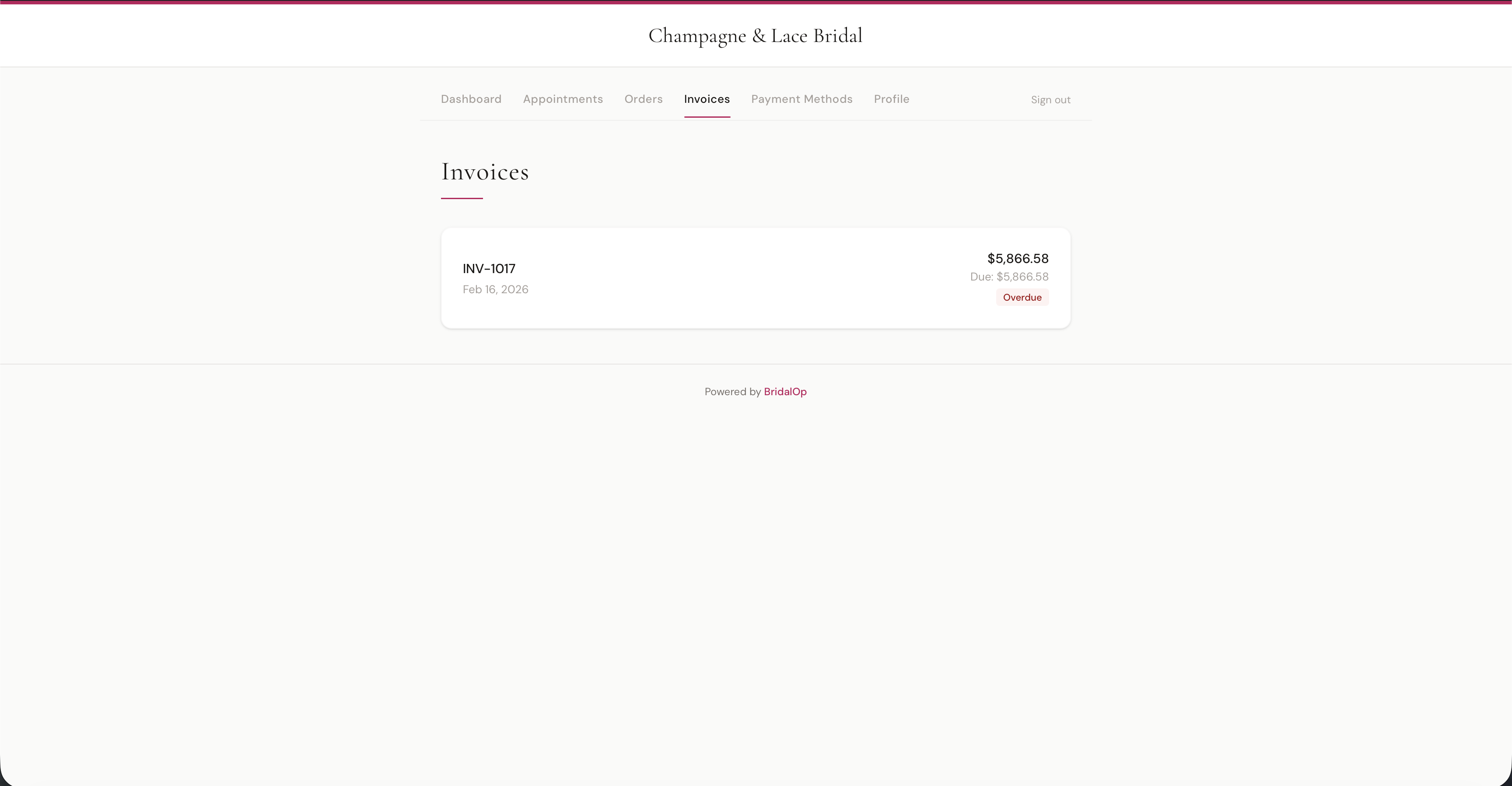
Click any invoice to view it and make a payment:
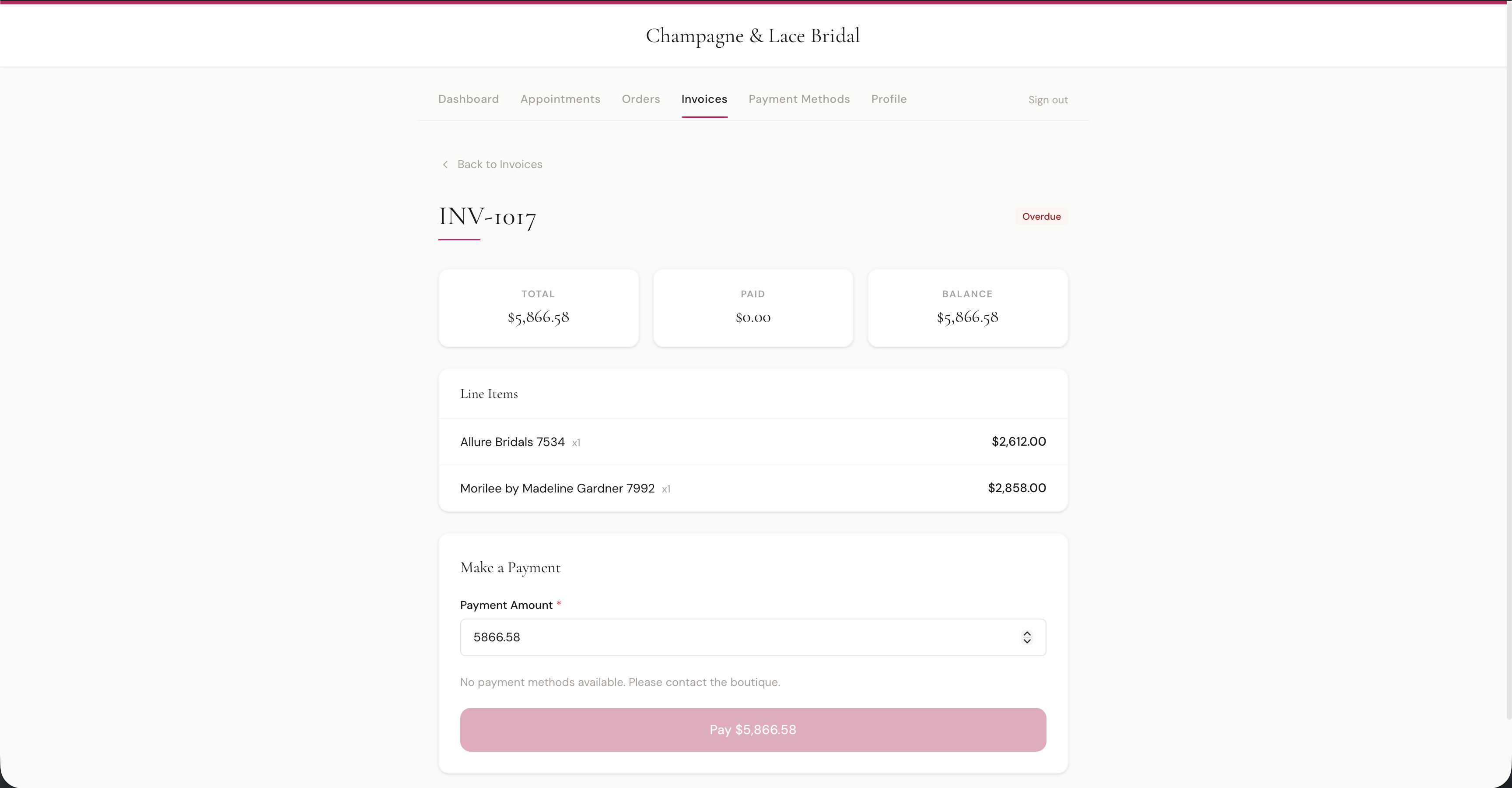
The invoice detail shows:
- Summary cards — Total, Paid, and Balance at a glance
- Line Items — each item with price
- Make a Payment — enter a payment amount and pay directly from the portal using a saved card or new payment method
Payment Methods
Customers can view and manage their saved payment methods (cards on file). Saved cards can be used for invoice payments and automatic layaway charges.
Profile
Customers can view and update their contact information from the Profile tab.
How the Portal Connects to BridalOp
Everything in the customer portal is read-only data from your BridalOp account — there's nothing separate to manage:
- Appointments come from Appointments
- Orders come from Orders (created at the POS)
- Invoices come from Invoices
- Payment Methods are the same saved cards shown on the customer profile
- Store Policies are managed in Settings → Policies, and customers are prompted to acknowledge them on first portal login
Customers receive the portal link in their confirmation emails, or you can share it directly using the Copy Portal Link button on your Dashboard.