

Appearance
Appointments
The Appointments page is your scheduling hub — view, create, reschedule, and manage every appointment from a single screen. It supports both a visual calendar and a sortable list view, with powerful filters, drag-and-drop rescheduling, and time blocking.
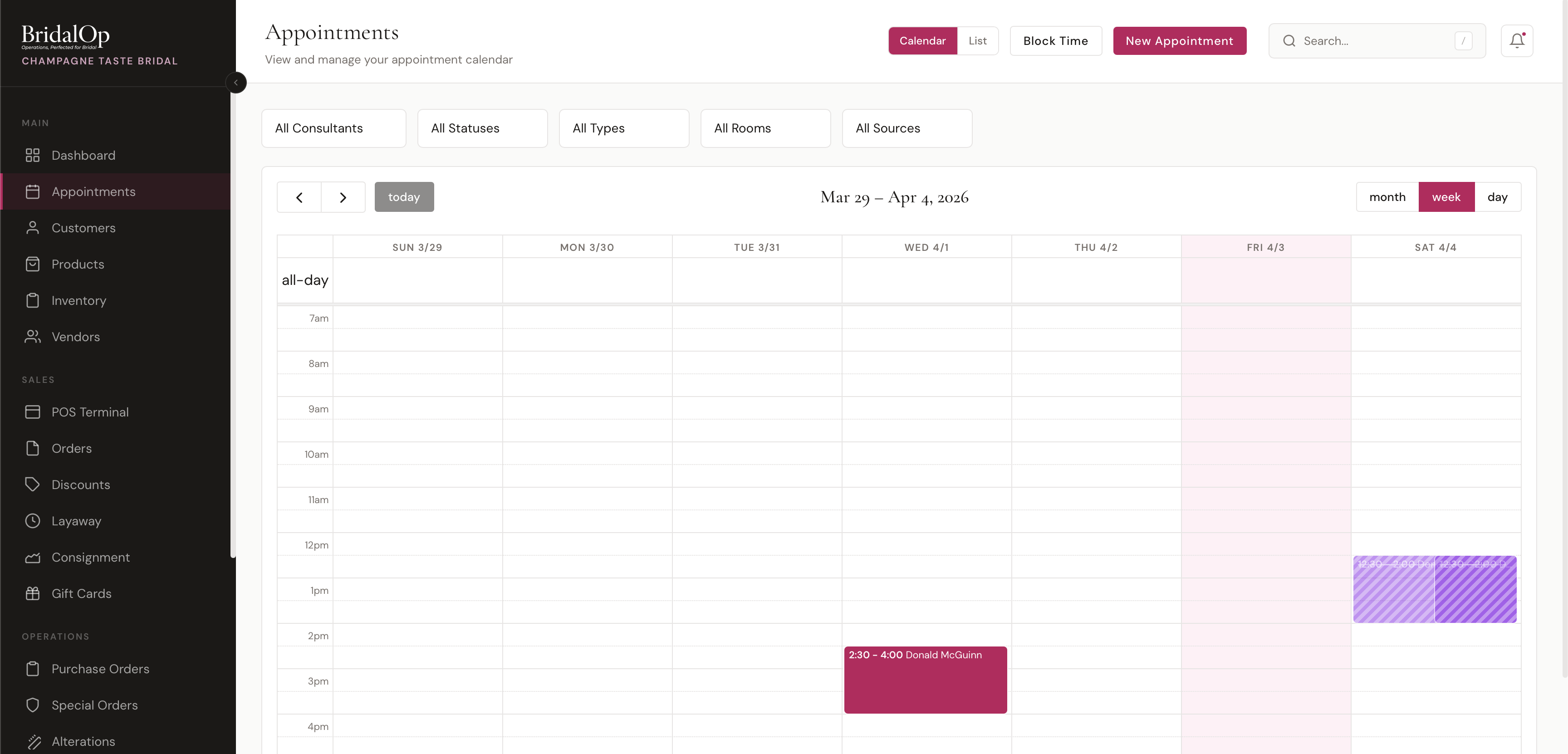
Calendar vs. List View
Toggle between two modes using the buttons in the top-right header:
- Calendar — visual week/day/month grid powered by FullCalendar. Shows appointments as colored blocks with customer names and times.
- List — table layout with columns for date/time, customer, type, consultant, party size, and status. Includes a search bar for filtering by customer name.
Calendar View Modes
Three zoom levels are available via the buttons above the calendar:
| Mode | Shows | Best For |
|---|---|---|
| Month | Full month grid with appointment dots | Seeing overall booking density |
| Week | 7-day time grid (7 AM – 9 PM) | Default view — managing the current week |
| Day | Single day time grid | Detailed view of a busy day |
Navigate between periods using the < > arrows, or jump back with the today button.
Filters
Five filter dropdowns sit above the calendar. All filters combine with AND logic — selecting "Confirmed" status and a specific consultant shows only that consultant's confirmed appointments.
| Filter | Options |
|---|---|
| Consultants | All Consultants, or a specific team member |
| Statuses | All, Pending, Confirmed, Arrived, In Progress, Completed, No-Show, Cancelled |
| Types | All, or a specific appointment type (e.g., Bridal Fitting, Bridesmaid, etc.) |
| Rooms | All, or a specific fitting room |
| Sources | All, Public Booking, Staff, Phone, Walk-in |
Creating Appointments
New Appointment Button
Click New Appointment in the header to open the full creation form. Fields include:
- Customer — search existing customers or create a new one inline (first name, last name, email, phone)
- Appointment Type — selects from your configured types, which determines duration, available rooms, and custom fields
- Date — date picker
- Time Slot — available slots are calculated based on business hours, existing bookings, room availability, and calendar blocks. Displayed as a grid of 30-minute intervals.
- Consultant — assign a team member or leave unassigned
- Fitting Room — filtered by appointment type restrictions and party size capacity
- Party Size — up to the type's maximum
- Notes — customer-facing notes
- Internal Notes — staff-only notes
- Custom Fields — dynamic fields configured per appointment type (text, phone, number, select, checkbox, file upload, address, etc.)
Click and Drag (Calendar)
Click and drag on any empty area of the calendar to select a time range. This opens the Block Time modal pre-filled with the selected times — useful for quickly blocking off lunch breaks, meetings, or closed hours.
Block Time
Blocks represent unavailable time on the calendar. Use them for lunch breaks, staff meetings, cleaning time, or anything that shouldn't be booked over.
Click the Block Time button in the header or click-and-drag on the calendar to create one.
Block Time Fields
| Field | Description |
|---|---|
| Title | Name for the block (e.g., "Lunch Break") |
| All Day | Toggle for full-day blocks |
| Start / End | Date and time range |
| Assign To | A specific consultant or "All Staff" |
| Color | Custom color with hex picker |
| Repeat | None, Daily, Weekly, Biweekly, or Monthly (generates up to 12 future instances, max 90 days) |
| Notes | Optional internal notes |
Blocks appear on the calendar with a dashed border and slightly transparent styling to distinguish them from appointments. They can be dragged to reschedule and clicked to edit or delete.
Drag and Drop Rescheduling
Appointments and blocks can be moved by dragging them on the calendar:
- Appointments — dragging opens a confirmation modal showing the old time (with strikethrough) and the new time. You can check "Notify customer about this change" to automatically send a rescheduling email before confirming.
- Blocks — dragging updates immediately without confirmation.
- Restrictions — completed and cancelled appointments cannot be dragged.
Appointment Detail (Slide-Over Panel)
Click any appointment on the calendar or in list view to open the detail panel on the right side. From here you can:
- Change status — select any status from the dropdown
- Reschedule — pick a new date and time slot
- Reassign consultant or fitting room
- Update party size
- Edit notes (customer-facing and internal — the Internal Notes field doubles as a running notes pad for the checklist)
- Tick checklist tasks — see Checklist below
- Edit custom field responses
- Cancel the appointment — trash icon button at the bottom
The panel also displays the appointment source (Public Booking, Staff, Phone, Walk-in) as a read-only badge.
Client Confirmation & Who to Call
Under the customer's name, the slide-over shows a status line that's distinct from the booking status — it reflects what the client has done via their manage link:
- ✓ Confirmed by client · {date/time} once the customer taps Confirm in their confirmation email/manage page
- Not yet confirmed by client when they haven't confirmed yet
- Cancelled by client · {date/time} when the appointment was self-cancelled (the "by" attribution shows who cancelled)
The same "who's still tentative" idea powers the Dashboard's Needs Confirmation list, which surfaces the customer's phone number so staff know who to call.
Rescheduled Indicator
When a client self-reschedules through their manage link, an amber Rescheduled pill appears on the slide-over — showing the time it was moved from — so staff can see the appointment was moved (and that any earlier confirmation no longer applies), not just that it's back to pending. Client self-reschedules also drop an in-app notification and fire the appointment.rescheduled automation trigger.
Possible Duplicate Customer (Name-Conflict Flagging)
When a public booking comes in under an email that matches an existing customer but with a different name (e.g. a bride booking on her own email but for her mother), BridalOp does not silently merge or rename the customer. Instead it flags the appointment and the slide-over shows a Possible duplicate customer prompt:
- Same person — keep — keeps the appointment on the existing customer as-is.
- Create separate customer — splits the booked name off into a new customer that carries over the shared email/phone plus the event details (wedding date, source, address, assigned consultant), and reassigns this appointment to them.
Either choice clears the flag. This puts the judgement call in staff hands rather than guessing.
Booking Answers
For appointments created from the public booking page, the slide-over shows a read-only Booking Answers summary — the profile-field and custom-question responses the customer submitted at booking, plus their notes. It's a quick recap of what the client told you when they booked, without hunting through the customer profile. (On-booking profile fields and which questions surface here are configured in Booking Settings.)
Save Card on File & Charge Cancellation Fee
When staff create an appointment, they can capture a card on file for the customer even when the appointment type is free (no deposit) — useful for holding a card against no-shows on consultations. Whenever a deposit or full payment is taken, the card is saved automatically.
Once an appointment is Cancelled or No-Show, a Charge cancellation fee action appears on the slide-over (it reads Charge no-show fee on a no-show).
If you've set fee amounts under Cancellation & No-Show Fees, the box offers the figure your own policy calls for — "Use $100.00 — your no-show fee", or "cancelled inside 24 hours" — as a button. It doesn't fill it in and charge it for you: your team are the ones who know when it was your fault rather than hers.
Staff enter or accept a dollar amount and click Charge; BridalOp charges the customer's saved card (Stripe or Square, per your gateway) and records it as a Payment on the appointment so it shows on the client's account and in revenue reports. If no card is on file, the action prompts staff to add one on the customer's profile (Cards tab) first.
Updating her categories when you complete an appointment
If you use customer categories, marking an appointment Completed and clicking Save Changes asks whether to update the client's categories, for example from "Bride - Booked Appt" to "Bride - Purchased Here" or "Bride - Not Purchased." Her current categories are already selected, and the box says whether she made a purchase today, so it's easy to pick the right one. Tap categories to add or remove them, then click Save Categories, or Skip to leave them as they were.
Marking a no-show
If you charge a no-show fee, setting an appointment to No-Show and clicking Save Changes doesn't charge it straight away. A box opens first, saying exactly what will be charged and to which card:
Marking this appointment as a no-show will charge Victoria Bingham a $100.00 no-show fee on the Visa ending in 3504.
- Yes, charge the fee marks the no-show and charges the card.
- Mark no-show, don't charge marks the no-show without charging anything.
- Go back changes nothing, for when you picked the wrong status. No-Show sits right next to Completed in the menu.
The box only appears when a fee would actually be charged: the no-show fee is on, the client has a card on file, and she hasn't already been charged a fee for this appointment.
If a fee was charged by mistake, an owner or manager can refund it from the client's Payments tab.
Checklist
When an appointment is created from a type that has a Checklist Template assigned, a Checklist section appears on the slide-over with each task as a row.
- Tick a task → BridalOp stamps the row with the staff member's first name + a timestamp (e.g., "Sarah · 2:14 PM")
- Untick → removes the stamp
- Activity log → every tick and untick is written to the appointment's activity log so you can audit who did what and when
The tasks come from the template — adding or removing tasks on the template affects future appointments. Completions already recorded on past appointments are preserved even if the template later changes.
Use the appointment's Internal Notes textarea for any free-form running notes that don't fit the structured task list.
Appointment Statuses
| Status | Color | Meaning |
|---|---|---|
| Pending | Amber | Awaiting confirmation |
| Confirmed | Green | Confirmed and scheduled |
| Arrived | Rose | Customer has arrived |
| In Progress | Rose | Appointment is happening now |
| Completed | Green | Finished successfully |
| No-Show | Red | Customer didn't show up |
| Cancelled | Gray | Appointment was cancelled |
Visual Indicators on Calendar
- Cancelled appointments show diagonal stripe pattern with reduced opacity
- No-Show appointments appear at 40% opacity
- Each appointment is color-coded by its appointment type
Color Coding
Appointments inherit their color from their appointment type. The default color is rose (#BE185D) if no type color is set. In list view, a colored dot appears next to the type name.
Day-of-Week Restrictions
Appointment types can be restricted to specific days of the week using the Available Days setting in Booking Settings. For example, you might only offer Bubbly Appointments on Saturdays, or restrict Bridesmaid Fittings to weekdays.
- Select which days (Mon–Sun) the appointment type is available
- Leave all days unchecked to make it available every day
- Restricted days are greyed out on the customer-facing booking calendar
- Also enforced server-side, so the restriction can't be bypassed
Availability & Slot Calculation
When creating or rescheduling, available time slots are calculated automatically based on:
- Business hours — your configured open/close times per day of week
- Holidays — dates marked as closed return no slots
- Existing bookings — occupied rooms are excluded
- Calendar blocks — "All Staff" blocks remove those time slots entirely
- Room restrictions — only rooms that allow the appointment type and accommodate the party size are considered
- Duration + buffer — the appointment type's duration and buffer minutes determine slot length
- Day-of-week restrictions — appointment types with Available Days configured are only shown on those days
Same-Day Staff Bookings
The Minimum booking notice (lead time) only applies to the public booking page. When staff create or reschedule an appointment from the calendar, the lead-time window is not enforced — the date picker's floor is today, so staff can book same-day for walk-ins and phone bookings even if online booking requires, say, 24 hours' notice. Past times earlier in the current day are still filtered out.
Public Booking Portal
Customers book online through your public booking link (see Booking Settings). The flow walks them through a few short steps:
- Pick a location — only shown if you have multiple locations. Per-location booking links skip this step entirely.
- What are you here for? — only shown when at least one Appointment Category exists. Brides pick a category first (e.g., Bridal, Bridesmaid, Service Visits) and then only see the appointment types in that category. Uncategorized types surface under a synthetic Other bucket.
- Pick an appointment type — only types with Show on public booking page enabled are listed. Types marked Staff only are skipped here even though staff can still create them manually from the calendar.
- Pick a date and time — driven by business hours, fitting rooms, day-of-week restrictions, and any Appointment Conditions on the type.
- Customer details + custom questions — including any conditional fields configured under Custom Booking Questions.
- Payment — required when the type has a Deposit to Book; charged via your connected payment gateway.
If every appointment type is hidden from the public booking page (all toggled to staff-only), the page falls back to an empty-state message: "Online booking is currently unavailable — Please call the boutique to book your appointment. We'd love to hear from you."
After booking, customers can manage their appointment via the unique manage link in their confirmation email — no login required. From the customer portal they can also:
- View their upcoming and past appointments
- See appointment details (date, time, type, location, deposit status)
- Confirm their appointment (recorded as "Confirmed by client" with a timestamp on the slide-over)
- Reschedule or cancel via the manage link
When a client self-cancels or self-reschedules, staff aren't left in the dark: the action posts an in-app notification (bell + activity feed), records who and when on the appointment, and can trigger the opt-in owner/manager email alerts. A self-reschedule also clears any prior confirmation and stamps the slide-over's Rescheduled indicator. See Client Confirmation & Who to Call for how all of this surfaces on the slide-over.
Appointments booked through the portal appear on your calendar with a Public Booking source badge.
Applying an Offer Code
When you book an appointment for someone, an offer code field sits alongside the payment options. Type a code your boutique has set up and the fee drops before anything is charged or invoiced.
These are staff-only — a customer can't enter one on your public booking page. They're for the phone call: a warm lead you've rung, a special rate you don't want advertised.
If the code can't be used you'll be told why — expired, switched off, already used its full number of times, or not a code at all — rather than the booking quietly going through at full price.
Set them up under Booking Settings → Offer codes, and see Appointment Offers for which ones are actually working.
Prom Appointments
When the Prom module is on and the customer has a school on her record, the appointment carries her school, her year, and a count of how many dresses are unavailable to her this season.
That's there so the rail can be pulled before she walks in, which is the difference between the module being useful and being paperwork.
An appointment type can be marked as a prom appointment under Booking Settings. Doing so makes the public booking form ask for her school, year and prom date — the cheapest place to get a school, and the only one that happens before she's standing in your shop.