

Appearance
Consignment Settlements
Track and manage payouts to your consignment vendors. When consignment items sell through the POS, BridalOp tracks them automatically. When it's time to pay a vendor, generate a settlement that calculates the revenue split for every item sold during a given period.
Settlement List
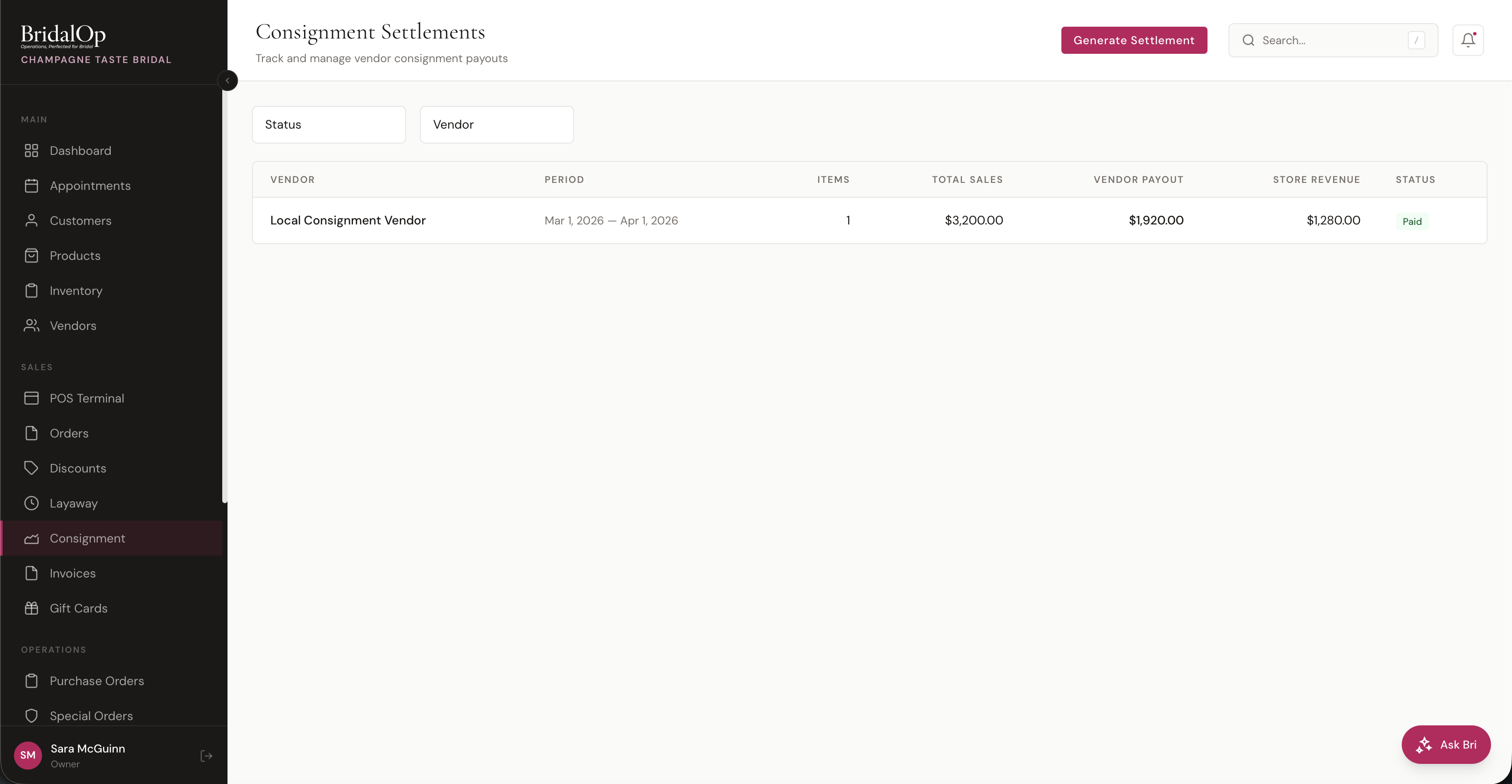
| Column | Description |
|---|---|
| Vendor | Consignment vendor name |
| Period | Date range for the settlement |
| Items | Number of consignment items sold |
| Total Sales | Combined sale price of all items |
| Vendor Payout | The vendor's share |
| Store Revenue | Your boutique's share |
| Status | Draft, Finalized, or Paid |
Filter by status (Draft, Finalized, Paid) or vendor to narrow the list.
Generating a Settlement
Click Generate Settlement to create a new consignment payout.
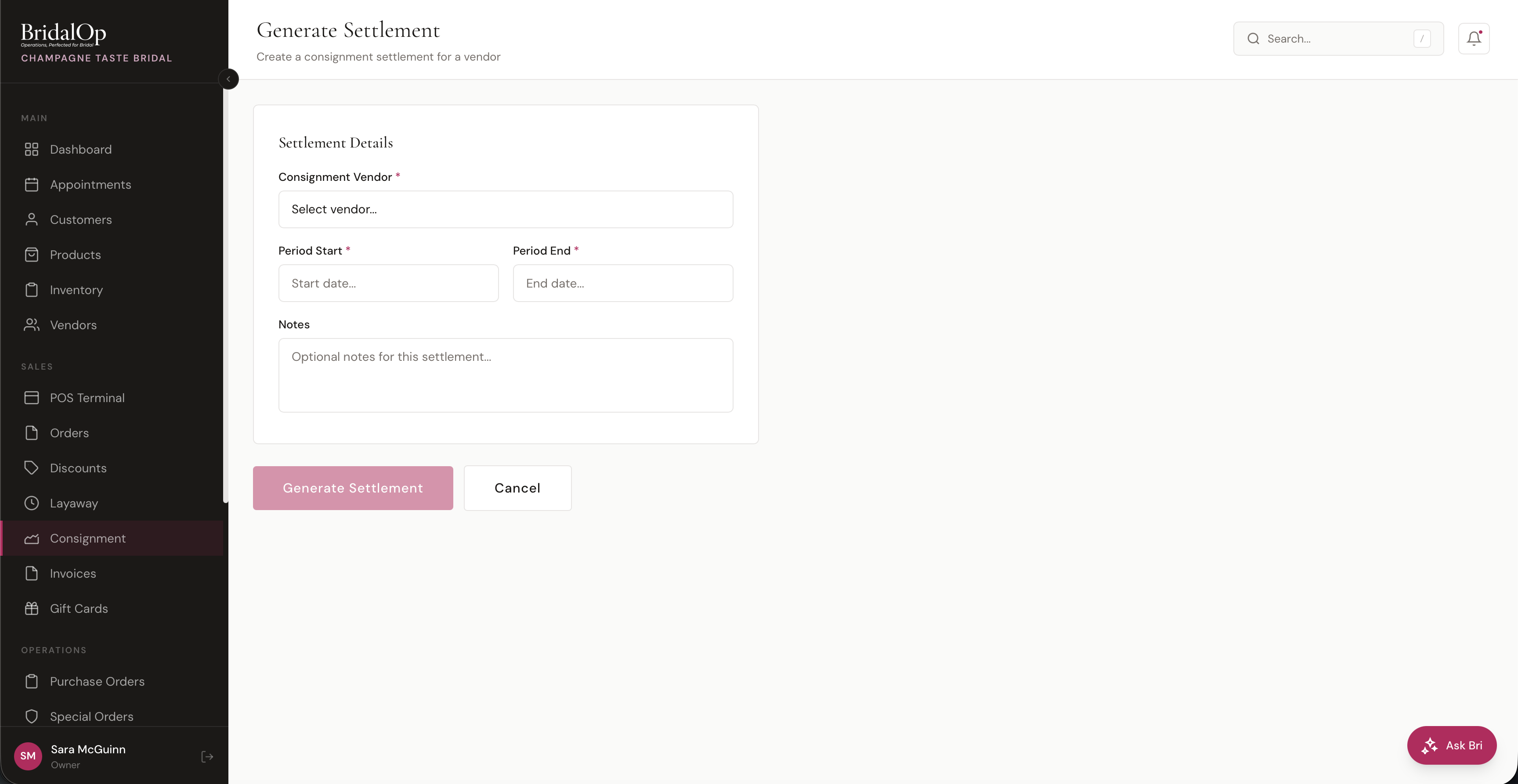
| Field | Required | Description |
|---|---|---|
| Consignment Vendor | Yes | Select the vendor to settle with |
| Period Start | Yes | Start of the settlement period |
| Period End | Yes | End of the settlement period |
| Notes | No | Optional notes about this settlement |
When you click Generate Settlement, BridalOp automatically finds all consignment items from that vendor that:
- Were sold in completed orders during the selected period
- Haven't already been included in a previous settlement
Each qualifying sale becomes a line item in the settlement with the revenue split calculated automatically.
Settlement Detail
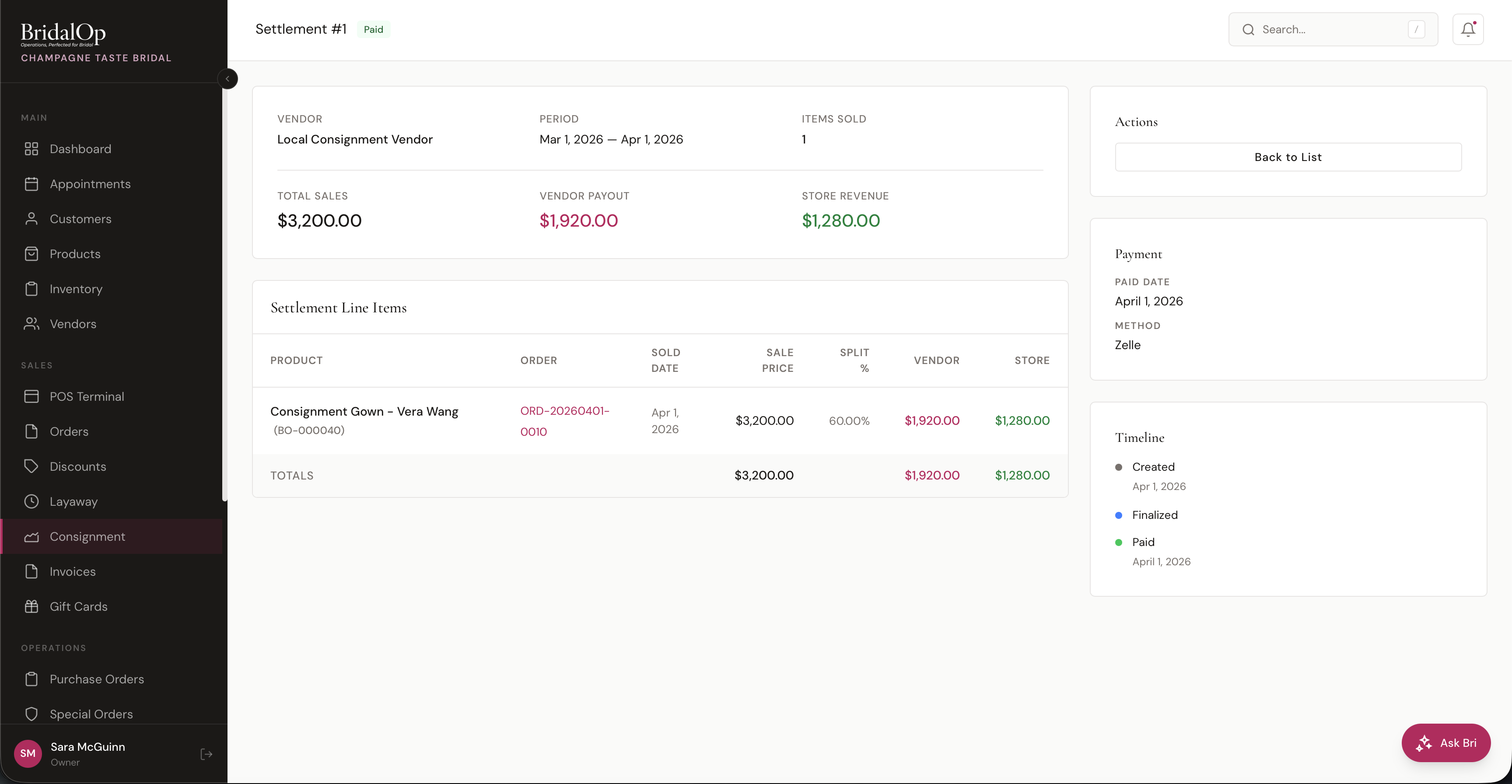
Click any settlement to view its full breakdown.
Summary
The top card shows the vendor name, settlement period, items sold, and the financial breakdown:
- Total Sales — combined sale price of all items
- Vendor Payout — the vendor's share (rose)
- Store Revenue — your share (green)
Settlement Line Items
A detailed table of every consignment item included in this settlement:
| Column | Description |
|---|---|
| Product | Product name and barcode |
| Order | Linked order number (clickable) |
| Sold Date | When the item sold |
| Sale Price | What the item sold for |
| Split % | Revenue split percentage for this item |
| Vendor | Dollar amount going to the vendor |
| Store | Dollar amount kept by your boutique |
A totals row at the bottom sums the sale price, vendor amount, and store amount.
How the Split Works
The split percentage is determined per product. When you set up a consignment product, you can assign a custom split — otherwise it falls back to the vendor's default split, and then to the global default in Settings > General > Consignment.
For each line item:
- Vendor Amount = Sale Price x Split %
- Store Amount = Sale Price - Vendor Amount
Payment (Sidebar)
Once a settlement is marked as paid, the sidebar shows:
- Paid Date
- Method — Digital Check, Venmo, Zelle, Cash App, or PayPal
- Reference — check number or transaction ID (if provided)
Timeline (Sidebar)
Tracks the settlement's progression:
- Created — when the settlement was generated
- Finalized — when it was locked and ready for payment
- Paid — when the vendor was paid
Settlement Workflow
Settlements follow a three-step process:
| Status | Meaning | Available Actions |
|---|---|---|
| Draft | Just generated — review the line items | Finalize or Delete |
| Finalized | Locked and ready to pay the vendor | Mark as Paid |
| Paid | Vendor has been paid | View only |
Finalize
Click Finalize Settlement to lock the line items. Once finalized, the settlement can't be edited or deleted — it's ready for payment.
Mark as Paid
Click Mark as Paid to record the vendor payment. A modal appears with:
- Payment Method — pre-filled from the vendor's payout method (Digital Check, Venmo, Zelle, Cash App, PayPal)
- Reference / Check # — optional transaction ID or check number
The settlement is marked as paid with today's date.
Related
- Set up consignment vendors and their payout methods in Vendors
- Configure the default consignment split percentage in General Settings
- View consignment reports in Reports under the Inventory category