

Appearance
Gift Cards
BridalOp supports digital gift cards that can be created by staff, purchased online by customers, redeemed at the POS, and downloaded as printable certificates with barcodes.
Gift Card List
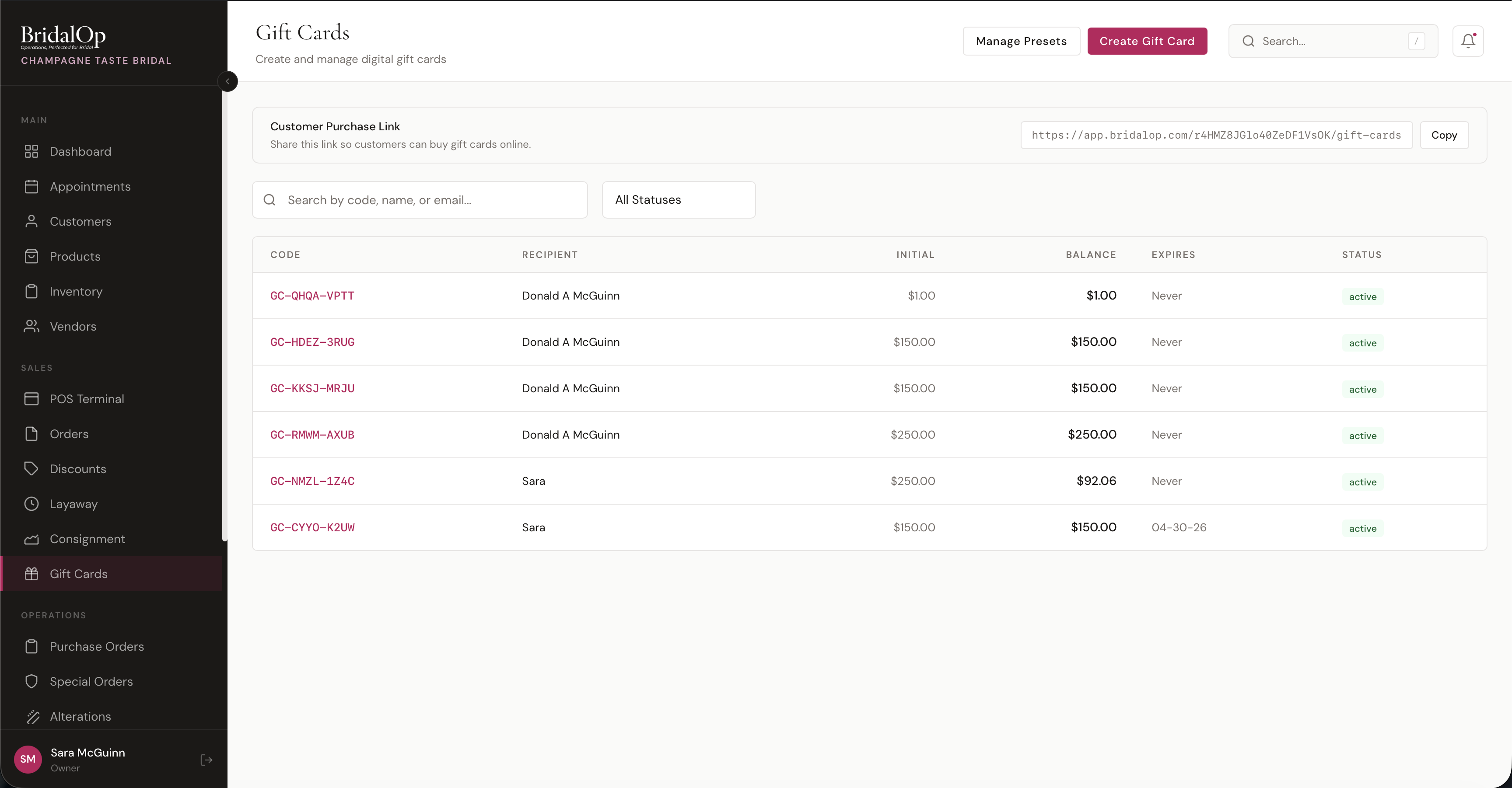
The Gift Cards page shows all gift cards with search, filtering, and a link to your public purchase page.
Customer Purchase Link
At the top of the page, your Customer Purchase Link is displayed with a Copy button. Share this link on social media, in emails, or on your website so customers can buy gift cards online.
Table Columns
| Column | Description |
|---|---|
| Code | Unique gift card code (e.g., GC-HDEZ-3RUG) — click to view details |
| Recipient | Who the gift card is for |
| Initial | Original loaded amount |
| Balance | Current remaining balance |
| Expires | Expiration date, or "Never" |
| Status | Active, Depleted, Deactivated, or Expired |
Search & Filter
Search by code, recipient name, recipient email, or purchaser name. Use the status dropdown to filter by Active, Depleted, Deactivated, or Expired.
Manage Presets
Click Manage Presets to configure the quick-select amount buttons (e.g., $50, $100, $150, $250) that appear on both the staff creation form and the public purchase page. Add, remove, or reorder presets as needed.
Creating a Gift Card
Click Create Gift Card to open the creation modal. Select a preset amount or enter a custom amount, then optionally fill in:
- Purchaser Name and Email
- Recipient Name and Email
- Personal Message (up to 500 characters)
- Expiration Date (leave blank for no expiration)
- Send Email — automatically emails the gift card to the recipient
Viewing a Gift Card
Click any gift card code in the list to open its detail page.
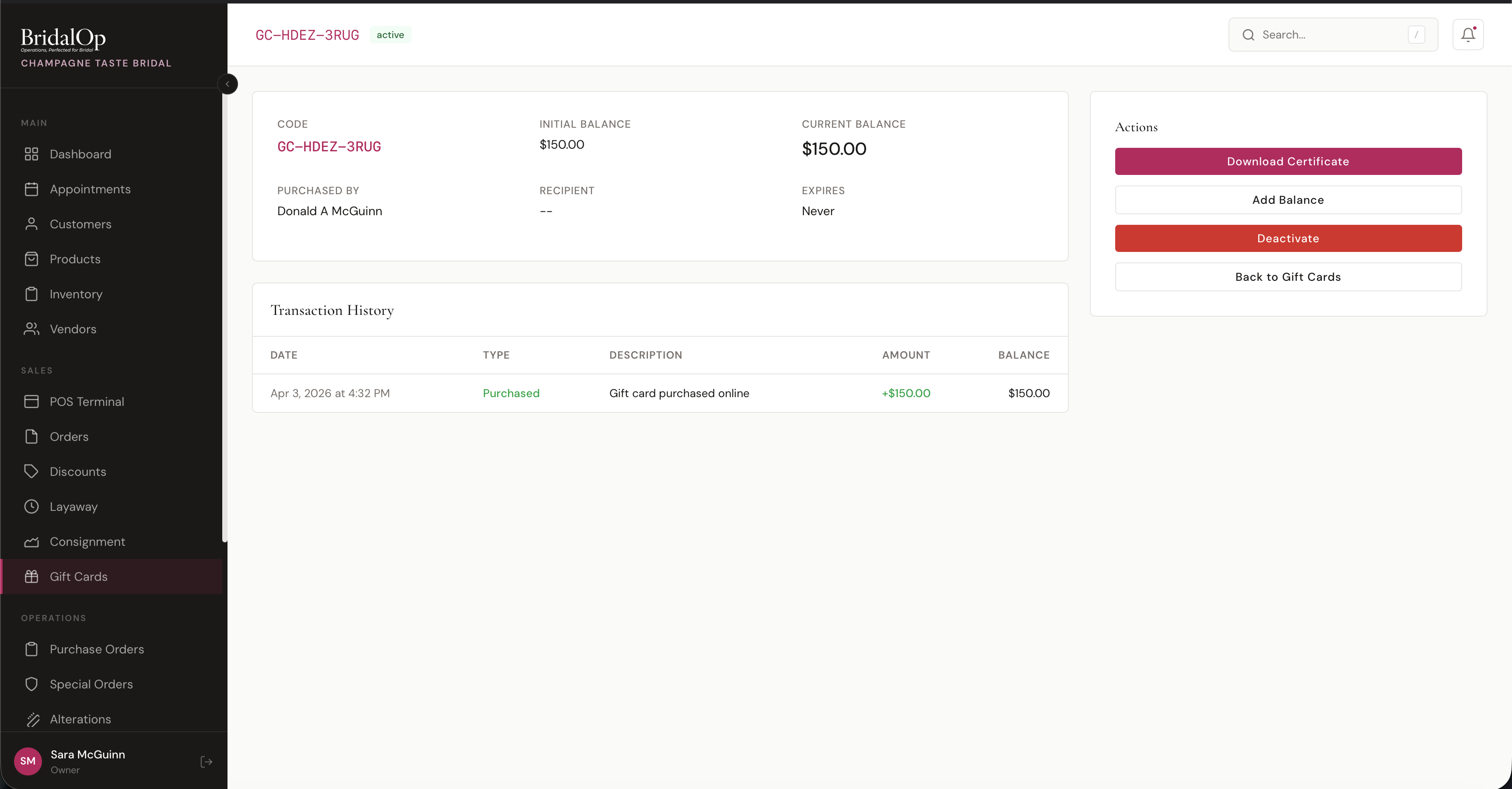
The detail page shows:
- Code, Initial Balance, and Current Balance
- Purchased By and Recipient names
- Expiration date
- Personal Message (if any)
Transaction History
A table of every transaction on the gift card:
| Column | Description |
|---|---|
| Date | When the transaction occurred |
| Type | Purchased, Redeemed, Reloaded, or Refunded |
| Description | What happened (e.g., "Gift card purchased online", "Redeemed for order #ORD-...") |
| Amount | Dollar amount (positive for loads, negative for redemptions) |
| Balance | Balance after this transaction |
Actions
- Download Certificate — generates a printable PDF (see below)
- Add Balance — reload additional funds onto the card
- Deactivate — disable the card (can be reactivated later)
- Back to Gift Cards — return to the list
Printable Certificate
Click Download Certificate to generate a PDF ready for printing or emailing.
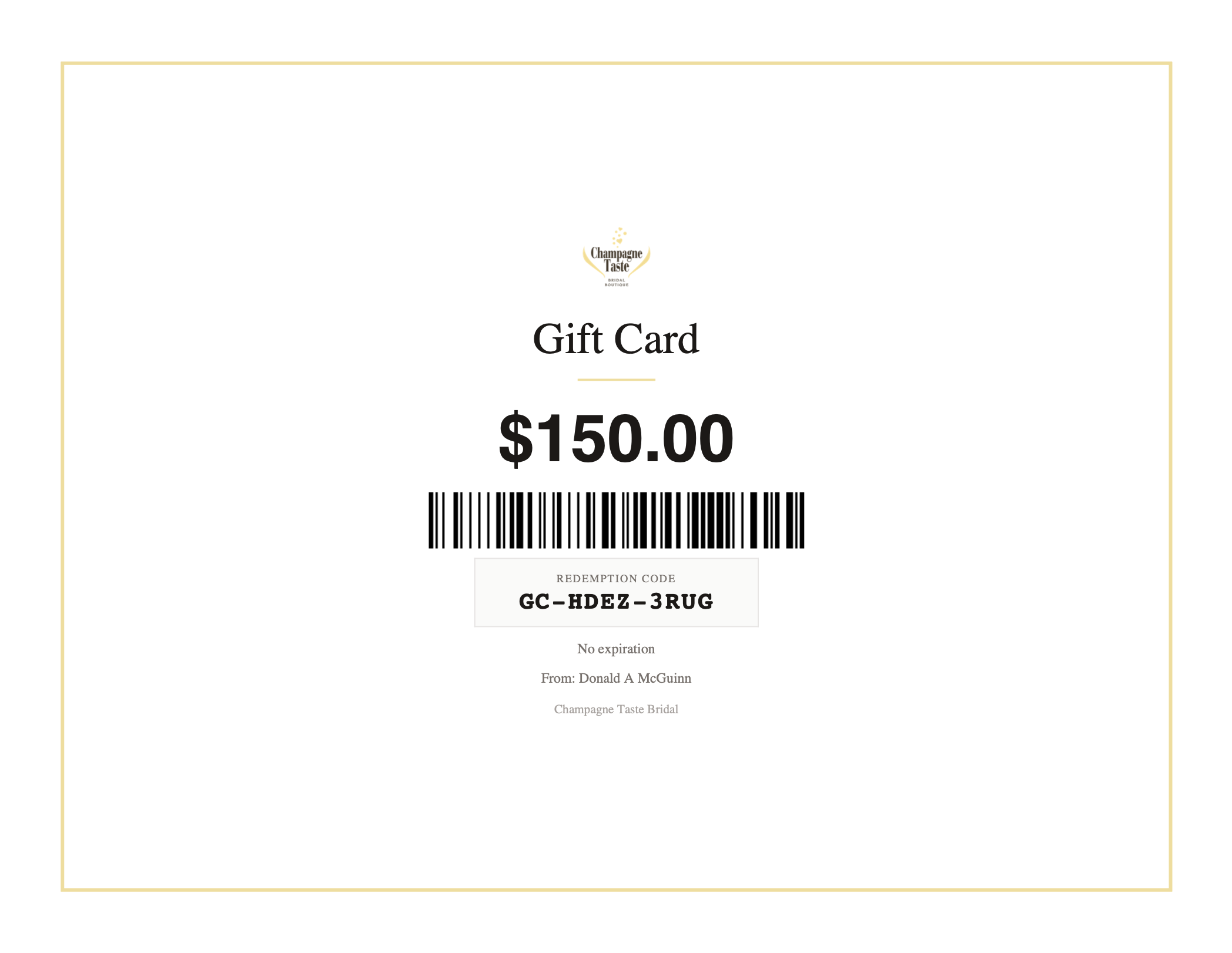
The certificate includes:
- Your boutique's logo
- "Gift Card" heading
- Dollar amount
- Barcode (scannable CODE_128 format)
- Redemption code in a highlighted box
- Expiration info ("Valid through..." or "No expiration")
- From name (if a purchaser is set)
- Your boutique name
Redeeming in POS
During checkout at the POS, select Gift Card as the payment method.
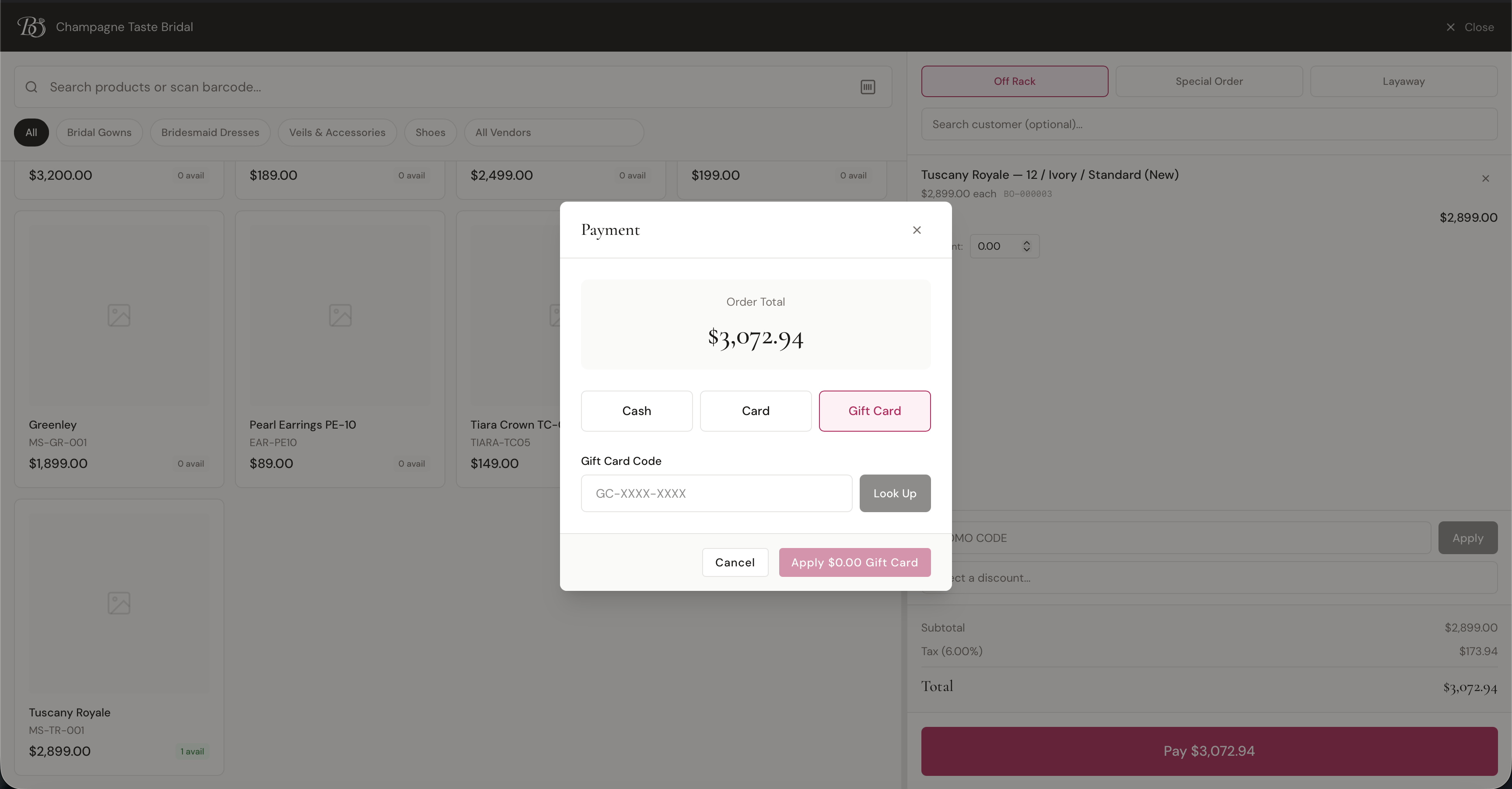
- Enter the gift card code in the Gift Card Code field (e.g., GC-XXXX-XXXX)
- Click Look Up to verify the card
- If valid, the card's balance and the amount to apply are displayed
- Click Apply Gift Card to apply the balance toward the order
The system automatically applies up to the gift card's available balance or the order total — whichever is less. If the gift card doesn't cover the full amount, you can pay the remainder with another method (card, cash, etc.). When a gift card's balance reaches zero, its status changes to Depleted.
Public Gift Card Purchase Page
Customers can purchase gift cards online through your Customer Purchase Link.
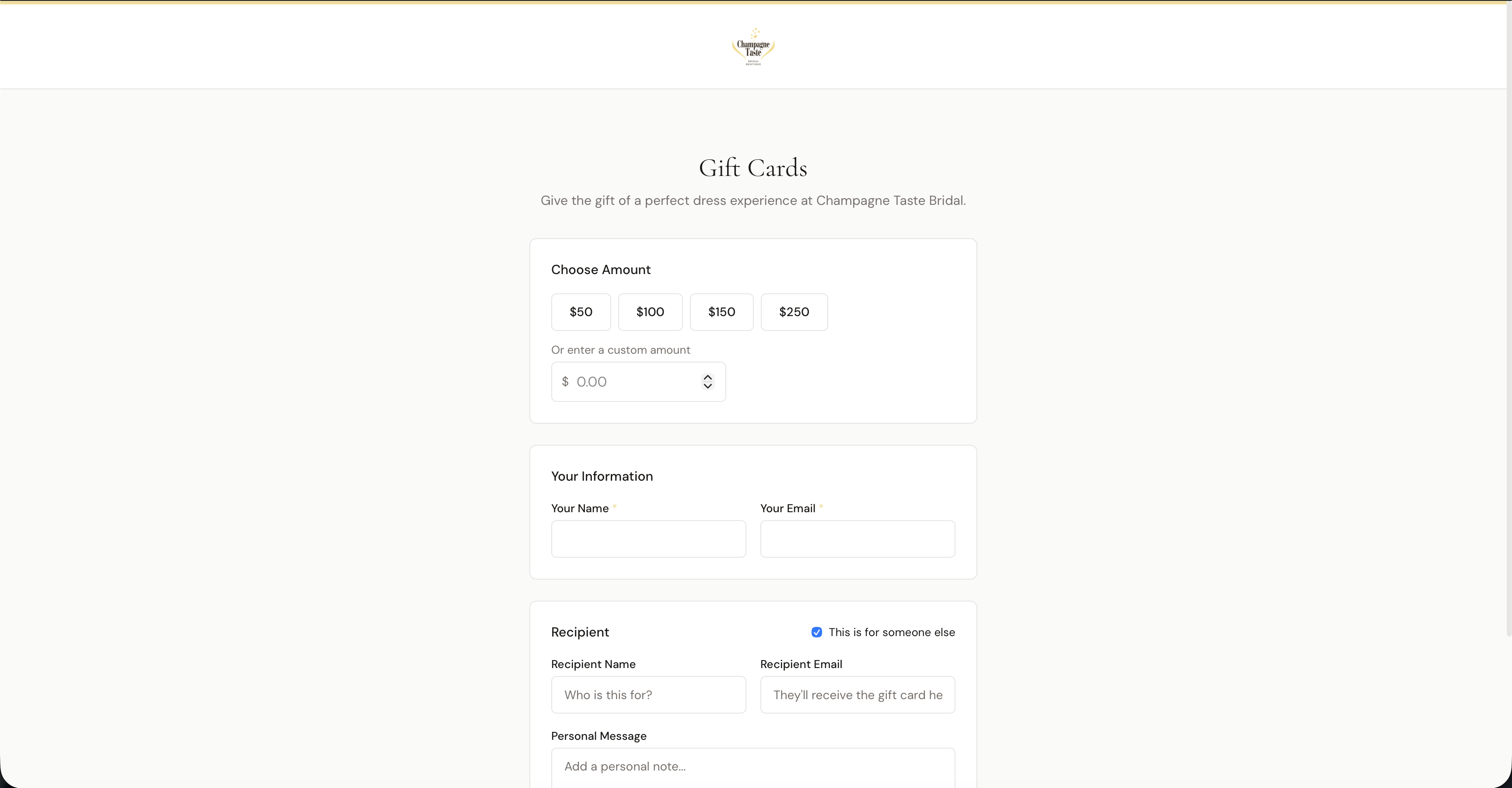
The public page includes:
- Choose Amount — preset buttons (configured via Manage Presets) plus a custom amount field
- Your Information — purchaser's name and email (required)
- Recipient — check "This is for someone else" to enter a recipient name, email, and personal message
- Payment — processed securely via your connected payment gateway
After purchasing, the customer sees a confirmation page with the gift card code and can download the certificate immediately. An email is also sent to the recipient (or purchaser if buying for themselves).