

Appearance
Inventory
The Inventory section tracks every individual physical unit in your boutique — every gown, veil, shoe, and accessory. While Products defines what you sell, Inventory tracks the specific units you have on hand: their barcode, location, status, and condition.
Each inventory item is one physical thing: a single gown in size 8 / Ivory at your Main Boutique. If you have three of the same dress in the same size and color, that's three inventory items — each with its own barcode.
Inventory Items List
The list shows every individual inventory item across all locations.
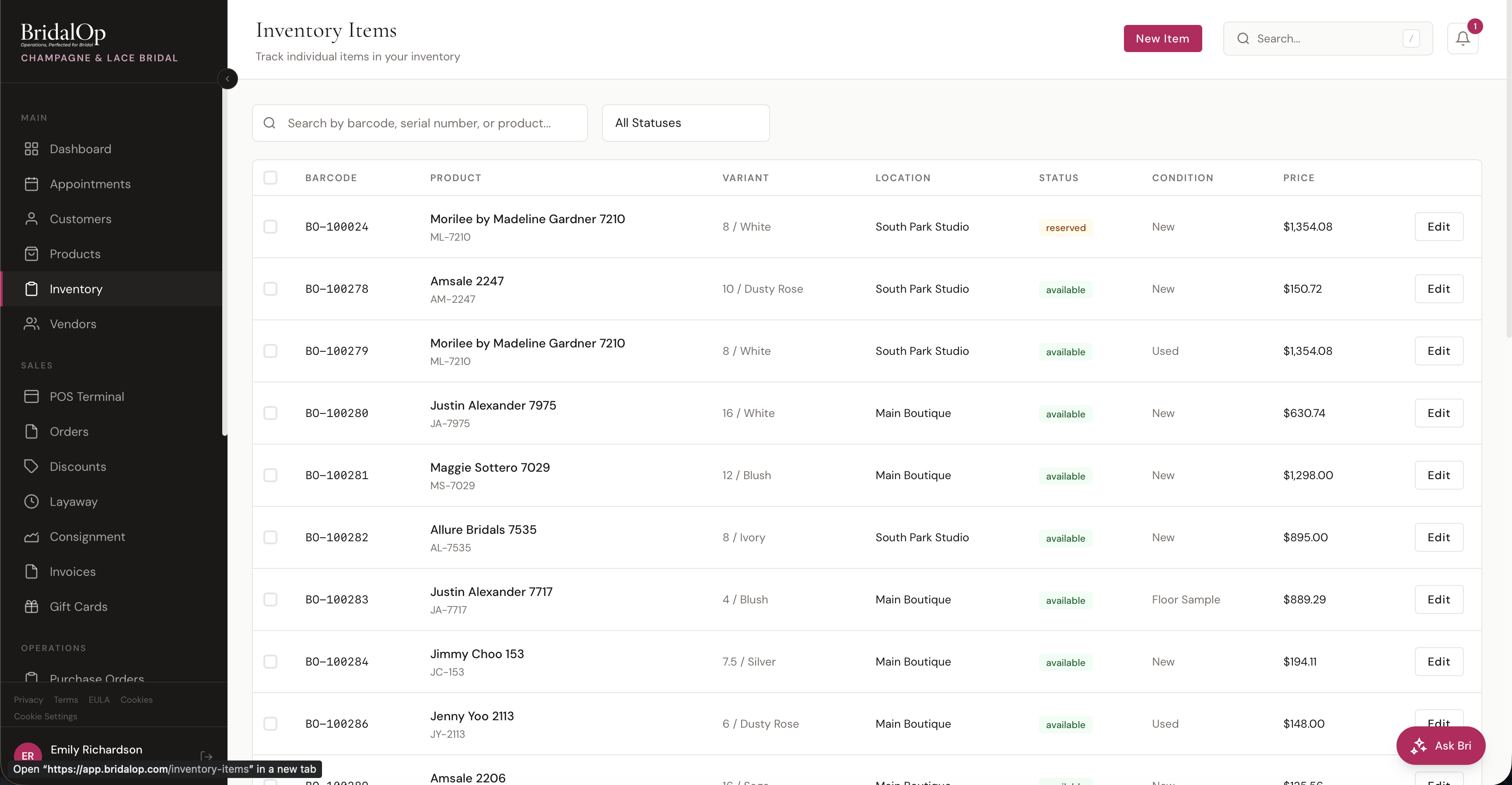
Columns
| Column | Description |
|---|---|
| Barcode | Unique barcode for the item (e.g., BO-100024) |
| Product | Product name with SKU below |
| Variant | Size / Color / Length |
| Location | Boutique location holding the item |
| Status | Color-coded status badge |
| Condition | New, Floor Sample, or Used |
| Selling Price | What the item sells for |
| Cost | What you paid. Only shown to people with the products.cost permission — owners, managers and accountants by default |
Keeping cost off the floor
Cost is removed before the page loads for anyone without products.cost, not just hidden on screen — so it isn't in the page source either, and a customer standing beside the screen can't see it.
Take the permission off a role under Settings → Roles & Permissions to hide cost from that role. The same permission covers every other place a cost appears: the product's own page, the product and item forms, and Our cost on order lines. See Seeing costs.
Search & Filters
- Search — by barcode, serial number, product name, or SKU
- Status filter — show only items in a specific status
- Vendor, Category and Product type — narrow to one designer, one category, or one kind of item (gown, veil, shoe and so on)
- Location — show only items at one location (shown when you have more than one)
- Condition — New, Floor Sample, or Used
Filters combine with each other and with the search box. For example, you can show every available floor-sample gown from one designer. They stay in the page address, so you can bookmark a view you use often, and Clear filters resets everything.
Item Statuses
| Status | What It Means |
|---|---|
| Available | In stock and ready to sell |
| Reserved | Held for a specific customer (with optional reservation timeout) |
| Sold | Item has been purchased |
| On Order | Pending arrival from a vendor |
| Consignment Returned | Consignment item has been returned to its vendor |
| Damaged | Damaged and not for sale |
Reserved items can have a reservation timeout — once the timeout expires, the item is treated as effectively available again so it can be sold to someone else.
Item Conditions
| Condition | Description |
|---|---|
| New | Brand new, never worn |
| Floor Sample | Display unit that's been tried on |
| Used | Previously sold or worn |
This is important when you have multiple of the same dress in different conditions — for example, a brand new gown vs. a floor sample of the same style at a different price.
Bulk Actions
Check the boxes next to multiple inventory items to enable the bulk action toolbar.

| Action | What It Does |
|---|---|
| Move Location | Transfer all selected items to a different boutique location |
| Change Status | Update the status (e.g., mark a batch as Damaged) |
| Change Condition | Update the condition (e.g., reclassify as Floor Sample) |
| Delete | Permanently delete selected items (with confirmation) |
You can also print barcode labels for selected items — see Printing Barcode Labels below.
Creating an Inventory Item
Most inventory items are created automatically when you receive a Purchase Order line — BridalOp generates a new item with an auto-numbered barcode (e.g., BO-100285), sets it to Available / New, and stamps the purchase price and acquired date from the PO.
You can also click New Item on the inventory list to create one manually.
Fields
| Field | Required | Description |
|---|---|---|
| Product | Yes | The product this item belongs to (searchable dropdown — type to filter, shows all active products) |
| Variant | No | Which variant (size / color / length) — appears after selecting a product, only shown if the product has variants |
| Location | Yes | Boutique location holding the item |
| Serial Number | No | Optional serial number |
| Barcode | No | Unique barcode. Leave blank and BridalOp auto-generates a unique, scannable barcode for you (see below). |
| Status | Yes | Defaults to Available |
| Condition | Yes | Defaults to New |
| Purchase Price | No | Your cost for this specific unit |
| Acquired Date | No | When the item was received |
| Notes | No | Free-form notes |
Auto-Generated Barcodes
If you add an inventory item without typing a barcode, BridalOp automatically generates one so every item is scannable. It uses a per-boutique sequential number and checks for collisions — if a number is already in use (including barcodes you typed by hand), it skips ahead to the next free one. When you create several units at once, each gets its own unique barcode. This is the same numbering scheme used when receiving a Purchase Order line.
Editing an Inventory Item
Click Edit on any item in the list to update its details.
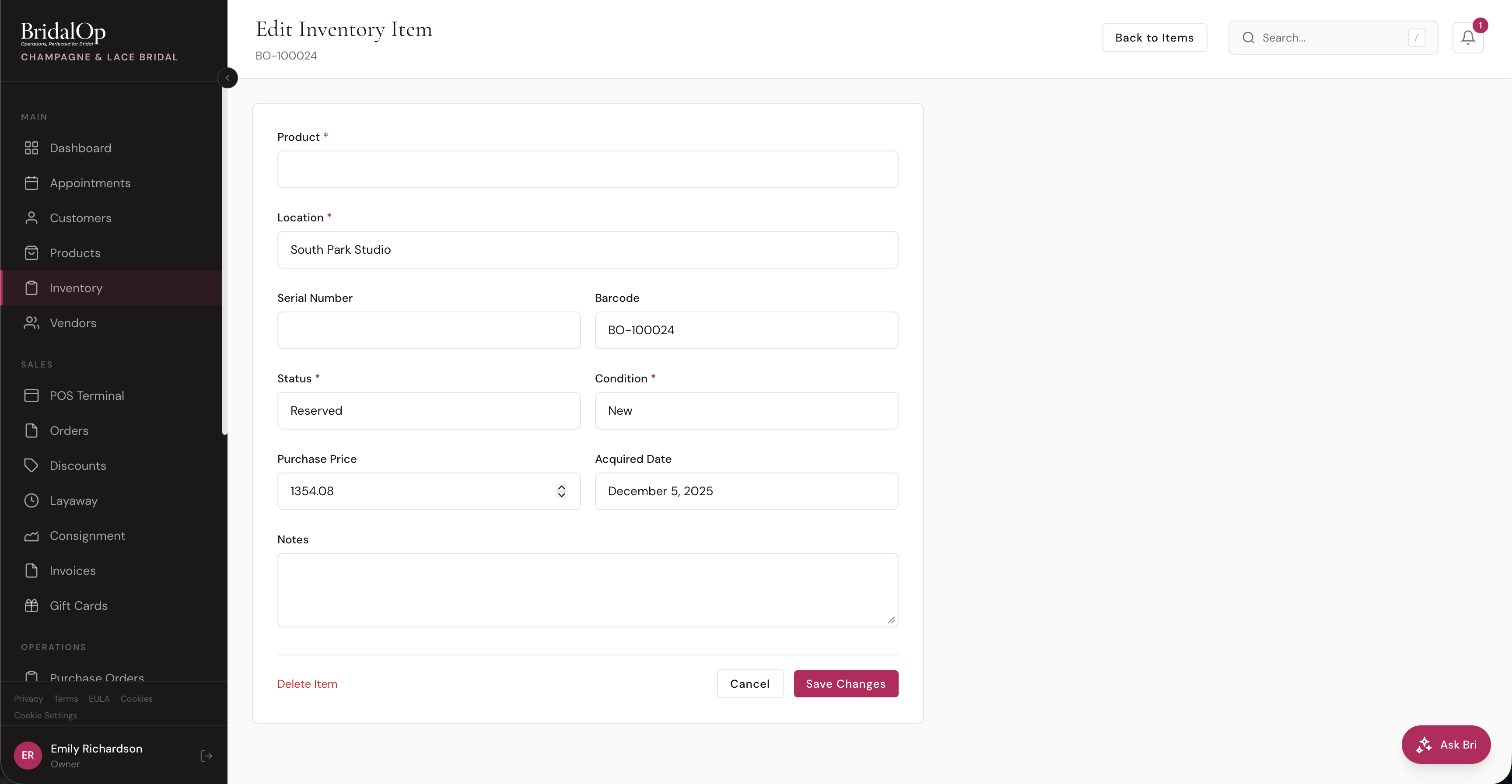
All of the same fields from the create form are available, pre-filled with the current values. Click Delete Item at the bottom left to permanently delete the item, or Save Changes to update.
Printing Barcode Labels
Select one or more items from the inventory list and click Print Labels to generate a printable PDF of barcode labels.
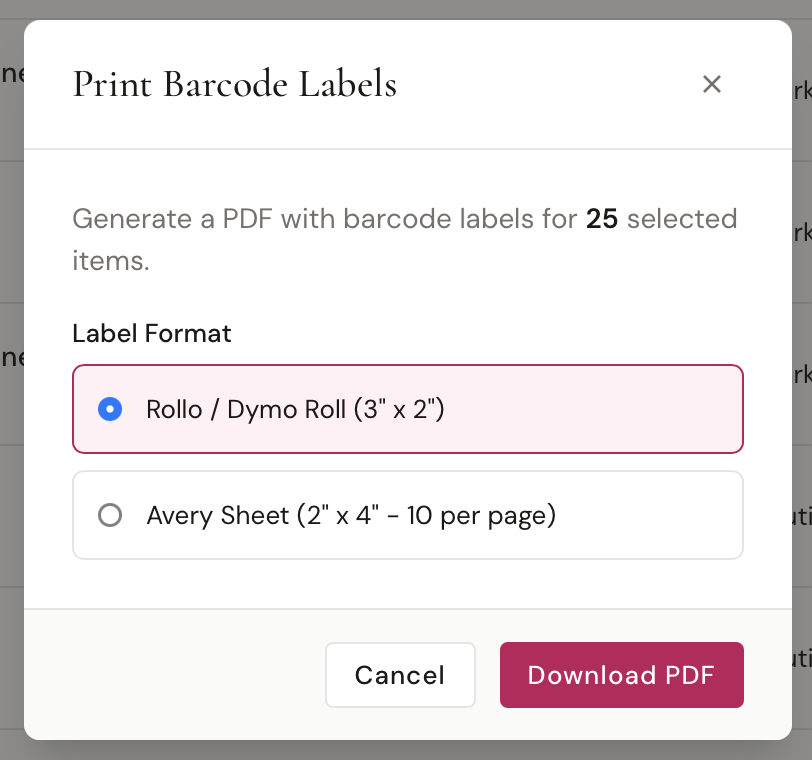
Label Formats
BridalOp supports several label formats — roll/thermal labels and Avery sheets — so you can match whatever printer and stock you already have:
| Format | Size | Layout |
|---|---|---|
| Rollo / Dymo Roll | 3" × 2" | One label per page (designed for label roll printers) |
| Dymo 30323 (notes label) | 2⅛" × 4" | One label per page — the taller notes label; item notes print automatically |
| Dymo 30334 | 2¼" × 1¼" | One label per page — sized for veils & accessories |
| Avery 18163 Sheet | 2" × 4" | 10 labels per Letter sheet |
| Avery 5160 Sheet | 1" × 2⅝" | 30 labels per Letter sheet (standard address-label stock) |
You can print up to 100 labels per batch.
MSRP & Sale Price
When a product's MSRP is higher than its selling price, the label prints the MSRP struck through with the selling price shown as the sale price — so the discount reads clearly on the tag. When MSRP isn't higher (or isn't set), only the selling price prints.
Print-Field Toggles
For the Dymo notes labels (30323 and 30334), the Print Labels modal shows an Include on label section where you choose what appears:
- Company name
- SKU
- Serial #
All three default to on. Item notes print automatically on these labels regardless of the toggles.
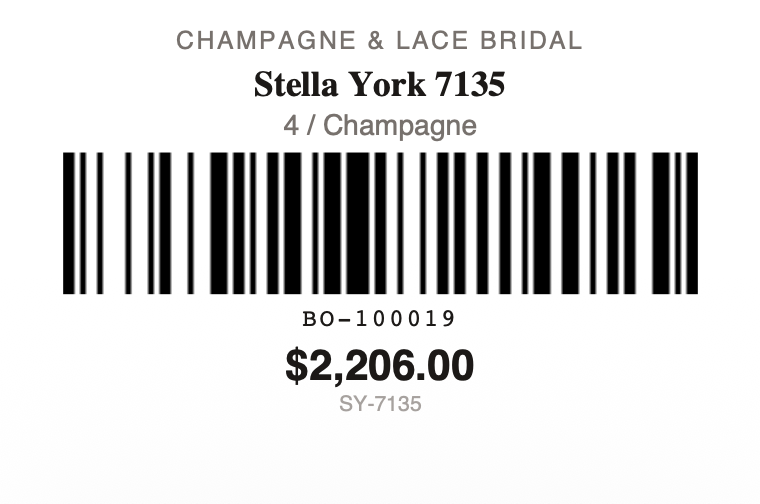
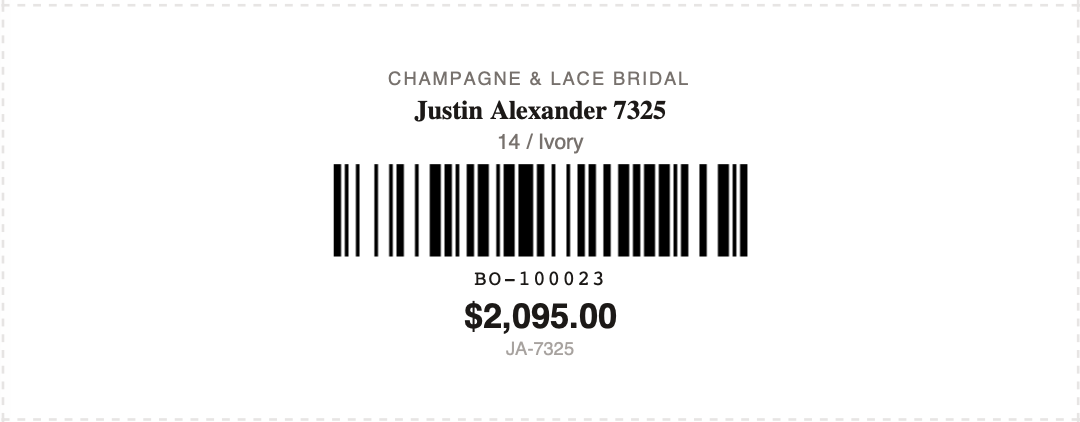
What's On Each Label
Each label includes:
- Store name at the top
- Product name (bold)
- Variant — size and color (e.g., "14 / Ivory")
- Barcode — CODE-128 format scannable barcode
- Barcode number below the barcode
- Selling price (large, bold)
- Product SKU at the bottom
Rollo / Dymo Example
Avery Sheet Example
Item Notes Sheet
From an individual inventory item's edit page, click Print Notes to open a full-page (Letter) printable notes sheet for that one item. It's handy for tucking a details sheet in with a gown or bagging accessories — it opens as a PDF in a new tab, ready to print.
How Inventory Connects to the Rest of BridalOp
- Products — every inventory item belongs to a product (and optionally a variant)
- Purchase Orders — receiving a PO line auto-creates inventory items with sequential BO-* barcodes
- Special Orders — items received against a special order become inventory tied to the customer
- POS / Sales — when you add a product to a sale, BridalOp shows you the available inventory items so you can pick exactly which physical unit you're selling
- Consignment — consignment items are tracked as inventory with consignment ownership and feed into vendor payout settlements