

Appearance
Layaway
Layaway lets your customers pay for items over time with a down payment and scheduled installments. Plans are created during checkout at the POS and managed from the Layaway section.
Layaway List
| Column | Description |
|---|---|
| Customer | Customer name |
| Order # | Linked order number |
| Order Total | Full order amount |
| Down Payment | Amount paid upfront |
| Installment | Amount per scheduled payment |
| Frequency | Weekly, Biweekly, or Monthly |
| Next Due | Next payment due date (highlighted red if overdue) |
| Progress | Installments paid out of total (e.g., "2 / 4") |
| Status | Active, Completed, Defaulted, or Cancelled |
Search by customer name or order number. Filter by status. Overdue plans are highlighted with a red background.
Setting Up a Layaway Plan
Layaway plans are created from the POS Terminal. When processing an order as a layaway:
- Select Layaway as the order type in the POS
- Collect a down payment — in dollars, or as a percentage using the $ / % switch beside the amount, so a "50% down" plan doesn't need working out at the counter
- The Set Up Layaway Plan modal appears automatically
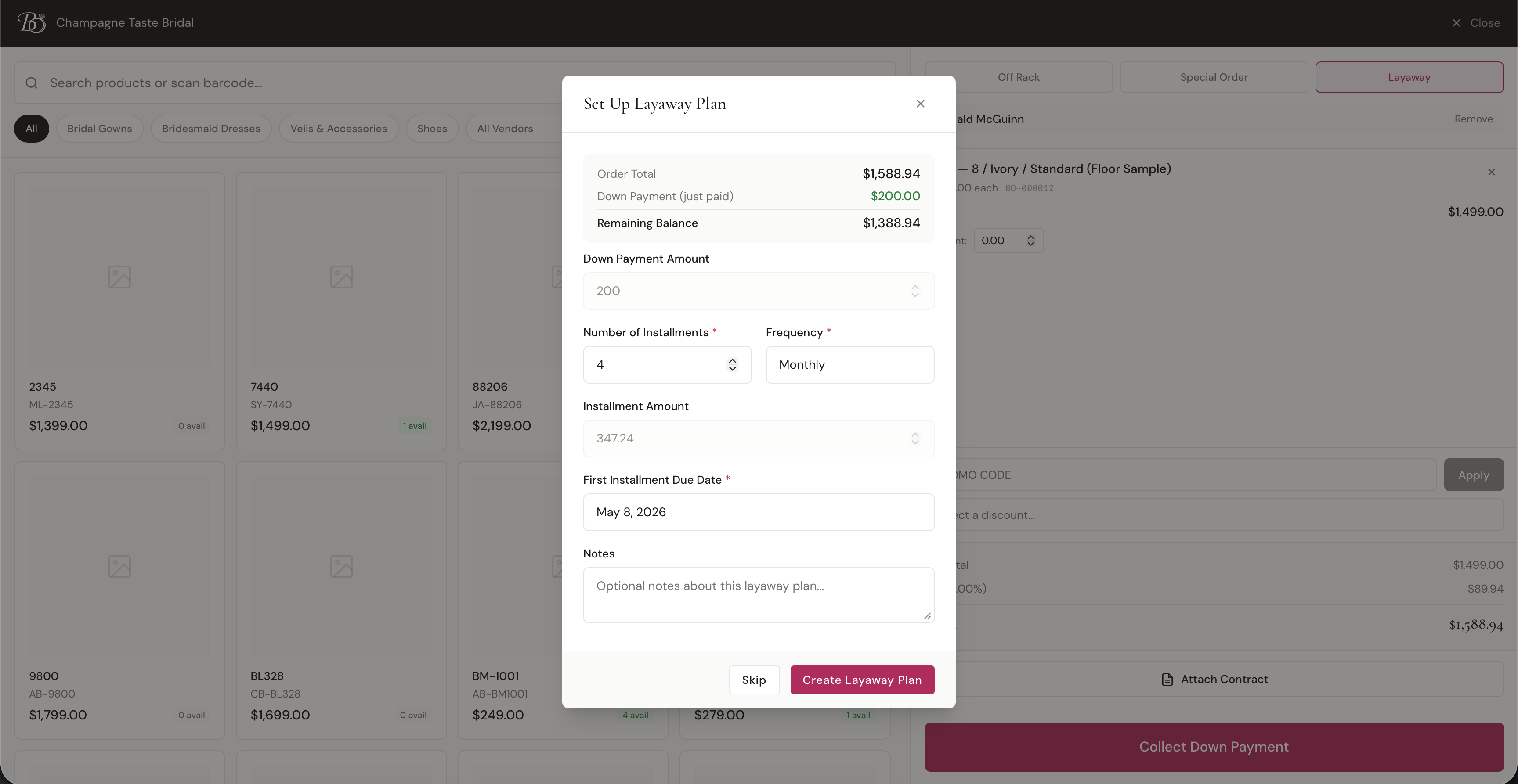
Plan Fields
| Field | Description |
|---|---|
| Down Payment Amount | Pre-filled with the payment just collected (read-only). A percentage entered at the till arrives here as the dollar figure it came to |
| Number of Installments | How many payments to split the remaining balance into (1–52) |
| Frequency | Weekly, Biweekly, or Monthly |
| Installment Amount | Auto-calculated from the remaining balance divided by number of installments (read-only) |
| First Installment Due Date | When the first payment is due (defaults to 30 days out) |
| Notes | Optional notes about the plan |
The modal shows the Order Total, Down Payment, and Remaining Balance at the top so you can see the full picture before creating the plan.
Click Create Layaway Plan to finalize, or Skip if you don't want a plan for this order.
Layaway Detail
Click any layaway plan in the list to view its detail page.
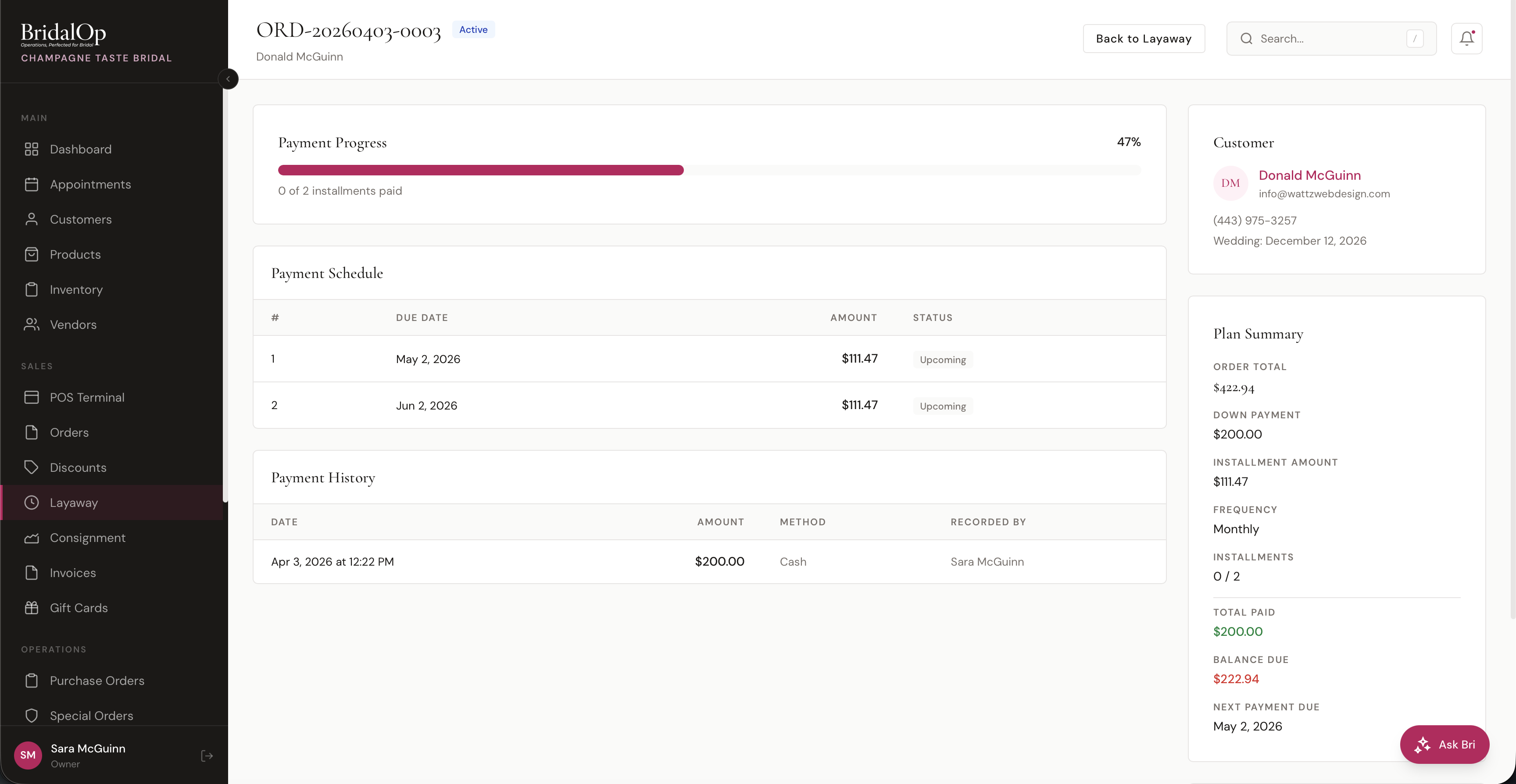
Payment Progress
A visual progress bar showing what percentage of the order has been paid, with a count of installments completed (e.g., "0 of 2 installments paid").
Payment Schedule
A table of every scheduled installment:
| Column | Description |
|---|---|
| # | Installment number |
| Due Date | When this payment is due |
| Amount | Installment amount |
| Status | Paid (green), Overdue (red), Due (amber for today), or Upcoming |
Overdue rows are highlighted in red. Paid rows are highlighted in green.
Payment History
A log of every payment made on this plan:
| Column | Description |
|---|---|
| Date | When the payment was processed |
| Amount | Payment amount |
| Method | How it was paid (Cash, Card, Saved Card, Check, etc.) |
| Recorded By | Staff member who recorded the payment |
Customer (Sidebar)
Shows the customer's avatar, name (linked to their profile), email, phone, and wedding date.
Plan Summary (Sidebar)
- Order Total — full order amount
- Down Payment — initial payment collected
- Installment Amount — per-payment amount
- Frequency — Weekly, Biweekly, or Monthly
- Installments — paid vs. total (e.g., "0 / 2")
- Total Paid — all payments received so far (green)
- Balance Due — remaining amount owed (red)
- Next Payment Due — date of the next scheduled payment
Actions
- Record Payment — collect a payment (see below)
- View Full Order — open the linked order detail page
- Cancel Plan — cancel the layaway (available on active plans only)
Recording a Payment
Click Record Payment to open the payment modal. The amount defaults to the installment amount or the remaining balance, whichever is less.
- Amount — enter any amount up to the balance due
- Payment Method — Cash, Card (via terminal), Saved Card (charge card on file), Check, or Other
- Notes — optional payment notes
When a saved card is selected, BridalOp charges the card through your connected payment gateway automatically.
After recording a payment, the plan summary updates — installments paid increments, balance due decreases, and the next payment due date advances. When the balance reaches zero, the plan status changes to Completed and the linked order is marked as completed.
Automatic Reminders
BridalOp sends automatic reminders to keep customers on track:
- Upcoming payment reminder — sent via email and SMS 3 days before each due date
- Overdue notice — sent via email and SMS 1 day after a missed due date (also notifies your store's location email)
These can be enabled or disabled in Settings > General > Notifications under the Layaway section.
Layaway Statuses
| Status | Meaning |
|---|---|
| Active | Plan is in progress with remaining payments due |
| Completed | All payments received — balance is zero |
| Defaulted | Customer has stopped making payments |
| Cancelled | Plan was manually cancelled by staff |