

Appearance
Orders
The Orders page is where you view, manage, and take action on every transaction in your boutique. Orders are created from the POS Terminal or by converting an accepted Quote — the Orders page is for reviewing them after the fact, issuing refunds, downloading receipts, or continuing a draft order.
Order List
| Column | Description |
|---|---|
| Order # | Unique order number (e.g., ORD-20260408-0001) |
| Customer | Customer name (if attached) |
| Date | When the order was created |
| Type | POS, Layaway, Special Order, or Online Deposit |
| Total | Order total |
| Status | Draft, Active, Completed, Refunded, Partially Refunded, or Voided. Completed means paid in full. |
| Type detail | For a Special Order, where the dress is — Pending, Ordered, Received, Ready — or counts when a sale has several, like "3 pending · 2 cancelled" |
| Staff | Who created the order |
Search by order number or customer name. Filter by status (Draft, Active, Completed, Refunded, Partially Refunded, Voided) or type (POS, Layaway, Special Order, Online Deposit).
Order Detail
Click any order to open its detail page.
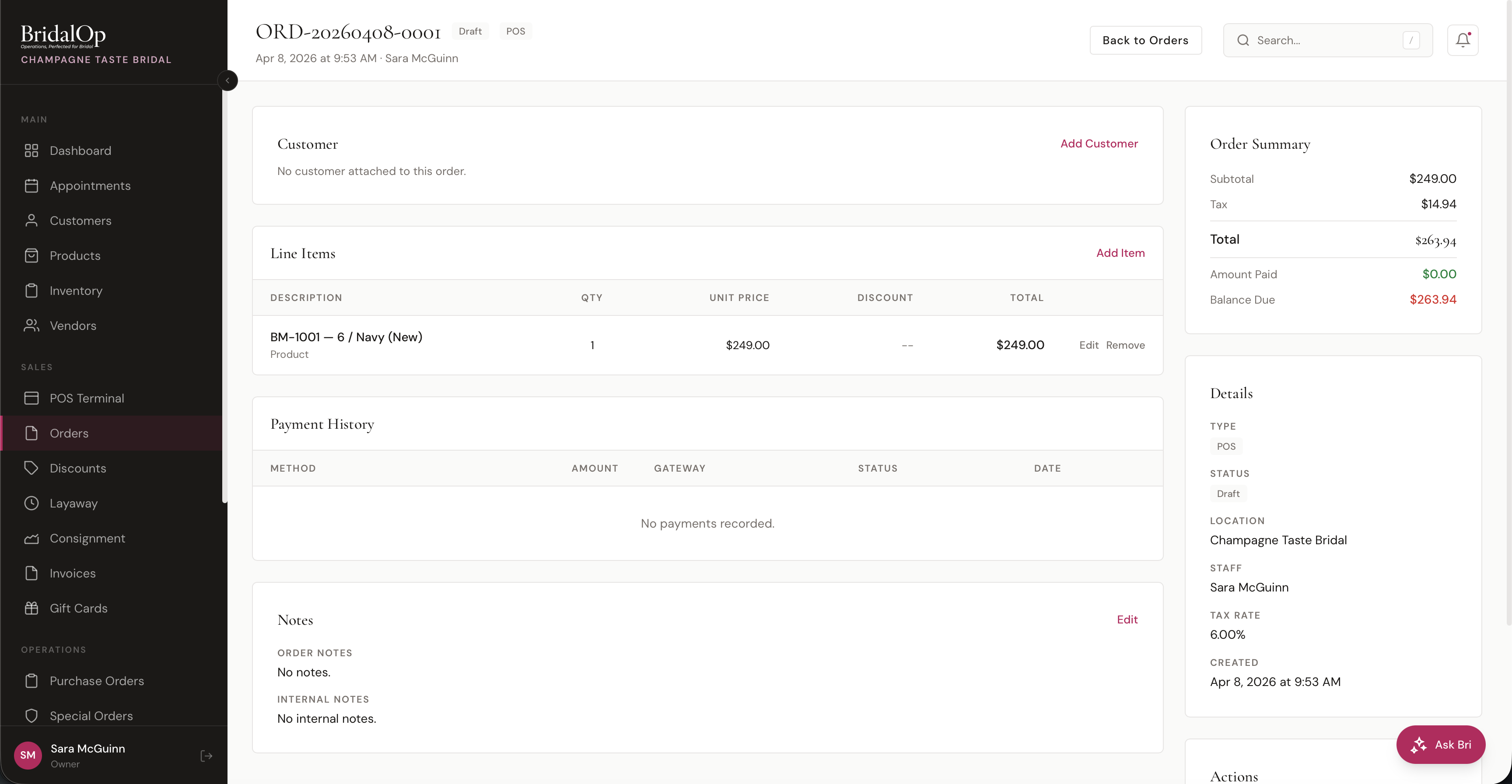
Header
The order number, status badge, type badge, creation date/time, and the staff member who created it.
Customer
Shows the linked customer's name, email, and phone. On draft or active orders, you can Add Customer, change, or remove the customer. You can also create a new customer inline if they don't exist yet.
Line Items
A table of everything in the order:
| Column | Description |
|---|---|
| Description | Item name with type label (Product, Service, Alteration, Fee, Add-on) |
| Qty | Quantity |
| Unit Price | Price per unit |
| Discount | Per-line discount amount |
| Total | Line total |
On draft and active orders, you can Edit or Remove individual lines and Add Item to include more products or services.
For staff who can see products, each item's name links to its product page. Staff who can also see costs (owners, managers and accountants by default) see Our cost under it: the cost of the exact item that was sold, or the product's catalog cost if that item doesn't have one. See Seeing costs.
Payment History
A log of all payments and refunds on the order:
| Column | Description |
|---|---|
| Method | How the payment was made (Card, Cash, Gift Card, Saved Card, etc.) |
| Amount | Payment amount (negative for refunds) |
| Gateway | Payment processor used |
| Status | Completed, Failed, Refunded, or Partially Refunded |
| Date | When the payment was processed |
Notes
- Order Notes — visible on receipts and invoices
- Internal Notes — staff-only
Click Edit to update notes on non-voided orders.
Order Summary (Sidebar)
- Subtotal — sum of all line items
- Discount — total discounts applied
- Tax — calculated from the location's tax rate
- Total — final order amount
- Amount Paid — total payments received (green)
- Balance Due — remaining unpaid amount (red)
Details (Sidebar)
- Type — POS, Layaway, Special Order, or Online Deposit
- Status — current order status
- Location — which boutique location
- Staff — who created the order
- Tax Rate — tax percentage applied
- Created — date and time
Actions
Available actions depend on the order's current status:
| Action | When Available | What It Does |
|---|---|---|
| Continue in POS | Draft orders | Opens the order in the POS terminal so you can add items and process payment |
| Take payment in POS | Part-paid orders | Reopens a sale that took a deposit, with the amount still owed on the button |
| Reassign salesperson | Finalized orders (owners & managers) | Corrects who gets credit for the sale and recomputes their commission — see below |
| Issue Refund | Completed or Partially Refunded | Opens the refund modal (see below) |
| Download Receipt PDF | All orders | Downloads a printable receipt with store info, line items, and totals |
| Void Order | Non-voided, non-refunded orders | Cancels the order and releases reserved inventory back to available stock |
Continue in POS
Draft orders can be resumed in the POS terminal. Click Continue in POS to pick up where you left off — add more items, apply discounts, and process payment. This is useful when a customer starts a transaction but needs to come back later.
Taking the rest of the money later
A sale that took part of the money and still owes the rest sits as Active. Open it and the button reads Take payment in POS — $X due. That reopens the sale exactly where you left it, and the order finishes itself once the balance reaches zero.
This is how a deposit now and the balance later works — 60% on a special order when she orders, the rest when the dress lands — without turning it into a layaway.
An order that still owes money can't be marked complete
Completing an order books its whole total as revenue. Doing that with a balance outstanding would report a sale that never fully arrived, leave the gown showing as in stock and skip the commission — so it's refused, and points you at the till instead. Take the remaining payment and the order completes itself.
Reassign Salesperson
Occasionally a sale is finalized with the wrong person credited — a busy staff member rings up a sale and forgets to change the Sold By field, or a name gets mistyped. Owners and managers can fix this after the fact without reopening or re-running the sale.
On a finalized order, click Reassign salesperson to open the edit-details modal, pick the correct staff member, and save. BridalOp:
- Updates who gets credit for the sale
- Recomputes the commission at the corrected salesperson's rate, rewriting both the order- and line-level commission so every report agrees
Line items, totals, and payments are unchanged — this is purely a corrective reassignment of who sold the order. To edit notes instead, use the Notes section on the order.
This action is available only to owners and managers, and only while the order is still a live sale. It's blocked on voided, refunded, and cancelled orders.
Issue Refund
Click Issue Refund to open the refund modal, which shows:
- Order Total, Total Paid, Already Refunded, and Available to Refund
- Amount — enter a custom amount or click Full Refund to refund everything
- Refund Method — Original Payment Method (refunds through the same gateway) or Cash Refund
- Reason — optional note explaining the refund
BridalOp processes the refund through the original payment gateway when possible. If the original payment was cash or manual, the refund is recorded without a gateway transaction.
Partial refunds leave the order in a "Partially Refunded" status — you can issue additional refunds later up to the remaining paid amount. Full refunds change the status to "Refunded" and release all reserved inventory items back to available stock.
A refund confirmation email is sent to the customer if notifications are enabled.
Receipt PDF
Click Download Receipt PDF to generate a printable receipt. The receipt includes your store name and address, order number, date, customer name, payment method, all line items with quantities and prices, and the totals breakdown (subtotal, discount, tax, total, amount paid).
Receipts also have a shareable link that can be sent to customers.
Void Order
Click Void Order to cancel the transaction entirely. A confirmation dialog appears before voiding. Voided orders:
- Are marked with a Voided status badge
- Release all reserved inventory items back to available stock
- Cannot be undone, refunded, or edited further
Use void for orders that should never have been created (e.g., test transactions, duplicate entries). Use refund for orders where a legitimate sale needs to be reversed.
Order Statuses
| Status | Meaning |
|---|---|
| Draft | Started in POS but not yet completed — can be continued |
| Active | In progress with at least one payment or action |
| Completed | Paid in full. This is about the money, not the merchandise: a special order sale is Completed the moment it's paid, while the dress itself is still Pending, Ordered or In Transit on its Special Order. The Orders list shows that status under the Special Order badge, and the order page lists each special order with a link. |
| Partially Refunded | Some amount has been refunded, remaining amount still paid |
| Refunded | Fully refunded — all inventory released |
| Voided | Cancelled — all inventory released |
Order Types
| Type | Description |
|---|---|
| POS | Standard point-of-sale transaction |
| Layaway | Order with a payment plan (installments over time) |
| Special Order | Custom or made-to-order item |
| Online Deposit | Deposit collected through the online booking portal |