

Appearance
Purchase Orders
Track orders placed with your vendors — from draft through shipping to receiving inventory. Each line item has its own estimated arrival date, payment terms, and tracking info, so you can manage each item independently. Purchase order lines can also be linked to Special Orders so that status updates automatically flow through to the customer's special order.
Purchase Order List
At the top of the page, three clickable stat cards give you a quick overview:
| Stat | What It Shows |
|---|---|
| Unsubmitted | Draft POs waiting to be sent to vendors |
| Waiting on Shipment | Submitted POs that haven't shipped yet |
| Arriving Soon | POs that are shipped and in transit |
| QC Issues | POs with open quality control issues (shown in amber when count > 0) |

Click any stat card to filter the list to just those POs.
Columns
| Column | Description |
|---|---|
| PO # | Unique number (e.g., PO-1032) |
| Vendor | Vendor name |
| Location | Boutique location |
| Status | Draft, Submitted, Shipped, Partially Received, Received, or Cancelled |
| Order Date | When the PO was created |
| Expected Date | Earliest estimated arrival across line items |
| Total | PO total cost |
Search by PO number, vendor name, or customer name (matches POs that contain line items linked to that customer's special order). Filter by status or vendor.
Creating a Purchase Order
Click New Purchase Order to open the creation form.
| Field | Required | Description |
|---|---|---|
| Vendor | Yes | Select the vendor you're ordering from — vendor's default payment terms auto-apply to all lines |
| Location | Yes | Which boutique location will receive the items |
| Notes | No | Internal notes about this PO |
Line Items
Each line represents one unit being ordered. To order multiple of the same item, add multiple lines.
- Product — select from your product catalog (auto-fills unit cost from product cost)
- Variant — if the product has variants, select the specific size/color/condition
- Unit Cost — cost per unit
- Estimated Arrival Date — when you expect this specific item to arrive
The PO total updates in real-time as you add lines.
Purchase Order Detail
Click any PO to view its detail page.
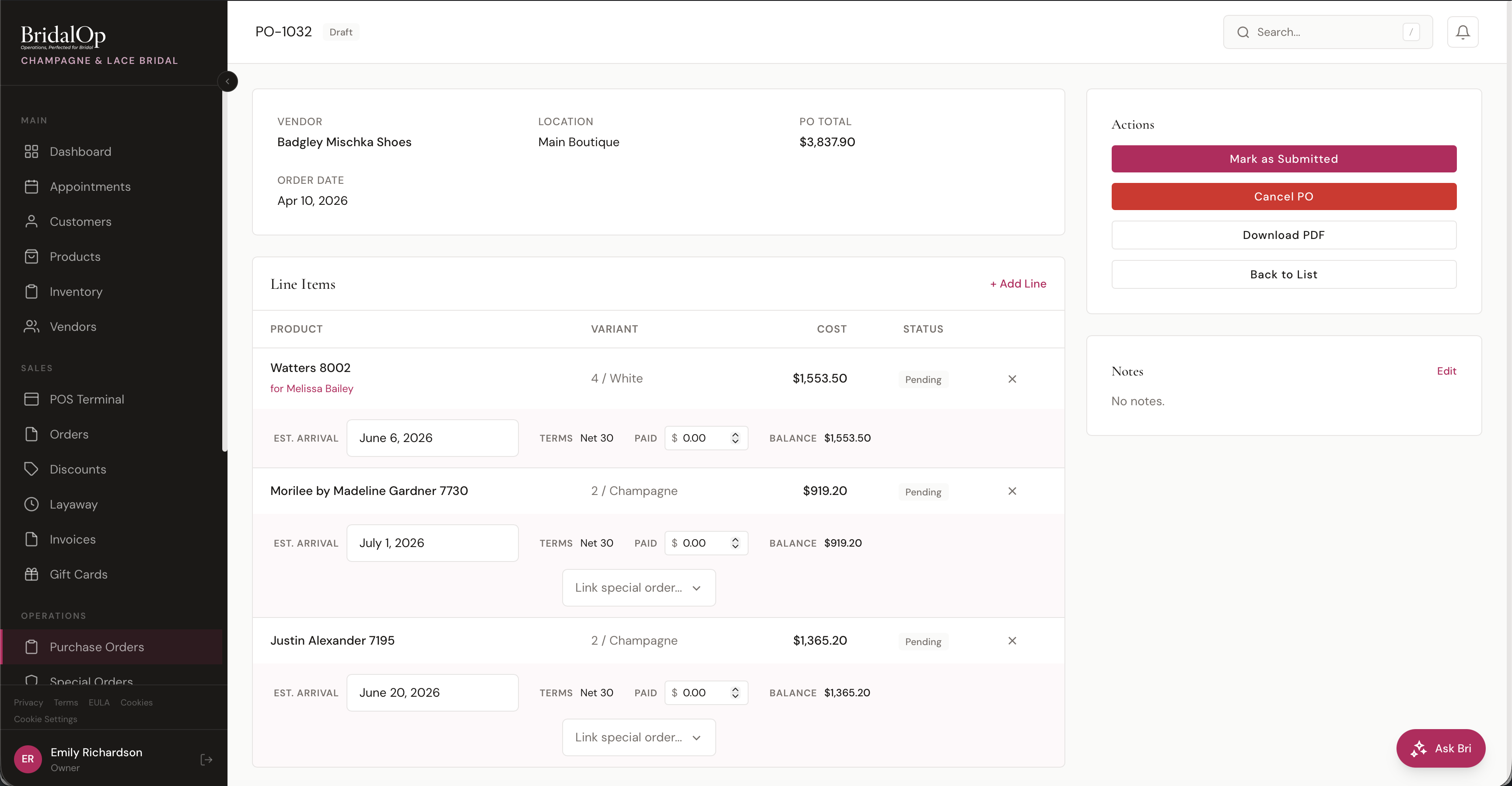
If the vendor has a Portal URL set on their profile, an Open Portal ↗ link appears directly under the vendor name in the PO header. One click opens the vendor's account portal in a new tab — useful when you need to jump from a draft PO straight into the vendor's site to actually submit the order or check stock.
Header
The header shows the essentials:
- Vendor — supplier
- Location — receiving location
- PO Total — total cost across all lines
- Order Date — when the PO was created
Line Items
Each line item displays the product, variant, cost, and status. If the line is linked to a Special Order, the customer's name appears underneath the product (e.g., "for Melissa Bailey").
Below each line, a detail row shows:
| Field | Description |
|---|---|
| Est. Arrival | When this item is expected to arrive (editable while pending) |
| Terms | Payment terms for this line (Full Payment, Deposit, Net 30, Net 45, Net 60, or Net 90) |
| Paid | Amount paid to the vendor for this line (manually entered) |
| Balance | Remaining amount owed (cost minus any vendor discount, minus paid, calculated automatically) |
Lines that aren't yet linked to a Special Order have a "Link special order..." dropdown. Select a pending special order to link it to this line — the customer's name then appears under the product and the linked special order automatically gets the estimated arrival date and advances its status as the PO progresses.
Payment Terms
Each line's payment terms come from the vendor's default and can be changed per line. The terms also determine when payment is due:
| Terms | Payment Due |
|---|---|
| Full Payment | On the order date |
| Deposit | Deposit percentage required, balance due when the item arrives |
| Net 30 / 45 / 60 / 90 | The specified number of days after the item arrives |
Editing Lines
While a line is pending (not yet shipped), you can edit:
- Estimated arrival date
- Payment terms
- Amount paid
- Linked special order
Once a line is marked as shipped, these fields lock. The Add Line button lets you add additional items to the PO before it's submitted.
Actions
| Action | When Available | What It Does |
|---|---|---|
| Mark as Submitted | Draft | Moves the PO to Submitted status |
| Email Vendor | All statuses (vendor must have email) | Emails the full PO to the vendor. If the PO is still in Draft, it's automatically marked as Submitted. |
| Mark Shipped (per line) | Pending lines | Opens modal for carrier and tracking number |
| Mark Received (per line) | Shipped lines | Records the item as received and adds it to inventory |
| Cancel PO | Any status except Received | Cancels the purchase order |
| Download PDF | All statuses | Downloads a printable PO document |
Email Vendor
Click Email Vendor in the sidebar to send the PO directly to the vendor's email. The email includes the PO number, order date, line items with quantities and costs, the grand total, and any PO notes. If the vendor doesn't have an email on file, you'll see a link to add one on their vendor profile.
For a line that came from a Special Order, the email and the PDF print what the designer needs to make it: the size and color, the designer style number, the bride's measurements (bust, waist, hips, hollow to hem, height), any of that vendor's add-ons sold with the gown (extra length, rush, shipping), and the special order's notes and measurement notes. Internal notes stay inside BridalOp. A stock replenishment line shows its product variant instead.
If the PO is still in Draft status, emailing it automatically marks it as Submitted and updates the order date.
Per-Line Shipping and Receiving
Unlike the previous workflow, BridalOp now handles shipping and receiving per line instead of in bulk. This is important because items on the same PO often arrive at different times.
Marking a line as shipped opens a modal where you enter the carrier (UPS, FedEx, USPS, DHL, or Other) and tracking number. The tracking info is stored on that specific line. The line status changes to Shipped.
Marking a line as received opens a modal where you can receive the item with or without a quality control issue.
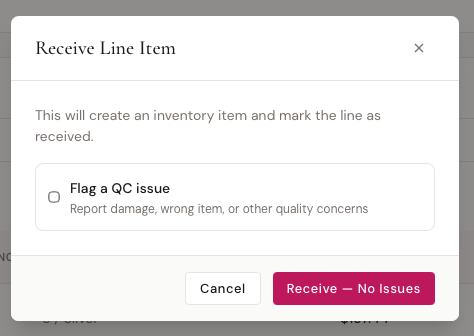
Click Receive — No Issues to receive the item normally. An inventory item is created and added to your stock, and the line status changes to Received. If the line is linked to a Special Order, that SO automatically advances to Received status.
Vendor discount
Designers sometimes take money off a line, and it often only shows up on the packing slip. The receive window has a Vendor Discount field for it: enter the dollars off per item, and it shows the list price next to what the item will actually cost you.
- The item comes into stock at the discounted cost, so your margin and profit reports use what you really paid.
- The line keeps its original price. On the PO it shows struck through, with the discounted cost and the amount off beside it.
- Totals follow the discount. The PO total, the line's balance due, vendor spend, the Inbound Expenses report and the purchase order export all use the discounted cost.
- A discount can't be more than the item's cost. To change one after receiving, un-receive the line, then receive it again with the right amount.
Quality Control (QC) Issues
If there's a problem with the item, check Flag a QC issue before receiving. The form expands with additional fields:
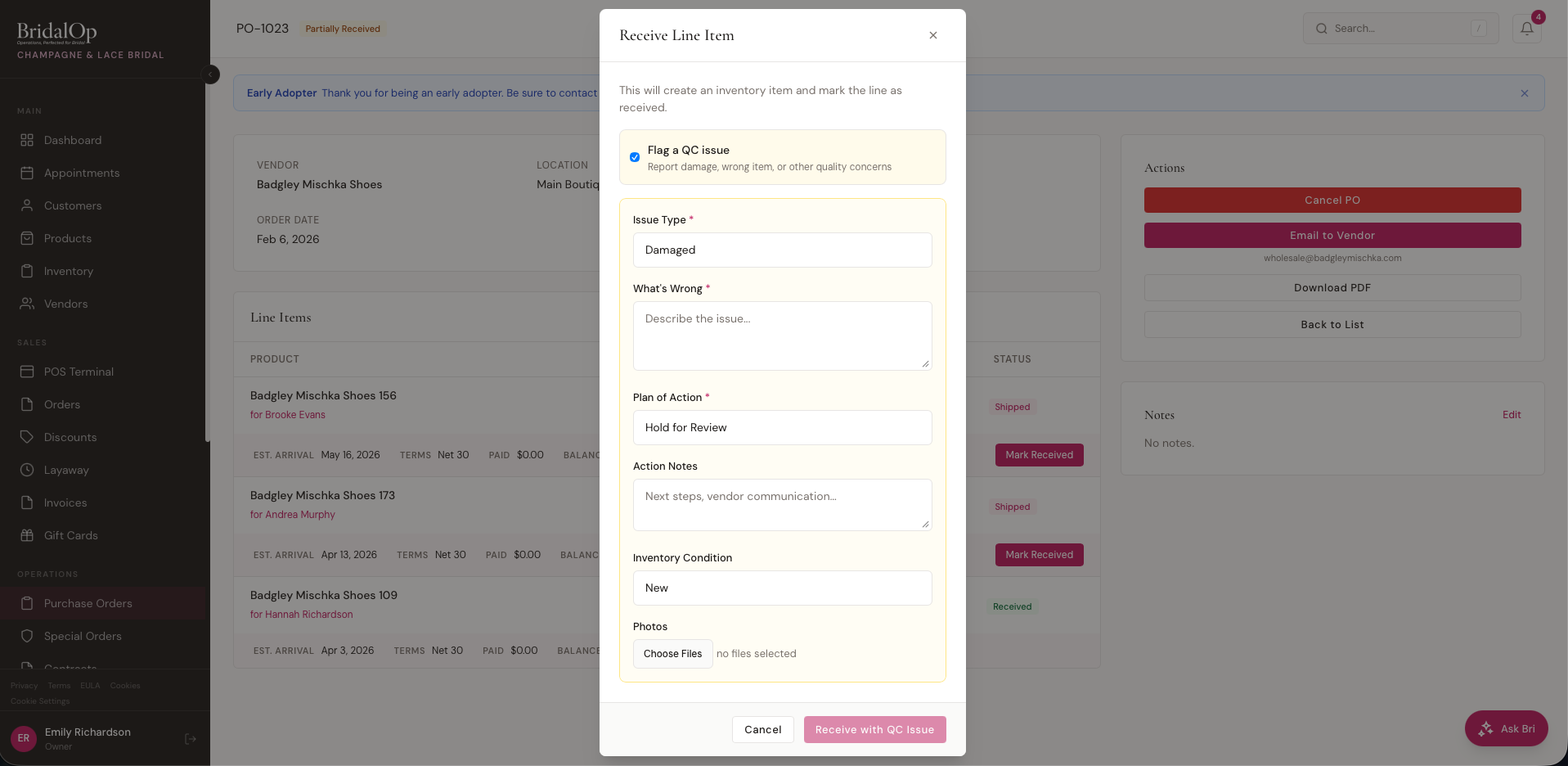
| Field | Required | Description |
|---|---|---|
| Issue Type | Yes | Damaged, Wrong Item, Wrong Size/Color, Missing Parts, Cosmetic Defect, or Other |
| What's Wrong | Yes | Describe the issue in detail |
| Plan of Action | Yes | Hold for Review, Return to Vendor, Accept As-Is, Request Replacement, or Request Credit |
| Action Notes | No | Next steps, vendor communication details |
| Inventory Condition | No | New, Floor Sample, or Used — controls the condition on the created inventory item |
| Photos | No | Upload up to 5 photos or PDFs (max 10 MB each) to document the issue |
Click Receive with QC Issue to receive the item and create a QC issue record. The inventory item is still created, but:
- If the plan of action is Return to Vendor or Hold for Review, the inventory item is marked as Damaged status instead of Available
- A QC badge appears on the line item in the PO detail view (yellow for open issues, green for resolved)
QC issues have three statuses: Open, In Progress, and Resolved. When resolved, BridalOp records who resolved it and when.
POs with open QC issues show a QC badge in the purchase orders list and are counted in the QC Issues stat card at the top of the page.
The overall PO status is calculated from its line statuses:
- All lines pending → Draft or Submitted
- At least one line shipped → Shipped
- Some lines received, others not → Partially Received
- All lines received → Received
Un-receiving a Line
Made a mistake at receiving — wrong item, wrong variant, or received the wrong line? Owners and managers can reverse it. On any received line, an Un-receive option appears at the bottom of the line.
Un-receiving:
- Removes the inventory unit that receiving created, so you don't end up with a phantom item in stock.
- Reverts the line back to Shipped (or Pending if it never shipped) so you can correct it and receive it again.
- Rolls back a linked Special Order out of Received status if the line was tied to one.
There are two safeguards:
- If the received unit has already been sold or reserved, un-receiving is blocked. You'll see a message to void or refund that sale first — this keeps a real sale from being orphaned.
- If the line has a QC issue, you're asked to resolve or remove it first. QC issues can carry return tracking, photos, and reorder history, so BridalOp won't silently discard that trail.
PO Status Workflow
| Status | Meaning |
|---|---|
| Draft | Created but not yet sent to vendor |
| Submitted | Sent to vendor for processing |
| Shipped | At least one line has been marked as shipped |
| Partially Received | Some items received, others still pending |
| Received | All items received and added to inventory |
| Cancelled | PO was cancelled |
How PO Updates Flow to Special Orders
When a PO line is linked to a Special Order, status changes propagate automatically:
| PO Line Action | Special Order Update |
|---|---|
| PO submitted | Pending SOs advance to Ordered |
| Line marked as shipped | Linked SO advances to In Transit |
| Line marked as received | Linked SO advances to Received |
This means you manage the vendor relationship through Purchase Orders, and your customers' Special Orders stay up to date without manual intervention.
Shipping & Fees
Beyond the cost of the goods themselves, most inbound orders come with extra costs — freight, tariffs, customs, and processing charges. BridalOp lets you record these on a purchase order so you can see the true landed cost of a delivery.
Each fee has a type, an amount, and an optional note:
| Fee Type | Typical Use |
|---|---|
| Shipping | Freight or carrier charges |
| Tariff / Duty | Import duties |
| Customs | Customs charges and brokerage |
| Processing Fee | Order or transaction processing charges |
| Handling Fee | Handling or packaging charges |
| Other | Anything that doesn't fit the categories above |
You can record fees in two ways, and you can mix both on the same PO.
Per-Item Fees
When a charge applies to a specific item — for example, a tariff billed per dress — use the Fees control on that line. It opens a small dialog where you can add or remove that item's fees. The dialog also shows a running breakdown for that item:
- Item cost — the line's cost (quantity × unit cost)
- Fees — the fees you've added for this item
- Item landed cost — item cost plus fees
This is handy when items on the same PO ship a few at a time and each shipment carries its own charges.
Shipment-wide Fees
For costs that cover the whole delivery rather than one item — a single freight bill, for instance — use the Shipment-wide Fees section further down the PO. Add each fee with its type, amount, and an optional note (e.g., "FedEx" or "China tariff").
Landed Cost Summary
The Shipment-wide Fees section totals everything up so you can see the full landed cost at a glance:
| Line | Meaning |
|---|---|
| Goods | The PO total (cost of the items) |
| Fees | All fees on the PO — per-item and shipment-wide combined |
| Total landed cost | Goods plus fees |
For your records only
Fees are tracked for the boutique's records. They do not change item cost and are not included in margin or profit reports. If you want the extra cost reflected in an item's cost, adjust the item's cost directly.
Fees can be added at any time while the PO is active. They can't be added to a cancelled PO.