

Appearance
Time Clock
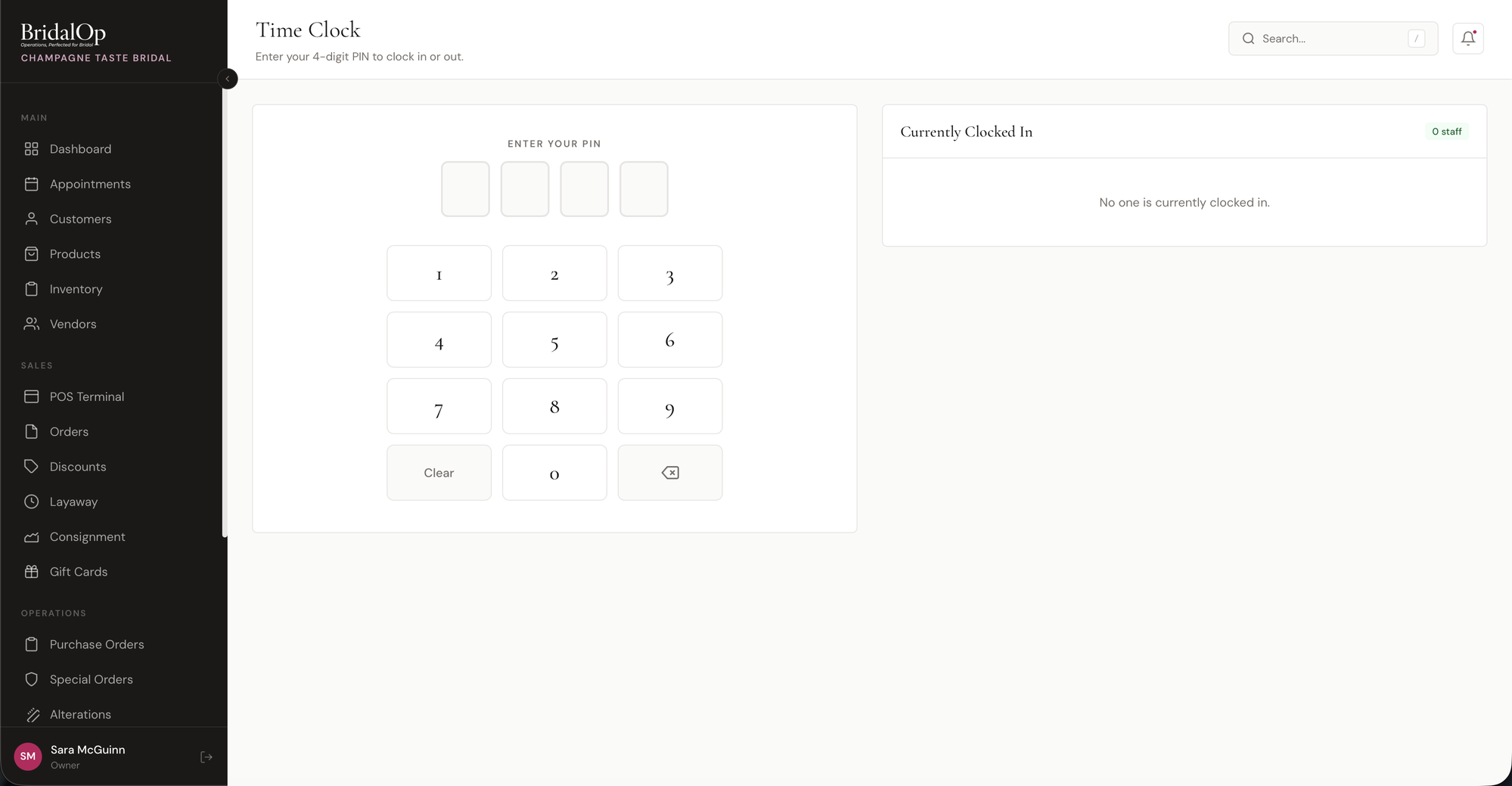
The Time Clock lets your staff clock in and out using a simple 4-digit PIN. It's designed to work on any device — a shared tablet at the front desk, a laptop in the back office, or a phone.
Clocking In & Out
Entering Your PIN
Enter your 4-digit PIN using the on-screen number pad or by typing on your keyboard. Each digit fills one of the four input boxes — no need to click the boxes first, just start typing.
| Button | Action |
|---|---|
| 0–9 | Enter a digit |
| Clear | Clear all digits |
| ⌫ (Backspace) | Delete the last digit |
Once all 4 digits are entered, two action buttons appear:
- Clock In — start your shift
- Clock Out — end your shift
Confirmation
After clocking in, you'll see a green confirmation message with your name and the time — for example, "Sara McGuinn clocked in at 2:30 PM."
After clocking out, the message shows your name and how long you worked — for example, "Sara McGuinn clocked out. Worked 8h 30m."
If you enter a wrong PIN, you'll see "Invalid PIN. Please try again." The system also prevents double clock-ins ("Sara McGuinn is already clocked in") and clock-outs when you're not clocked in.
Currently Clocked In
The sidebar on the right shows everyone currently on the clock. Each entry displays:
- Initials in a green badge
- Name
- Location
- Clock-in time
The count badge in the top-right of the sidebar shows the total number of staff currently clocked in. When no one is on the clock, it shows "No one is currently clocked in."
Setting Up PINs
PINs are assigned on each staff member's edit page (Staff > [Staff Member] > Edit). The PIN must be exactly 4 digits and is stored securely (hashed, never in plain text). Leave the PIN field blank when editing to keep the current PIN.
Timesheets
Managers can review, edit, approve, and export time entries from the Timesheets page.