

Appearance
Timesheets
The Timesheets page lets managers review, approve, and export staff time entries. Access it from the sidebar under Staff > Timesheets.
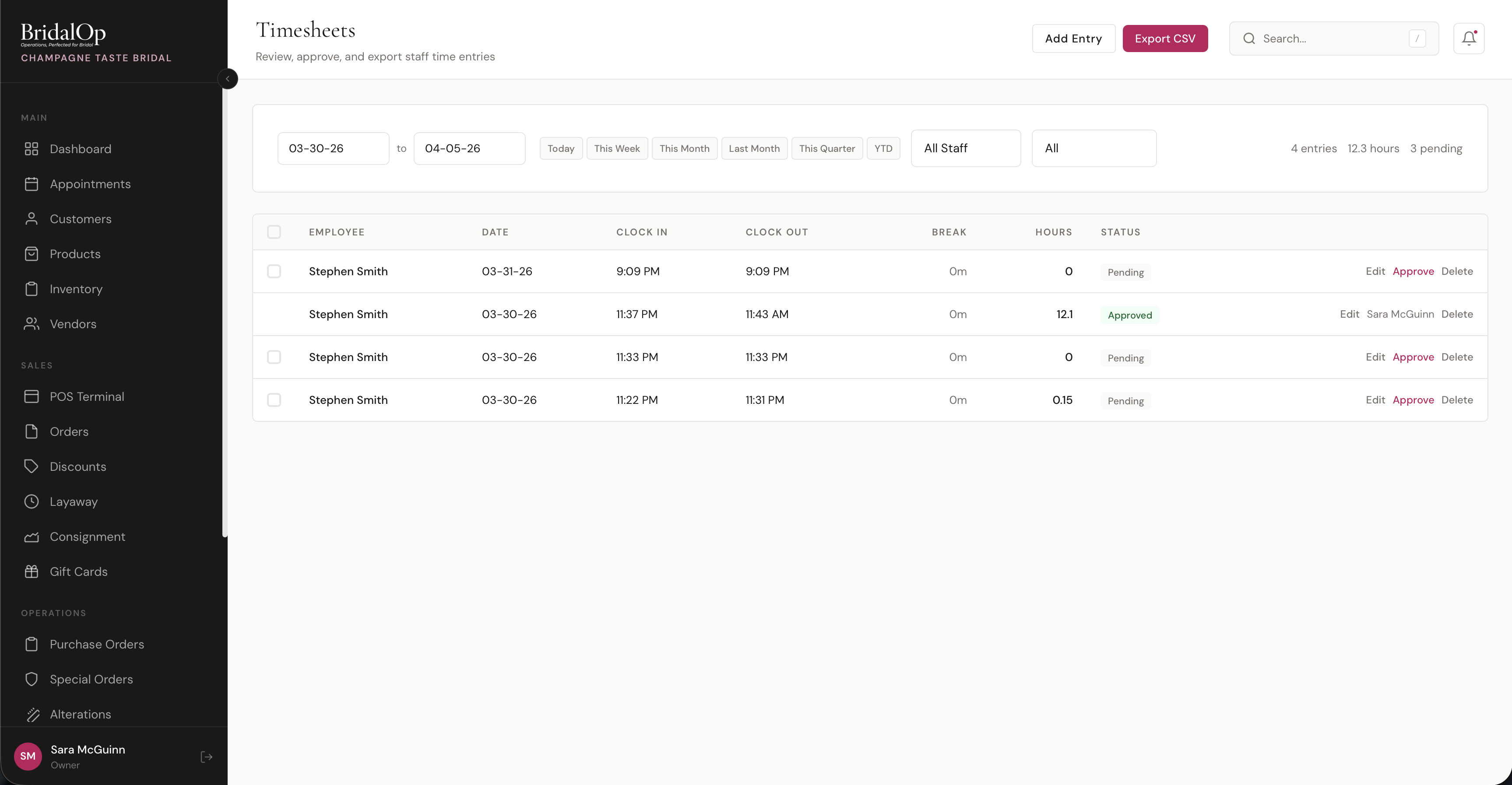
Filters
A row of filters across the top lets you narrow down the entries you're looking at.
Date Range
Pick a custom range using the From and To date pickers, or use one of the quick-select buttons:
| Button | Range |
|---|---|
| Today | Today only |
| This Week | Current week (default) |
| This Month | Current calendar month |
| Last Month | Previous calendar month |
| This Quarter | Current calendar quarter |
| YTD | Year to date |
Staff Filter
Select All Staff to see everyone, or pick a specific team member from the dropdown.
Status Filter
- All — show all entries
- Pending Approval — only entries waiting to be approved
- Approved — only entries that have been approved
Summary Stats
The top-right corner shows a quick summary of the current filtered view:
- Total entries — number of time entries shown
- Total hours — combined hours worked
- Pending count — how many entries still need approval
Table Columns
| Column | Description |
|---|---|
| ☐ | Checkbox for selecting entries (used for bulk approval) |
| Employee | Staff member's name |
| Date | Shift date (MM-DD-YY) |
| Clock In | Time clocked in |
| Clock Out | Time clocked out |
| Break | Break time in minutes |
| Hours | Hours worked, calculated as clock out minus clock in minus break time |
| Status | Pending or Approved |
| Action | Edit, Approve (for pending), and Delete links. Shows approver's name once approved. |
Adding Entries Manually
Click Add Entry in the header to create a time entry manually — useful for staff who forgot to clock in, or for entering hours after the fact. The modal includes fields for employee, location, date, clock in/out times, break minutes, and optional notes.
Editing Entries
Click Edit on any row to open the Edit Time Entry modal.
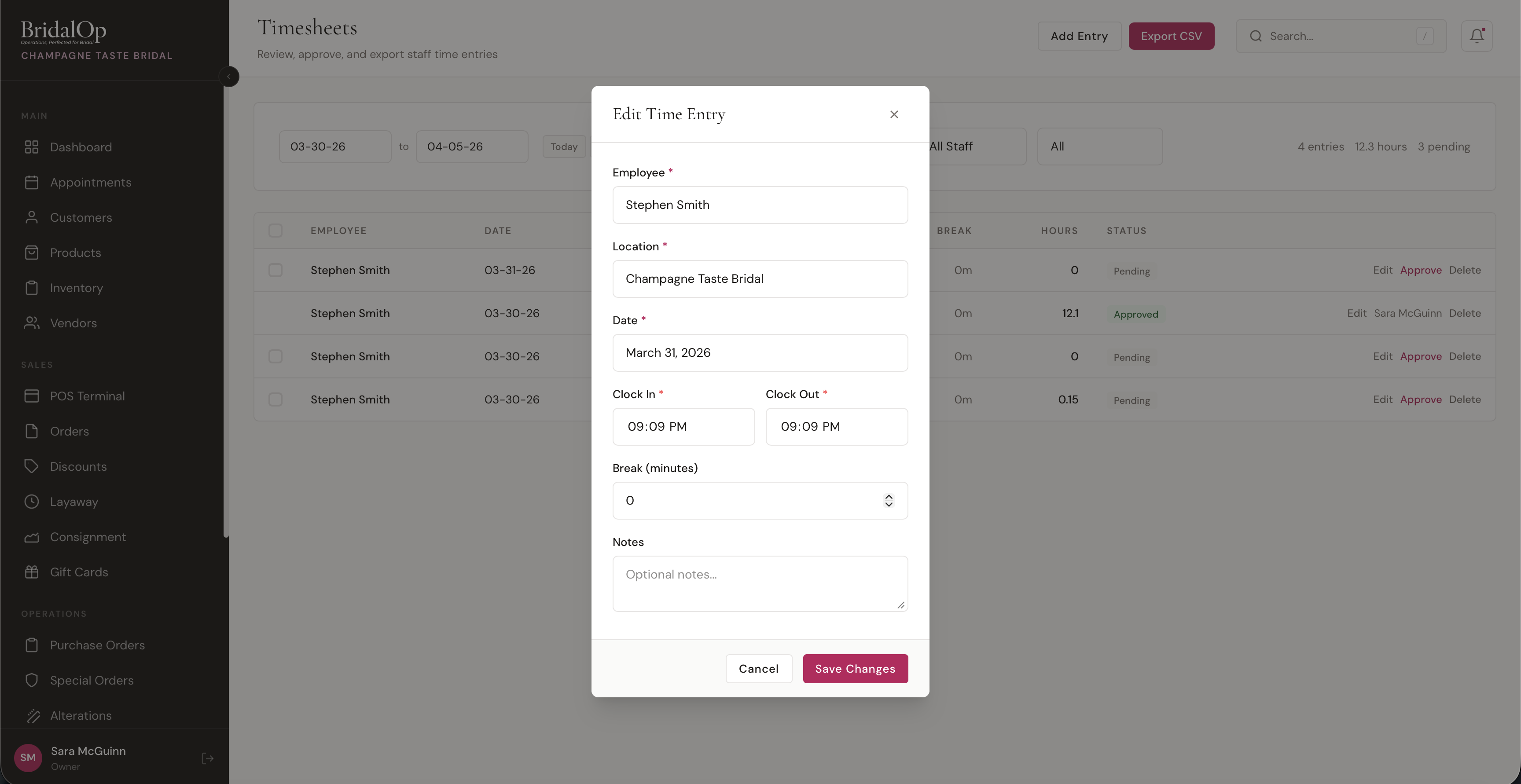
| Field | Description |
|---|---|
| Employee | Staff member (required) |
| Location | Boutique location (required) |
| Date | Shift date (required) |
| Clock In | Start time (required) |
| Clock Out | End time (required) |
| Break (minutes) | Deductible break time |
| Notes | Optional notes |
Hours are recalculated automatically based on the updated times and break. The system handles overnight shifts — if the clock-out time is earlier than the clock-in time, BridalOp knows the shift crossed midnight and calculates hours correctly.
Deleting Entries
Click Delete on any row to remove a time entry. A confirmation prompt appears before the entry is permanently deleted.
Approving Entries
New time entries start as Pending until a manager approves them.
Individual Approval
Click the Approve link on any pending entry to approve it. Once approved, the status changes to Approved and the approver's name appears in the action column.
Bulk Approval
- Check the boxes next to the entries you want to approve (or use the header checkbox to select all)
- Click Bulk Approve to approve all selected entries at once
Export Payroll CSV
Click Export CSV in the top-right to download the currently filtered timesheets as a CSV file. The export includes:
- Employee name
- Date
- Clock in and clock out times
- Break minutes
- Hours worked
- Notes
- Approval status
The file is named with the date range — for example, payroll-2026-03-30-to-2026-04-05.csv — and is ready to import into your payroll system.