

Appearance
Vendors
Manage your suppliers and consignment partners from the Vendors section. BridalOp supports two vendor types — Standard vendors (your regular wholesale suppliers) and Consignment vendors (partners whose items you sell on their behalf with a revenue split).
Vendor List
The main Vendors page shows your active vendors with search and a type badge. An Active / Archived toggle at the top switches to the vendors you've archived, with a count of how many there are.
| Column | Description |
|---|---|
| Name | Vendor name (click to view details) |
| Contact | Primary contact person |
| Vendor email | |
| Phone | Vendor phone number |
| Type | Standard or Consignment badge |
Adding a Vendor
Click New Vendor to create one.
Standard Fields (All Vendors)
| Field | Required | Description |
|---|---|---|
| Name | Yes | Vendor/company name |
| Contact Name | No | Primary contact person |
| No | Vendor email address | |
| Phone | No | Phone number |
| Website | No | Vendor website URL |
| Portal URL | No | URL of the vendor's account portal where you log in to place purchase orders, check inventory, or manage account settings. Paste either a full URL (https://portal.example.com) or a bare domain (portal.example.com) — BridalOp auto-prepends https://. Surfaced as a one-click Open Portal button across the app — see Vendor Portal Link below. |
| Account Number | No | Your account number with this vendor |
| Payment Terms | No | Default payment terms for Purchase Orders with this vendor (see below) |
| Deposit % | Conditional | Only shown when Payment Terms is "Deposit" — the percentage required upfront |
| Notes | No | Internal notes about this vendor |
Payment Terms Options
The Payment Terms dropdown offers these options:
| Option | Payment Timing |
|---|---|
| Full Payment | Payment is due on the order date |
| Deposit | Deposit percentage required upfront, balance due when the item arrives |
| Net 30 | Payment due 30 days after the item arrives |
| Net 45 | Payment due 45 days after the item arrives |
| Net 60 | Payment due 60 days after the item arrives |
| Net 90 | Payment due 90 days after the item arrives |
When you select Deposit, an additional Deposit % field appears where you enter the percentage required upfront (e.g., 50 for 50%).
How This Ties Into Purchase Orders
The vendor's default Payment Terms automatically apply to every line item on new Purchase Orders with that vendor. When you create a Purchase Order:
- Each line starts with the vendor's default terms
- You can override the terms per line if needed
- The line's Est. Arrival date plus the terms determines when payment is due to the vendor
- You track vendor payments by entering amounts in the Paid field on each line — the Balance updates automatically
This means you can set up each vendor's standard payment schedule once and have it carry through to every PO without re-entering it.
Consignment Vendor
Check "This is a consignment vendor" to enable consignment-specific fields:
| Field | Description |
|---|---|
| Consignment Split % | Percentage paid to the vendor on each sale. Leave blank to use the global default set in Settings > General > Consignment. |
| Payout Method | How you pay this vendor — Digital Check, Venmo, Zelle, Cash App, or PayPal |
| Payout Username | The vendor's payment handle (e.g., @username for Venmo, email for PayPal). Only shown for non-check methods. |
Vendor Profile
Click any vendor in the list to view their profile.
Standard Vendor
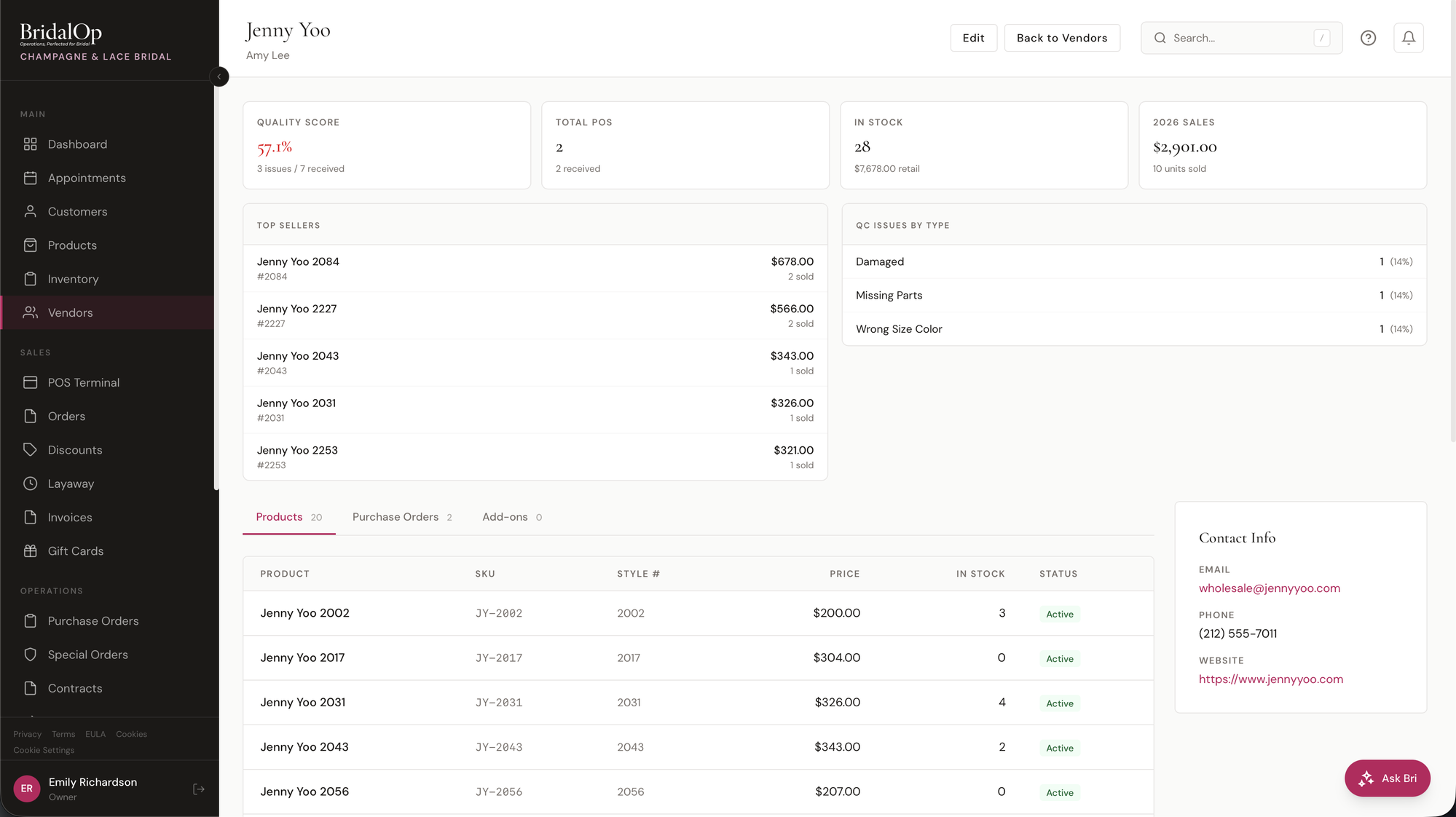
At the top of the vendor profile, stat cards give you a quick overview of this vendor's performance:
| Stat | What It Shows |
|---|---|
| Quality Score | Percentage of received items without QC issues (e.g., "80% — 1 issue / 5 received"). Color-coded: green for high, amber for moderate, red for low. |
| Total POs | Number of purchase orders placed with this vendor, with count of received items |
| In Stock | Total inventory items currently in stock from this vendor, with retail value |
| 2026 Sales | Year-to-date revenue from this vendor's products, with units sold |
| Top Sellers | Best-selling products from this vendor with price and units sold |
| QC Issues by Type | Breakdown of quality control issues (Damaged, Wrong Item, etc.) with counts and percentages |
Below the stats, the profile has a row of tabs and a contact info sidebar.
Products tab — all products from this vendor, showing name, SKU, style number, price, in-stock count, and status.
Purchase Orders tab — all POs placed with this vendor, showing PO number, date, item count, total, and status (Draft, Submitted, Shipped, Partially Received, Received, Cancelled).
Add-ons tab — manage product add-ons offered by this vendor (see Add-ons below).
Lead Times tab — this vendor's turnaround and rush options (see Lead Times below).
Color Groups tab — manage named color palettes (see Color Groups below).
Size Charts tab — manage named size charts with measurements (see Size Charts below).
Files tab — the designer's own paperwork: order forms, measurement forms, price lists (see Vendor Files below).
Contact Info sidebar — email (clickable), phone, website (opens in new tab), Portal URL (opens in new tab — see Vendor Portal Link), account number, and payment terms.
Consignment Vendor
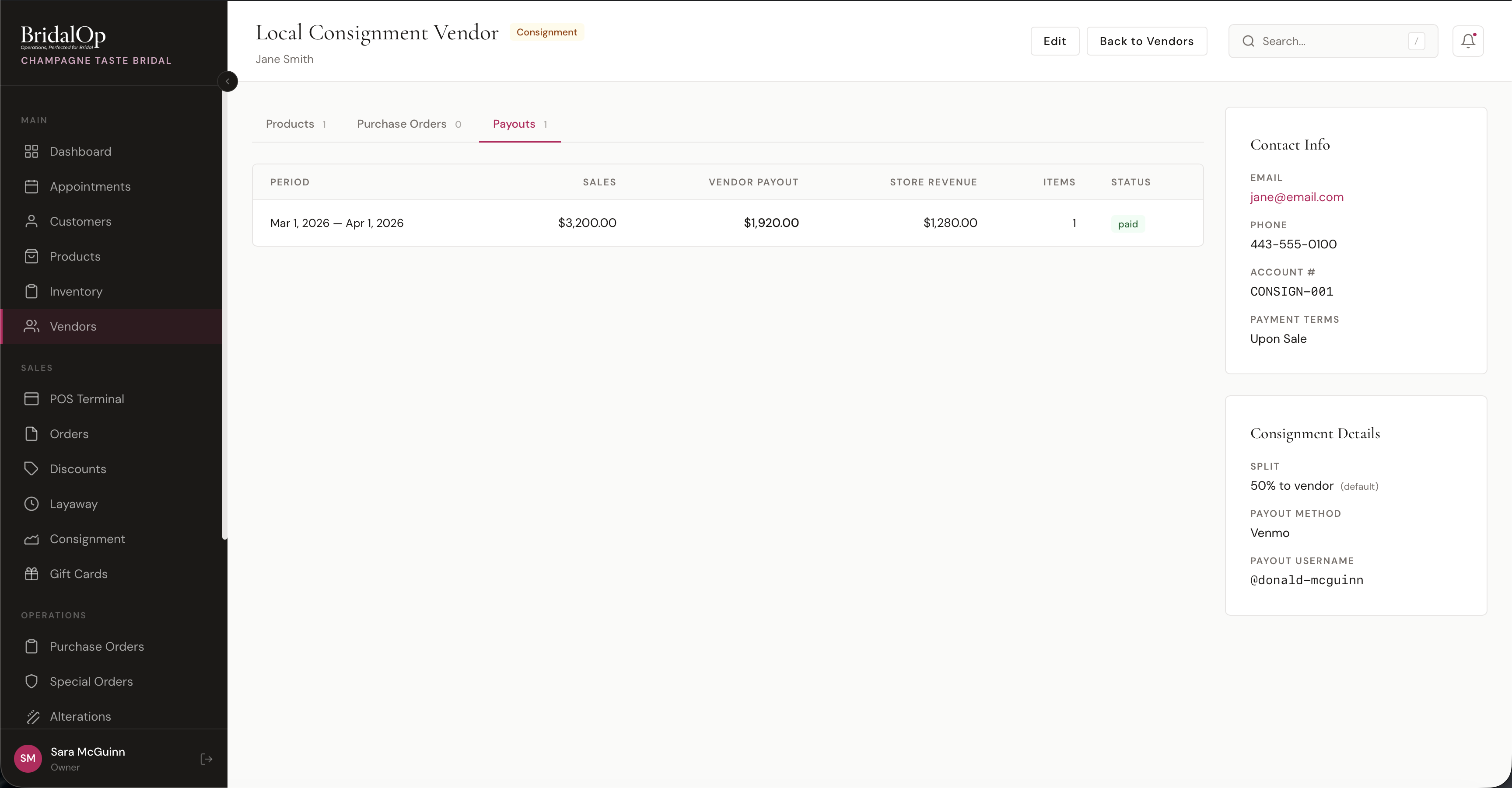
Consignment vendors have everything above plus:
Payouts tab — a table of all consignment settlement periods showing:
| Column | Description |
|---|---|
| Period | Date range for the settlement (e.g., "Mar 1, 2026 — Apr 1, 2026") |
| Sales | Total sales amount from their consignment items |
| Vendor Payout | The vendor's share based on the split percentage |
| Store Revenue | Your boutique's share |
| Items | Number of consignment items sold |
| Status | Draft, Finalized, or Paid |
Consignment Details sidebar — shows the split percentage (with "(default)" label if using the global setting), payout method, and payout username.
Archiving a Vendor
A designer you no longer buy from doesn't need to sit in every vendor picker, but you also don't want to lose the gowns you sold from her. Archive keeps both.
Open the vendor's profile and click Archive. From then on:
- She drops out of the vendor pickers on new products, purchase orders and special orders, and off the Active list on the Vendors page.
- Her products, inventory, sales history and reports are untouched. Vendor Sales, Category Sales and every client's purchase history still show her gowns.
- A product that already belongs to her still shows her as its vendor when you edit it, so nothing has to be re-assigned.
- Her profile stays reachable from the Archived list, marked with an Archived badge.
Click Restore on an archived vendor's profile to bring her back into the pickers. Archiving isn't deleting: a vendor with sales history can't be deleted, and doesn't need to be.
Vendor Files
The Files tab on a vendor's profile is for the designer's own paperwork — the custom measurement form, the order form, the current price list, the terms they sent you. The kind of thing that otherwise lives in one person's inbox and can't be found on the Saturday they're off.
Uploading: pick a category, optionally give the file a label, and choose up to 10 files at once. Accepted types are images (JPG, PNG, GIF, WebP), PDF, Word, Excel, CSV, TXT and ZIP, up to 10 MB each.
Categories — files are grouped under these headings so you can find one without reading the whole list:
| Category | Typically |
|---|---|
| Order Forms | The designer's own order sheet |
| Measurement Forms | Custom measurement charts to print and fill in with a bride |
| Price Lists | Current wholesale and retail sheets |
| Contracts & Terms | Your agreement, return policy, minimums |
| Marketing & Care | Lookbooks, care cards, anything to hand a customer |
| Other | Everything else |
Each file shows its label or filename, size, who uploaded it, and when. Download serves it through BridalOp rather than a public link, so a file is only reachable by someone signed in to your boutique. Delete removes it permanently.
Vendor files are internal by nature — unlike a customer's files, there's nothing here a customer can see, so there's no "internal only" marking to set.
Vendor Portal Link
The Portal URL field on a vendor (set on the create / edit form) gets surfaced anywhere staff are likely to need fast access to the vendor's own account portal — usually for placing POs, checking stock, or managing account settings.
Once a Portal URL is set, BridalOp shows it in four places:
| Where | What You See |
|---|---|
| Vendor profile header | Prominent Open Portal button at the top of the vendor show page — one click opens the portal in a new tab |
| Vendor contact card | A clickable Portal URL line in the contact sidebar |
| Vendor list table | A small external-link icon next to the vendor row — same click-to-open behavior |
| Purchase Order detail | An Open Portal ↗ link directly under the vendor name on the PO show page — most useful spot, since staff often jump from a draft PO straight into the vendor's portal to actually submit it |
If the vendor has no Portal URL set, all four surface points are hidden — they only render when the field is populated.
Vendor Add-ons
Add-ons are optional extras that a vendor offers on their products — things like extra beading, a matching belt, rush processing, or a length change. Each add-on has an additional price (what you charge the customer) and an additional cost (what the vendor charges you).
Click the Add-ons tab on any vendor's profile to manage their add-ons.
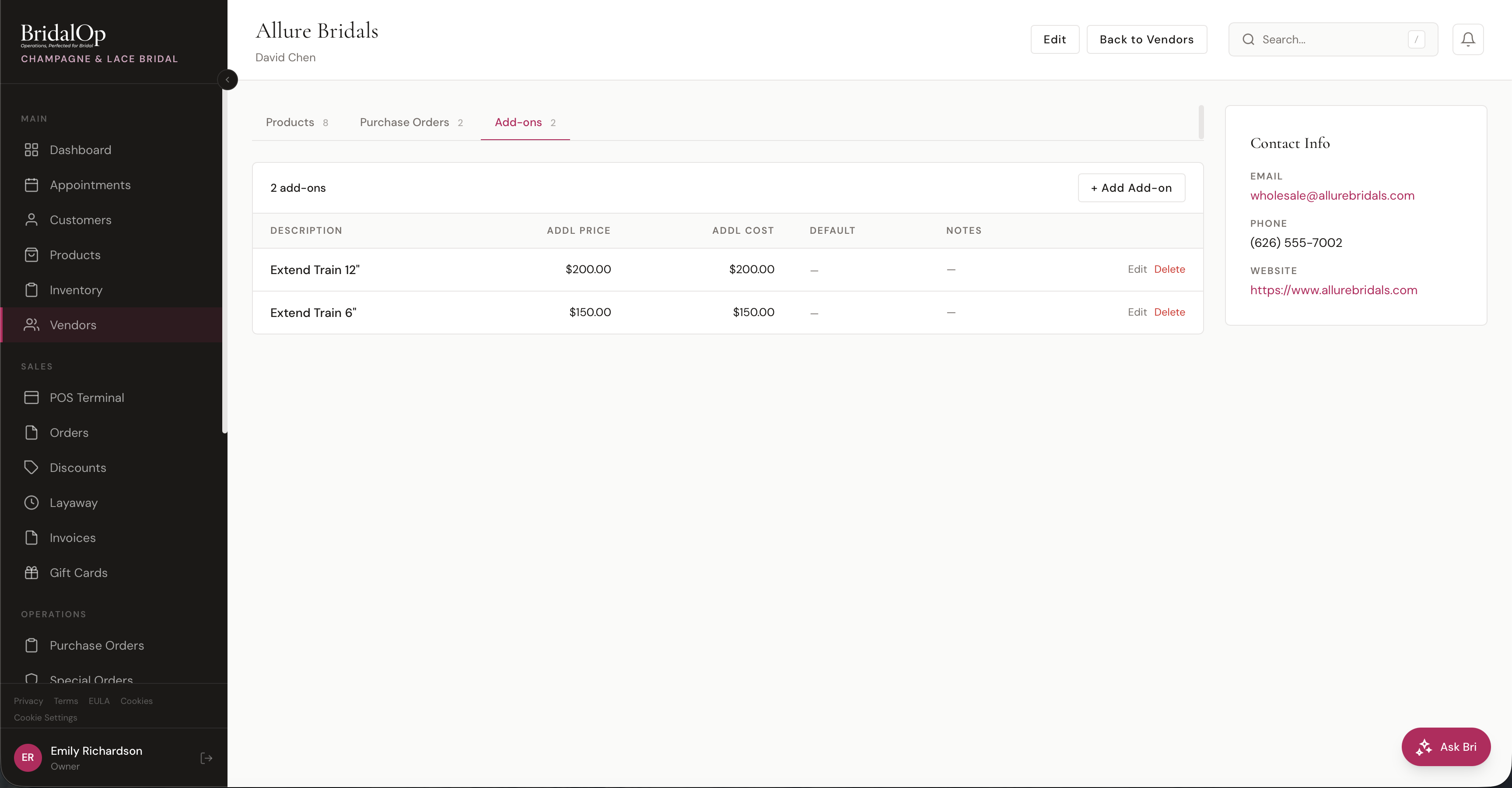
Add-ons Table
| Column | Description |
|---|---|
| Description | What the add-on is (e.g., "Extra Beading", "Rush Fee") |
| Applies To | A product category, or "Assigned products" if you attach it product by product |
| Addl Price | Additional price charged to the customer |
| Addl Cost | Additional cost to you from the vendor |
| Default | Badge shown if this add-on is auto-applied to products (see below), and Not taxed if it isn't taxable |
| Notes | Optional internal notes |
Creating an Add-on
Click + Add Add-on in the tab header. Fill in the description, additional price, additional cost, and optional notes.
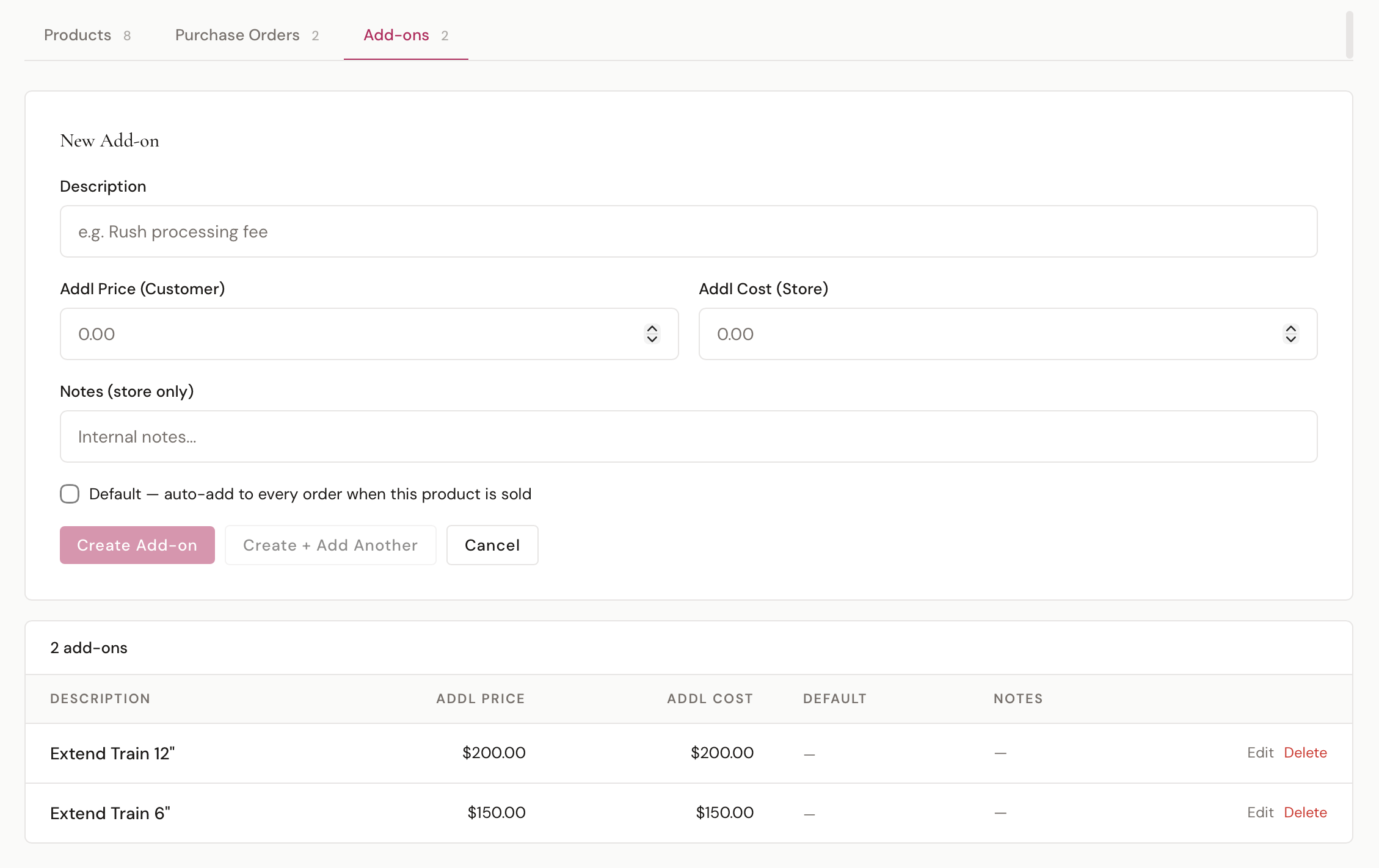
You have two save options:
- Create Add-on — saves and returns to the list
- Create + Add Another — saves and clears the form so you can immediately add the next one
Mark an add-on as Default to have it automatically added to the cart whenever one of this vendor's products is added at the POS.
Report sales under sets which category this add-on's sales count toward on the Category Sales report, like Fees/Extra Charges for shipping. It's separate from Applies to, which decides which products the add-on is offered on. Left blank, its sales show as Add-ons. Changing it re-files past sales of that add-on too.
Taxable is ticked for every new add-on. Untick it for charges that shouldn't be taxed, like shipping or delivery. Its line then comes into the POS cart with tax off, and the list shows Not taxed. Staff can still tick or untick tax on a single line in the POS for a one-off. Changing it affects future sales only, not ones already rung up.
Applies To — By Category or By Product
Every add-on is one of two kinds, set by the Applies to field:
Products I assign it to (the default, and how add-ons have always worked). The add-on is offered on the vendor's products and you attach it yourself, from a product's Add-ons tab or in bulk from the Products list.
Every [category] product from this vendor. The add-on covers that category on its own. Every one of the vendor's products in it gets the add-on with no assigning, including products you add next year — and nothing outside that category gets it.
The second one exists because charges genuinely do differ by category. A designer's rush fee on a veil is not their rush fee on a gown, and tariffs are levied per category. Without it you end up creating "Rush – Veil" and "Rush – Gown" and remembering which to tick on every product you ever add.
A few consequences worth knowing:
- Setting a category clears any individual assignments that add-on had. It belongs to the category now, so leaving the old rows would show it as assigned on products it no longer covers.
- Category add-ons don't appear in the "Available from vendor" list on a product, or in the bulk assign picker. There'd be nothing to assign — they're already applying wherever they apply.
- On a product, they're listed in their own section headed From the [category] category, so it's clear where they come from. Change them on the vendor page.
- Default still works the same way. A category add-on marked Default is added to the cart automatically when one of those products is rung up.
- A product with no category set gets only the add-ons assigned to it individually.
Editing and Deleting
Click Edit on any add-on to switch to an inline edit form. Click Save Changes when done. Click Delete to permanently remove an add-on.
Copy Add-ons From Another Vendor
If a vendor shares an identical add-on list with one you've already set up — for example, a couture line and its sister label — you don't have to re-enter each add-on by hand. Click Copy from vendor… in the Add-ons tab header, pick the source vendor from the dropdown (each option shows how many add-ons that vendor has), and click Copy. Every add-on from that vendor is copied into this one in a single step.
A few things to know:
- Any add-on whose description and category both already exist on this vendor is skipped, so it's safe to run more than once — you won't end up with duplicates.
- It copies the add-on definitions (description, prices, cost, notes, default flag), not their product assignments. The copied add-ons start unattached, so you assign them to products afterward like any other add-on.
- The button only appears when there's at least one other vendor to copy from.
Once created, vendor add-ons can be assigned to individual products from the Product detail page or in bulk from the Products list.
Lead Times
How long this designer takes, what rush options they offer, what those cost, and which ones they have to approve first.
It's a reference guide and nothing more. Nothing here attaches itself to a purchase order or a special order — lead times move with the season, the fabric and how busy the atelier is, so a consultant standing in front of a bride should be reading the options and deciding, not being handed one by the software.
Click the Lead Times tab on a vendor's profile.
The Table
| Column | What It Shows |
|---|---|
| Option | What the designer calls it — "Standard", "12-week rush". Rush and approval-needed options are flagged underneath |
| Applies To | A product category, or "All categories" |
| Turnaround | A range, e.g. "10–12 weeks" |
| Charge | What the bride pays — a flat fee, or a percentage of the item |
| Cost | What the designer charges you, so you can see the margin |
| Notes | Store-only. Cut-off dates, who to email, anything the team should know |
Adding One
Click + Add Lead Time and fill in:
- Option — the name. Required; everything else is optional.
- Applies to — leave it on "All categories", or pick one. Worth using: a veil and a gown from the same house rarely run the same calendar, and if you leave it blank you'll end up with one row that's only true for gowns.
- Weeks (from / to) — the range. Put the same number in both if it's firm, or fill in only one. If you type them the wrong way round it'll straighten them out rather than complain.
- Charge type — flat fee or percent of the item. Rush is quoted both ways in this trade, and which one depends on the designer.
- Charge and Cost — what the bride pays, and what it costs you.
- This is a rush option — flags it in the list.
- Needs the designer's approval first — flags it in red. The point is that nobody promises a bride a date the designer hasn't agreed to.
- Notes — never shown to a customer.
Add + Another keeps the category and charge type so you can enter a designer's whole rush ladder without re-picking them each time.
Copy From Another Vendor
Same as with add-ons. Click Copy from vendor…, pick the source, and every lead time comes across. Anything already here — matched on the option name and category together — is skipped, so running it twice does no harm.
Sister labels under one house usually share a production calendar, which is what this is for.
Color Groups
Color Groups are reusable named color palettes for a vendor — for example, a designer's seasonal color story ("Spring 2026 Naturals"). Once a group exists, it can be picked as the Color Group on any of the vendor's products via the Palette card, and the colors flow into the Variant Color autocomplete.
Click the Color Groups tab on a vendor's profile to manage them.
Creating a Color Group
| Field | Description |
|---|---|
| Name | The group's display name (e.g., "Core Ivories", "Spring 2026 Naturals") |
| Colors | Comma-separated list of color names (e.g., Ivory, Champagne, Blush, Mauve) |
Click Save to create the group. It immediately becomes selectable on the vendor's products.
Editing and Deleting
Each group has inline Edit and Delete buttons. Editing the colors reflects on every product currently using that group — the palette is read live, so updates propagate without re-saving each product.
Size Charts
Size Charts are reusable named size tables with measurements for each size — including optional per-size add-on cost and price. Once a chart exists, it can be picked as the Size Chart on any of the vendor's products via the Palette card, and the sizes flow into the Variant Size autocomplete.
Click the Size Charts tab on a vendor's profile to manage them.
Creating a Size Chart
| Field | Description |
|---|---|
| Name | The chart's display name (e.g., "Standard Bridal", "Plus Size 18-32") |
| Rows | One row per size, with measurement columns |
Each row has these columns:
| Column | Description |
|---|---|
| Size | The size label (e.g., 8, 12W, XL) |
| Bust | Bust measurement |
| Waist | Waist measurement |
| Hips | Hips measurement |
| Hollow to Hem | Length measurement from hollow of throat to hem |
| Additional Cost | Optional — extra wholesale cost for this size (e.g., plus-size upcharge from the vendor) |
| Additional Price | Optional — extra retail price for this size |
Click Add Row to append a new size and the trash icon on a row to remove it. Save writes the whole chart at once.
Vendor Pricing
The vendor edit page has a Pricing section where you set the default markup math used by every product from this vendor. Each rule has a value and a type — products inherit these defaults but can override any of them on their own Pricing Rules sub-section.
| Field | Type Options | Description |
|---|---|---|
| Retail Factor | Dollar / Percent / Multiplier | The primary markup applied to cost (e.g., a 2.4 multiplier doubles cost and adds 40%) |
| Retail Factor Plus | Dollar / Percent / Multiplier | A second markup applied after Retail Factor — useful for layering a fixed margin on top of a multiplier |
| Tariff | Dollar / Percent | A tariff or duty added on top. Percent is calculated against cost, not the running total. |
These defaults cascade down to every product unless that product overrides them. Update them in one place and every uncustomized product picks up the new math the next time someone runs Calculate from cost & pricing rules on the Selling Price field. BridalOp never recalculates existing prices automatically when vendor defaults change — pricing is always an explicit action.
Consignment Split Logic
The revenue split percentage can be set at three levels. BridalOp uses the most specific one:
- Per product — if a product has its own split %, that takes priority
- Per vendor — if the vendor has a custom split %, it's used as the fallback
- Global default — the default set in Settings > General > Consignment (used when neither product nor vendor has a custom split)
Where Vendors Appear
Vendors are referenced throughout BridalOp:
Products
When creating or editing a product, you select a vendor (for wholesale/purchased products) or a consignment vendor (for consignment items). The vendor name appears on the product detail page.
Purchase Orders
Every purchase order is tied to a vendor. When creating a PO, you select the vendor and add the items you're ordering from them.
Inventory
Inventory items inherit their vendor relationship from their product. This lets you filter and track inventory by vendor.
Consignment Settlements
When you create a consignment settlement (Consignment in the sidebar), you select a consignment vendor and a date range. BridalOp automatically finds all sold consignment items from that vendor during that period and calculates the split.
Reports
The Consignment report shows sales, vendor payouts, and store revenue aggregated by consignment vendor. The Inventory Summary report shows ownership type (store-owned vs. consignment) per product.
Global Search
Vendors are searchable from the Global Search — type a vendor name to jump directly to their profile.