

Appearance
Calendar Sync
Connect Google Calendar to BridalOp for two-way appointment sync. You can push BridalOp appointments out to a Google Calendar (so consultants see them on their personal calendars), or pull blocking events from Google Calendar into BridalOp (so personal commitments automatically block off booking time).
Go to Settings > Calendar Sync to set it up.
Connecting Google Calendar
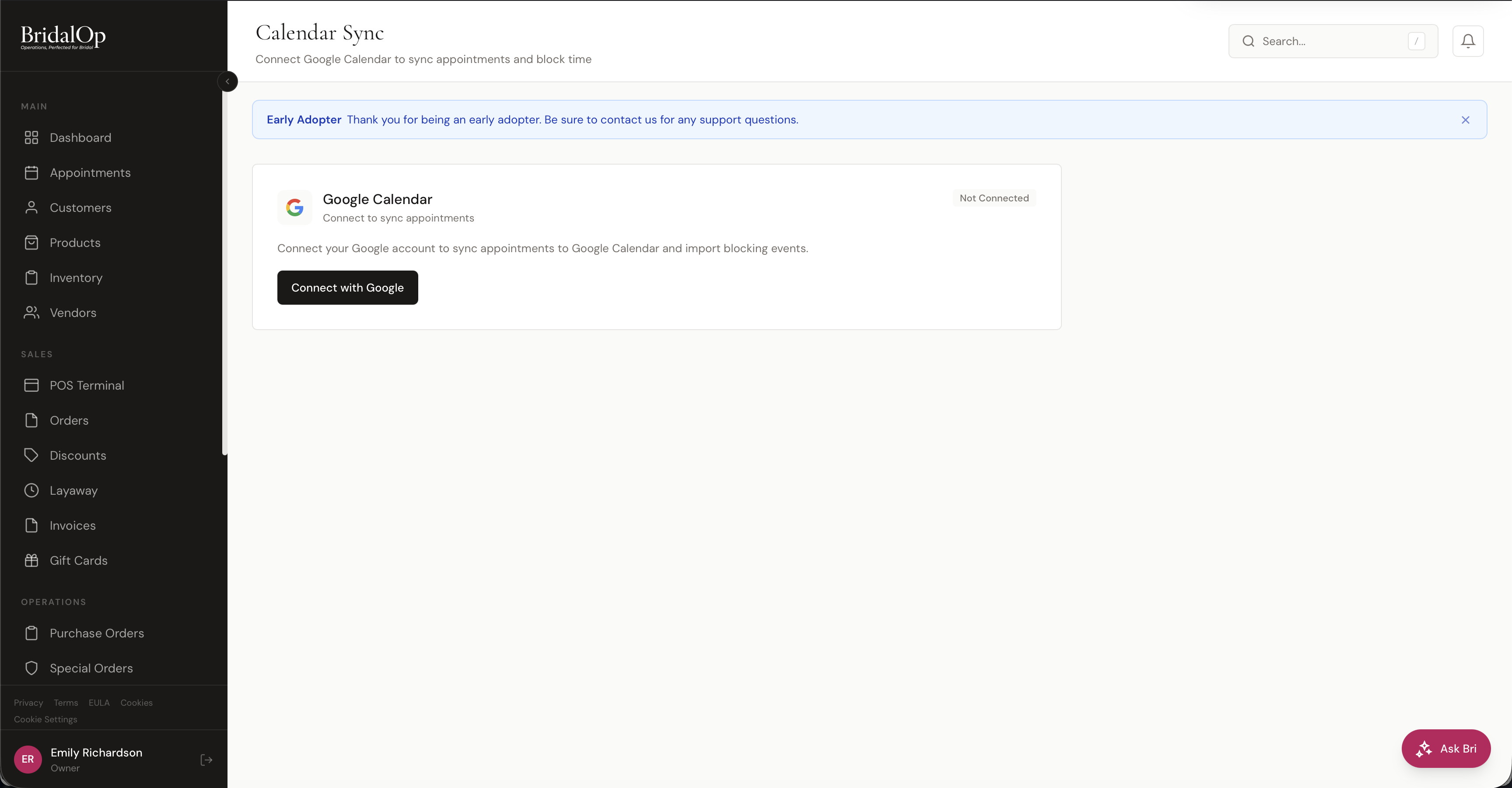
Click Connect with Google to authorize BridalOp to access your Google Calendar. You'll be redirected to Google to sign in and approve the permissions, then sent back to the Calendar Sync page.
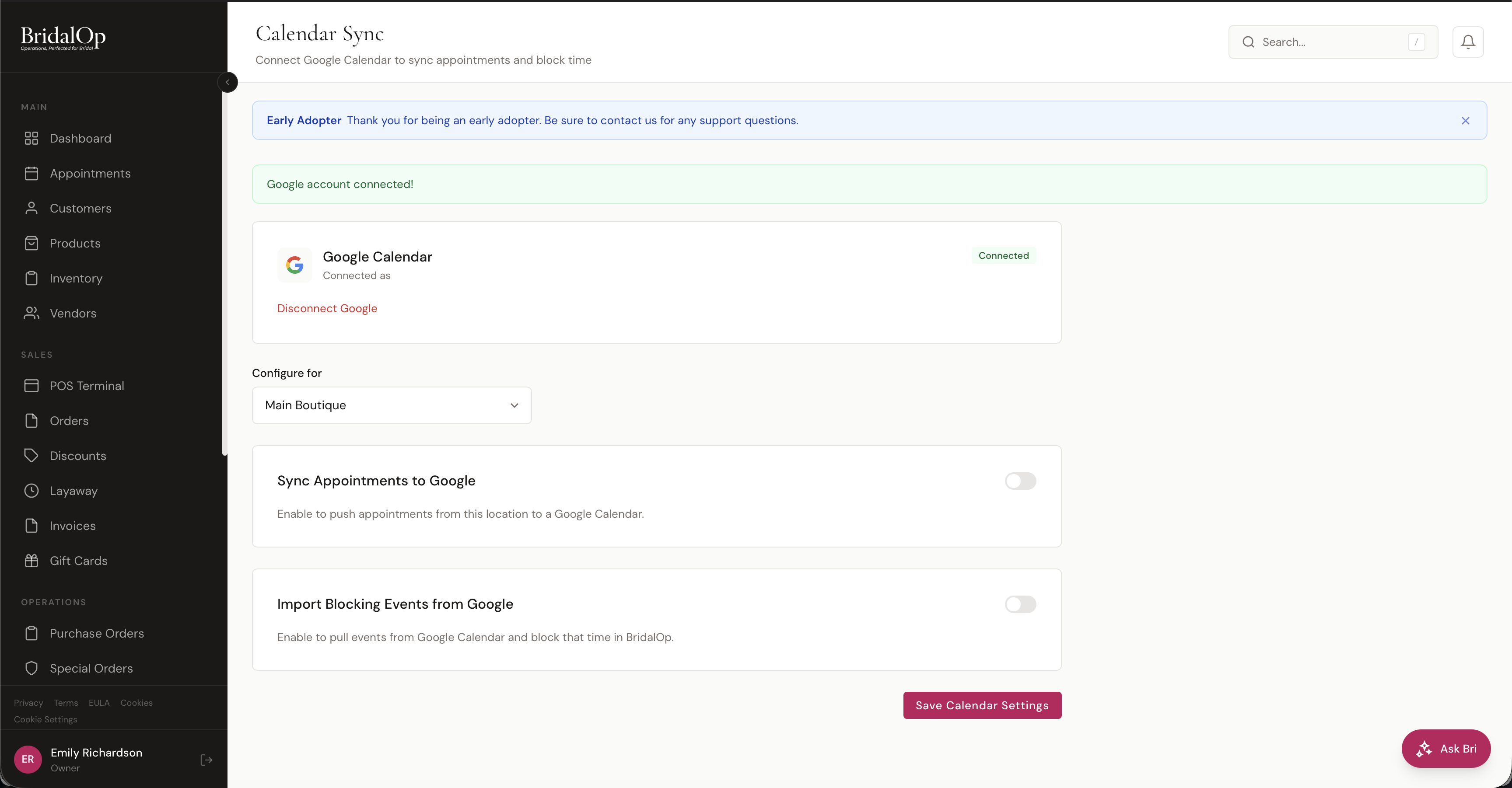
Once connected, you'll see a confirmation message and a Connected badge on the Google Calendar card.
Per-Location Configuration
If you have multiple boutique locations, calendar sync is configured per location. Use the Configure for dropdown at the top to switch between locations — each location can sync to a different Google Calendar with its own settings.
Sync Appointments to Google
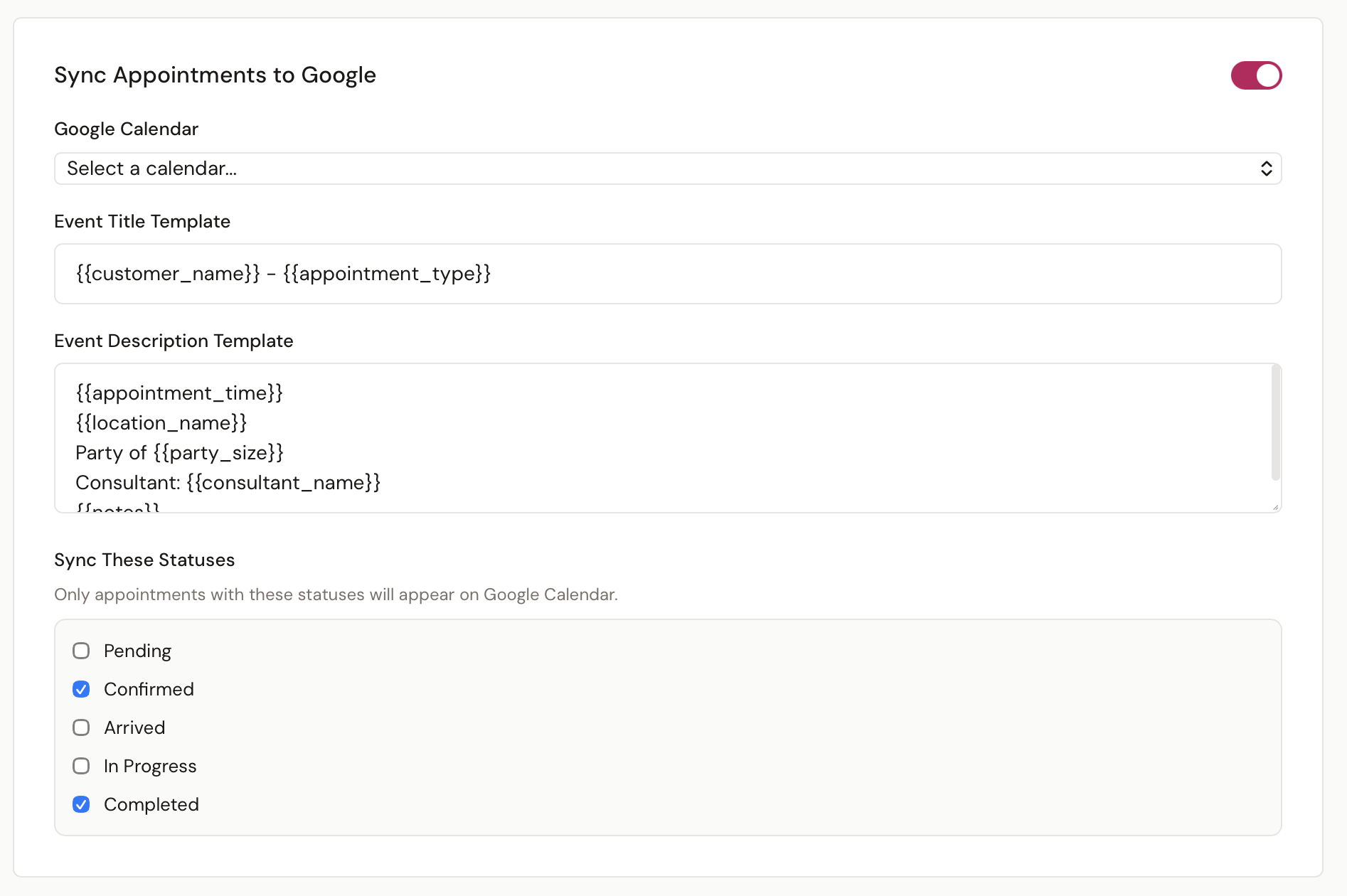
Toggle this on to push BridalOp appointments out to a Google Calendar.
| Field | Description |
|---|---|
| Google Calendar | Pick which Google Calendar appointments should be added to |
| Event Title Template | The format used for the Google Calendar event title (supports merge tags) |
| Event Description Template | The format used for the event description (supports merge tags) |
| Sync These Statuses | Only appointments with the checked statuses will be synced to Google Calendar |
Merge Tags
The title and description templates support merge tags that get filled in with appointment data:
| Tag | Replaced With |
|---|---|
{{customer_name}} | Customer's full name |
{{appointment_type}} | Type of appointment |
{{appointment_time}} | Appointment time |
{{location_name}} | Location name |
{{party_size}} | Number of guests |
{{consultant_name}} | Assigned consultant |
{{notes}} | Customer-facing notes |
A common title template is {{customer_name}} - {{appointment_type}}.
Status Filtering
The Sync These Statuses checkboxes let you control which appointments appear in Google Calendar. Available options:
- Pending
- Confirmed
- Arrived
- In Progress
- Completed
A typical setup syncs Confirmed and Completed so consultants see only real, scheduled appointments — not tentative pending bookings.
How It Works
When an appointment is created or updated in BridalOp and matches one of the synced statuses, BridalOp creates or updates the corresponding event in your Google Calendar within seconds. If an appointment is cancelled or its status changes to one that isn't synced, the Google Calendar event is removed.
Import Blocking Events from Google
Toggle this on to pull events from Google Calendar into BridalOp as blocking time. When enabled, any event on the selected Google Calendar will block off that time in BridalOp — preventing customers from booking appointments during it.

This is perfect for personal commitments (doctor's appointments, school pickups, lunch breaks) that you don't want to be interrupted by an online booking. Just add the event to your Google Calendar and it automatically blocks the time in BridalOp.
Saving Settings
After configuring sync options for a location, click Save Calendar Settings at the bottom of the page.
If you have multiple locations, switch the Configure for dropdown to a different location and repeat the process for each one.
Disconnecting
Click Disconnect Google at the top of the page to revoke BridalOp's access to your Google Calendar. Sync stops immediately. Reconnect anytime by clicking Connect with Google again.