

Appearance
Import Data
BridalOp's Import tool lets you bring in data from CSV files — customers, vendors, products & inventory, staff, discounts, and gift cards. This is the fastest way to migrate from another system or load bulk data without entering it manually.
Navigate to Settings → Import to get started.
Import Types
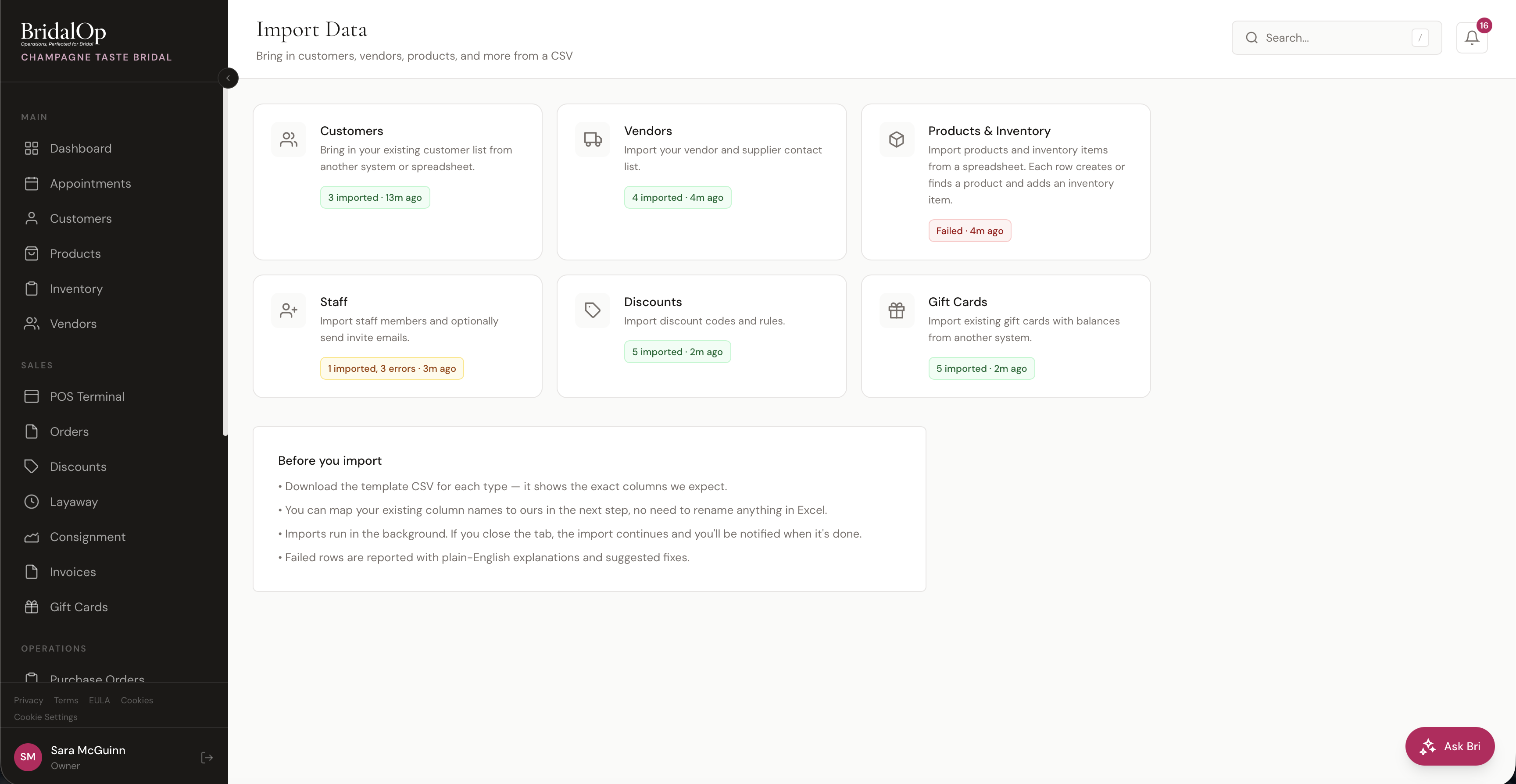
The Import hub shows seven tiles, one for each data type you can import:
| Type | What It Imports |
|---|---|
| Customers | Customer records with contact info, wedding dates, event types, tags, and marketing opt-in |
| Vendors | Vendor and supplier contact list |
| Add-Ons | Vendor add-ons and upcharges — rush fees, size changes, extra length, shipping |
| Products & Inventory | Products and physical inventory items — each row is one item, not one product |
| Staff | Staff members with roles — optionally sends invite emails |
| Discounts | Discount codes and rules |
| Gift Cards | Existing gift cards with balances from another system |
Each tile shows the result of the last import (e.g., "3 imported · 13m ago" or "Failed · 4m ago") so you can see at a glance what's been done.
The Import Flow
Every import type follows the same four-step process:
Step 1 — Upload Your CSV
Drag and drop a CSV file onto the upload area, or click browse to select one.
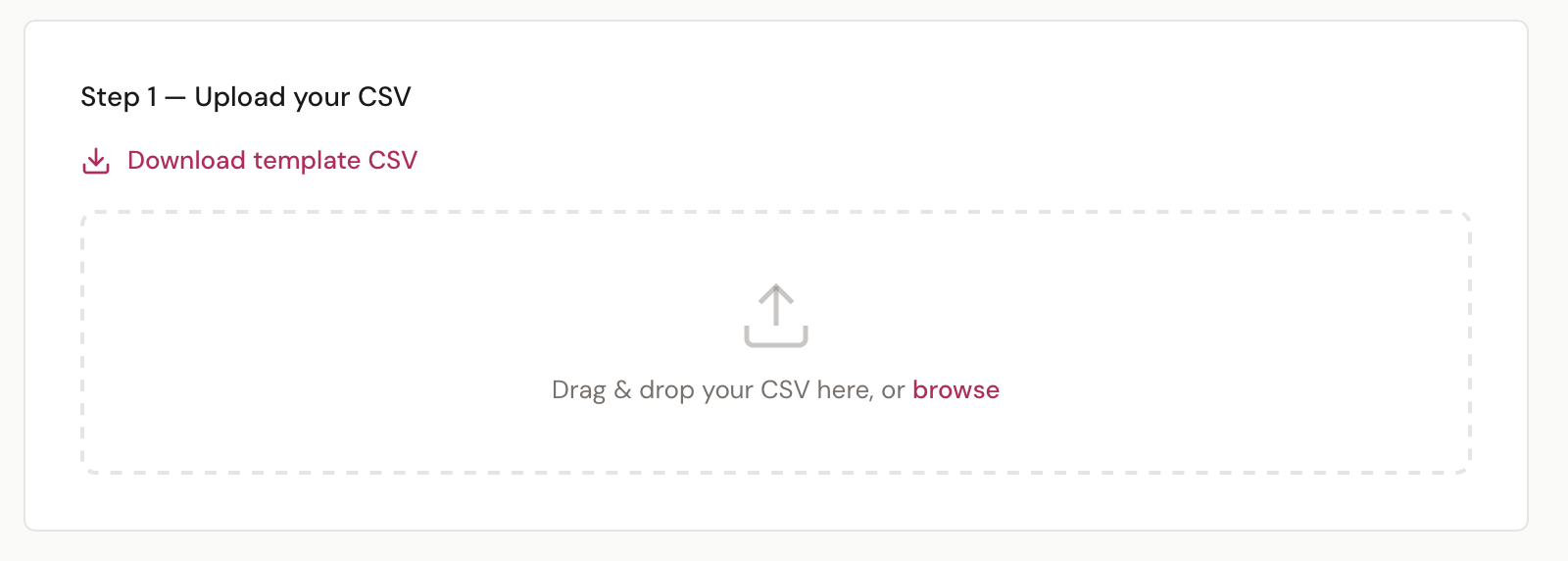
Before uploading, click Download template CSV to get a pre-formatted file with the exact columns BridalOp expects, including example rows. You don't have to use the template — any CSV works as long as you map the columns in the next step.
Step 2 — Map Your Columns
BridalOp auto-matches your CSV column headers to its fields. Review each mapping and adjust any that look wrong using the dropdown. Fields marked with * are required.
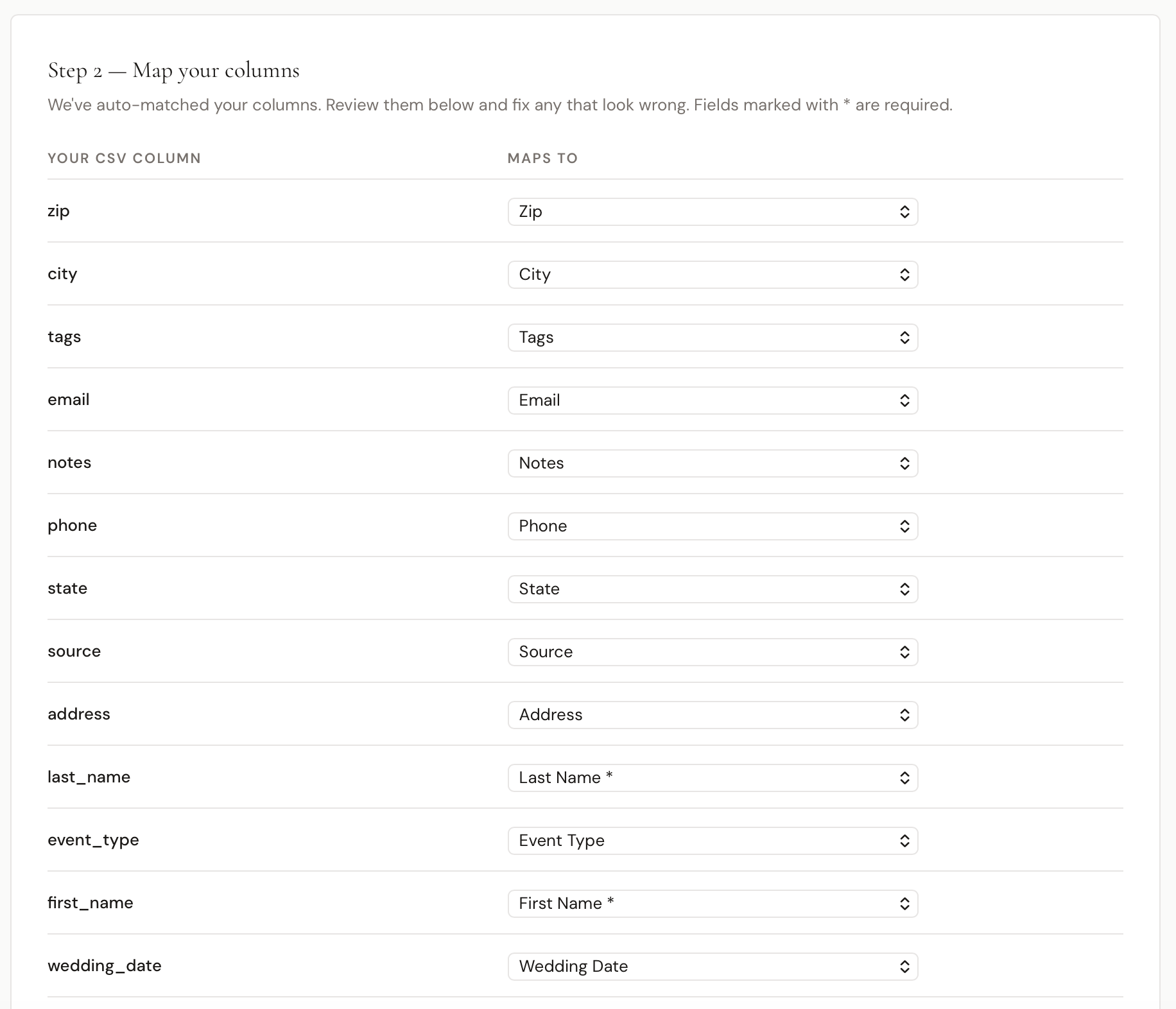
You don't need to rename anything in Excel — just map your existing column names to ours here.
Step 3 — Preview First Rows
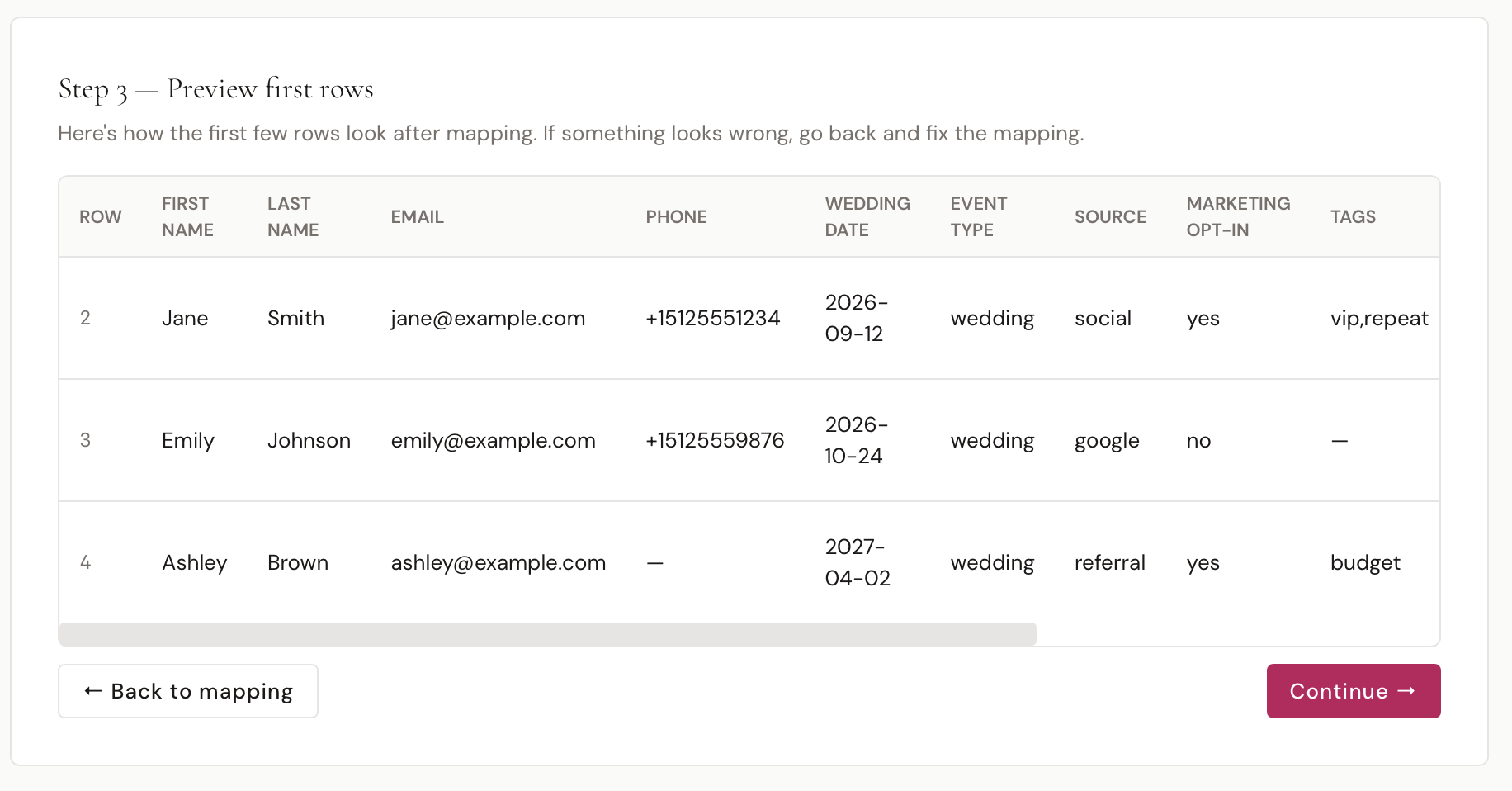
See how the first few rows of your data look after mapping is applied. If something looks off, click Back to mapping to fix it.
Step 4 — Import Options
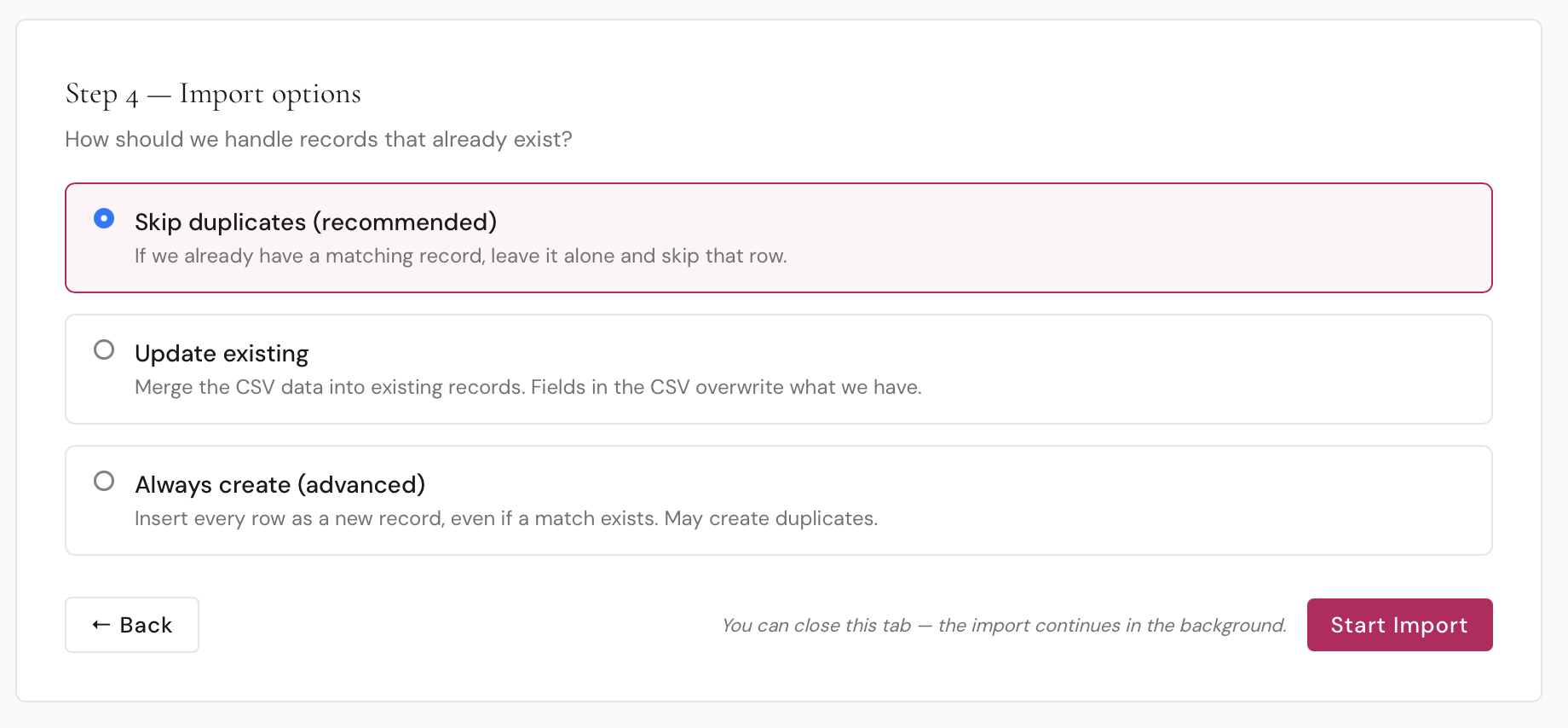
Choose how BridalOp should handle records that already exist in the system:
| Strategy | What It Does |
|---|---|
| Skip duplicates (recommended) | If a matching record already exists, skip the row entirely and leave the existing record untouched |
| Update existing | Merge the CSV data into existing records — fields in the CSV overwrite what's already there |
| Always create (advanced) | Insert every row as a new record, even if a match exists — may create duplicates |
How Duplicates Are Matched
BridalOp decides whether a row is a "duplicate" by comparing it to records that already exist:
- Customers are matched by normalized email or phone. Matching ignores formatting — casing and whitespace on emails, and everything but the last 10 digits of a phone number — so
(661) 310-5791matches6613105791, and[email protected]matches[email protected]. - Products are matched by SKU, then by style number with the vendor, then by product name with the vendor. Name only counts when it's unambiguous, and never when the two style numbers or SKUs say they're different products. This is what recognizes products brought in from another system without a SKU or style number.
When a row matches a product that was already in BridalOp before the import:
- Skip duplicates skips the row and leaves the product and its stock alone.
- Update existing updates the product's details from the row, but never adds inventory items to it. If the row has a barcode that belongs to one of that product's items, that item is updated (status, location, condition, size and color, purchase price) instead.
- Always create adds a new inventory item for the row, as before.
With Skip duplicates, a matching row is skipped in full. This is what makes re-importing safe: running the same file twice will not create duplicate customers, and — importantly for the Products & Inventory importer — it will not add a second inventory item for a product that already exists. Rows are also deduplicated against earlier rows in the same file, so a file containing the same customer twice won't create two records either.
Click Start Import to begin. You can close the tab — the import runs in the background and you'll get a notification when it finishes.
Import Progress
If you stay on the page (or come back to it), you'll see a live progress view:
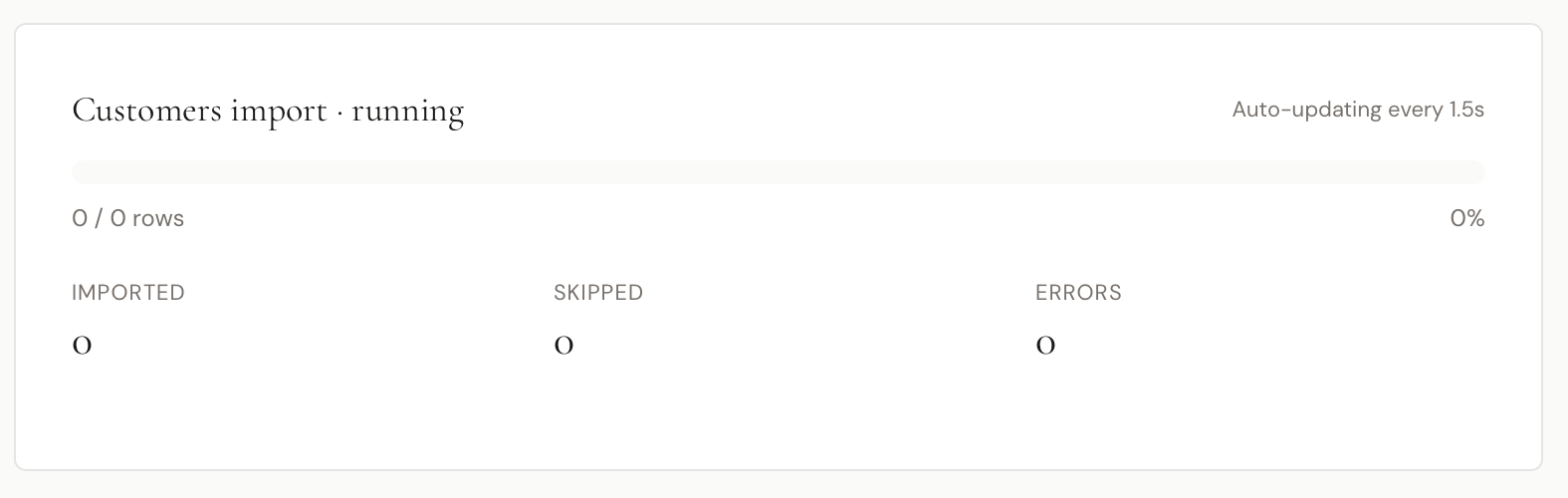
The progress bar shows how many rows have been processed, with counters for Imported, Skipped, and Errors. The page auto-updates every 1.5 seconds.
Only one import per type can run at a time.
Error Reports
If any rows fail, BridalOp generates a downloadable error report CSV. The report includes all the original columns from your file plus:
| Column | Description |
|---|---|
| _error_row | The row number that failed |
| _error_field | Which field caused the error |
| _error_message | A plain-English explanation of what went wrong |
| _error_fix | A suggested fix |
Fix the errors in your CSV and re-import — use Skip duplicates so the rows that already succeeded are left alone.
A spreadsheet that isn't UTF-8 no longer stops the import
Excel routinely saves "CSV" in an older character set, and a single accented character used to fail the whole upload with an unhelpful message about JSON. Those files now import, and accented names like La Mariée come through intact rather than mangled.
Products & Inventory Import
The Products & Inventory importer works differently from the others. Each CSV row represents one physical inventory item, not one product. If you have three rows with the same SKU, BridalOp creates one product and three inventory items (each with its own size, color, barcode, etc.).
Key details:
- Vendor, Location, and Category are resolved by name, not ID — type them exactly as they appear in BridalOp
- If a vendor name is misspelled, BridalOp suggests the closest match in the error report
- Barcodes auto-generate as BO-XXXXXX when left blank in the CSV
- Location is no longer required. Leave the column out and stock goes to your default location for the import, or failing that your primary location. A location name that doesn't match anything only errors if you have more than one location — with a single boutique there's nowhere else it could have meant, so the row still imports
- Product class accepts what people actually write — "Bridal Gown", "Shoes", "Accessories", "Prom & Homecoming", "MOB", "Evening Wear", "Tuxedos" and similar all map to the right type. Only something genuinely unrecognisable errors the row
- Purchase price falls back to your cost column. Most spreadsheets carry a single cost figure. If your
purchase_pricecolumn is blank, the inventory item takes the value fromcostinstead. An explicit purchase price always wins - Re-importing is safe with Skip duplicates or Update existing — when a product already exists, neither adds another inventory item to it, so importing the same catalog twice won't inflate your stock. Use Always create only when you genuinely want a new inventory item for every row (see How Duplicates Are Matched)
- Importing sizes and colors (variants) — put each size or color on its own row, with the same name, vendor and style number (or SKU), and fill in the Size, Color or Length columns. The first row creates the product, and each row after it adds that size or color as a variant with its own inventory item. Rows for a product created earlier in the same file are never skipped as duplicates
Add-Ons Import
Vendor add-ons are the upcharges a designer bills on top of the gown — a rush fee, an extra six inches of train, a corset back, shipping.
One row is one add-on, not one add-on per dress. A shop with 400 add-ons imports 400 rows, however many gowns each one ends up applying to.
| Column | Required | Notes |
|---|---|---|
| Vendor | Yes | Must match a vendor you already have |
| Add-On | Yes | What the vendor calls it |
| Additional Price | — | What the customer pays. Blank counts as 0 |
| Additional Cost | — | What the vendor charges you |
| Default? | — | yes applies it automatically rather than by choice |
| Product Category | — | See below — this is the important one |
| Notes | — |
Attaching them to dresses
The Product Category column decides how much work you do afterwards.
- Leave it blank and the add-on has to be attached to dresses one at a time, or in bulk from the Products page.
- Name a category and it applies automatically to every product from that vendor in that category, including ones you add next year. Nothing to attach, nothing to maintain.
If your rush charge differs between gowns, veils and belts, that's a category each — and then the import is the whole job.
Setting a category clears manual assignments
Giving an existing add-on a category clears the individual products it was assigned to. That's deliberate — the category takes over — but if you have hundreds of manual assignments, change one add-on first and check a dress before doing the rest.
Vendor names
Every row has to name a vendor you already have. Nothing is created automatically, because a typo quietly adding a vendor is worse than a row that stops and tells you.
Matching forgives how the name is written — capitals, accents, and and against & are all fine. When it can't find one it suggests the closest ("Did you mean Ti Adoro, Inc.?").
One thing to watch: if you have both Galia Lahav and Galia Lahav Couture, a sheet saying just "Galia Lahav" matches the first without complaining, because that's a real vendor name. Check the preview step if two of your designers share the start of a name.
Staff Import
The Staff importer has a few special rules:
- Owner role cannot be imported — any row with role "owner" will be rejected with an error
- Invite emails are sent by default — there's a toggle to skip sending invites if you just want to create the accounts first
- Each imported staff member gets an invite token just like a manual invite from the Staff page
Migrating From Another System
The CSV importers above cover what you can load yourself. For a full move from BridalLive, Poppy, Square, a spreadsheet or anything else, BridalOp does the migration for you, including the part the importers don't: your sales history.
What to send
Export whatever your current system gives you and send it to support. It doesn't need to be tidy, and it doesn't need to be CSV:
| From | What to export |
|---|---|
| BridalLive | Customers, appointments, and the Transaction Item Journal (sales) |
| Poppy | Clients and orders |
| Square | Customers and the sales/transactions CSV |
| A spreadsheet | The spreadsheet |
| Anything else | CSV if it offers one, PDF reports if it doesn't |
The review
Before anything is imported, you get a link to a short data import review inside BridalOp. It lists the judgment calls only you can make, each with the choices and a recommendation: which of your old appointment types maps to which BridalOp type, which vendor codes are which designers and which of them you no longer carry, whether two clients with the same name are the same person, what to do with inventory write-offs that were recorded as sales. Nothing is imported until you've answered, and your answers are kept with the import.
What lands
- Sales come in as orders, one per original transaction, dated when they happened and attached to the right client, so a bride's profile shows what she bought and when. Open balances come in as open orders with the balance still owed; returns come in as refunds. Totals reconcile with your old reports.
- Products that no longer exist in your catalog are created for history only: inactive, off the lookbook, no stock, typed as gown, veil, accessory, bridesmaid, mother of the bride, shoe or service so Category Sales, Department Margin and the close ratio read right.
- Vendors you no longer buy from are created archived, so they're out of your pickers but under every gown they sold.
- Appointments arrive with their original type, consultant, status (completed, no-show, cancelled) and notes.
You see a summary of exactly what landed before you go live, and the whole import can be taken back out in one step if something's wrong.