

Appearance
Email & SMS Templates
Customize every email and text message BridalOp sends to your customers and staff. Each notification has both an Email and SMS version (where applicable), and you can create location-specific overrides if different locations need different messaging.
Go to Settings > Email & SMS Templates to manage them.
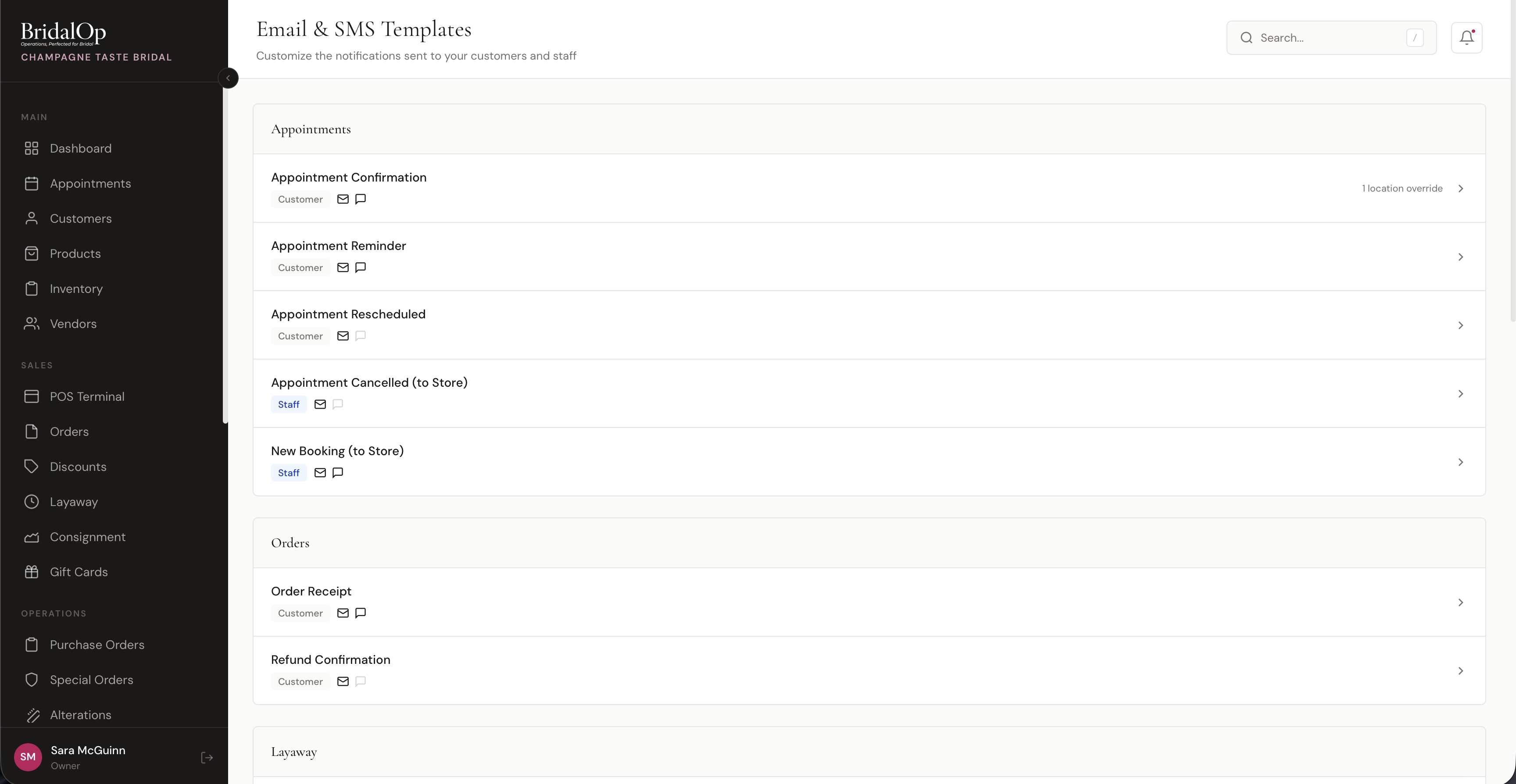
Template List
Templates are organized into categories. Each row shows:
- Template name — what the notification is for
- Audience badge — Customer (sent to customers) or Staff (sent to your team)
- Channel icons — envelope for email, chat bubble for SMS. Filled icons mean that channel is available for this template; grayed out means it's not.
- "Customized" badge — appears if you've customized the template
- "X location override(s)" — shows how many locations have their own version of this template
All Available Templates
Appointments
| Template | Audience | SMS | Triggered When | |
|---|---|---|---|---|
| Appointment Confirmation | Customer | Yes | Yes | Customer books an appointment |
| Appointment Reminder | Customer | Yes | Yes | 24 and 48 hours before the appointment |
| Appointment Rescheduled | Customer | Yes | No | Appointment is rescheduled |
| Appointment Cancelled (to Store) | Staff | Yes | No | A customer cancels their appointment |
| New Booking (to Store) | Staff | Yes | Yes | A new appointment is booked online |
Orders
| Template | Audience | SMS | Triggered When | |
|---|---|---|---|---|
| Order Receipt | Customer | Yes | Yes | An order is completed at the POS |
| Refund Confirmation | Customer | Yes | No | A refund is processed |
Layaway
| Template | Audience | SMS | Triggered When | |
|---|---|---|---|---|
| Layaway Plan Created | Customer | Yes | No | A layaway plan is set up |
| Layaway Payment Received | Customer | Yes | No | A layaway payment is made |
| Layaway Payment Reminder | Customer | Yes | Yes | A layaway payment is coming due |
| Layaway Payment Overdue | Customer | Yes | No | A layaway payment is past due |
Alterations
| Template | Audience | SMS | Triggered When | |
|---|---|---|---|---|
| Alterations Ready | Customer | Yes | Yes | Alteration is marked as "Ready" |
Special Orders
| Template | Audience | SMS | Triggered When | |
|---|---|---|---|---|
| Special Order Ready | Customer | Yes | No | Special order arrives and is ready |
Gift Cards
| Template | Audience | SMS | Triggered When | |
|---|---|---|---|---|
| Gift Card Delivery | Customer | Yes | No | A gift card is purchased |
Reviews
| Template | Audience | SMS | Triggered When | |
|---|---|---|---|---|
| Review Request | Customer | Yes | No | After appointment is completed (configurable delay) |
Portal
| Template | Audience | SMS | Triggered When | |
|---|---|---|---|---|
| Portal Login Link | Customer | Yes | No | Customer requests portal access |
Customer Forms
| Template | Audience | SMS | Triggered When | |
|---|---|---|---|---|
| Customer Form Invitation | Customer | Yes | Yes | Staff sends a Customer Form — both the email and SMS dispatch together with the same tokenized link |
Quotes
| Template | Audience | SMS | Triggered When | |
|---|---|---|---|---|
| Quote Sent | Customer | Yes | No | Staff sends or resends a Quote. Includes a "View Quote" CTA linking to the public Accept / Decline page. |
Staff
| Template | Audience | SMS | Triggered When | |
|---|---|---|---|---|
| Staff Invitation | Staff | Yes | No | A new staff member is invited |
Editing a Template
Click any template to open its editor. You'll see two tabs: Email and SMS.
Email Tab
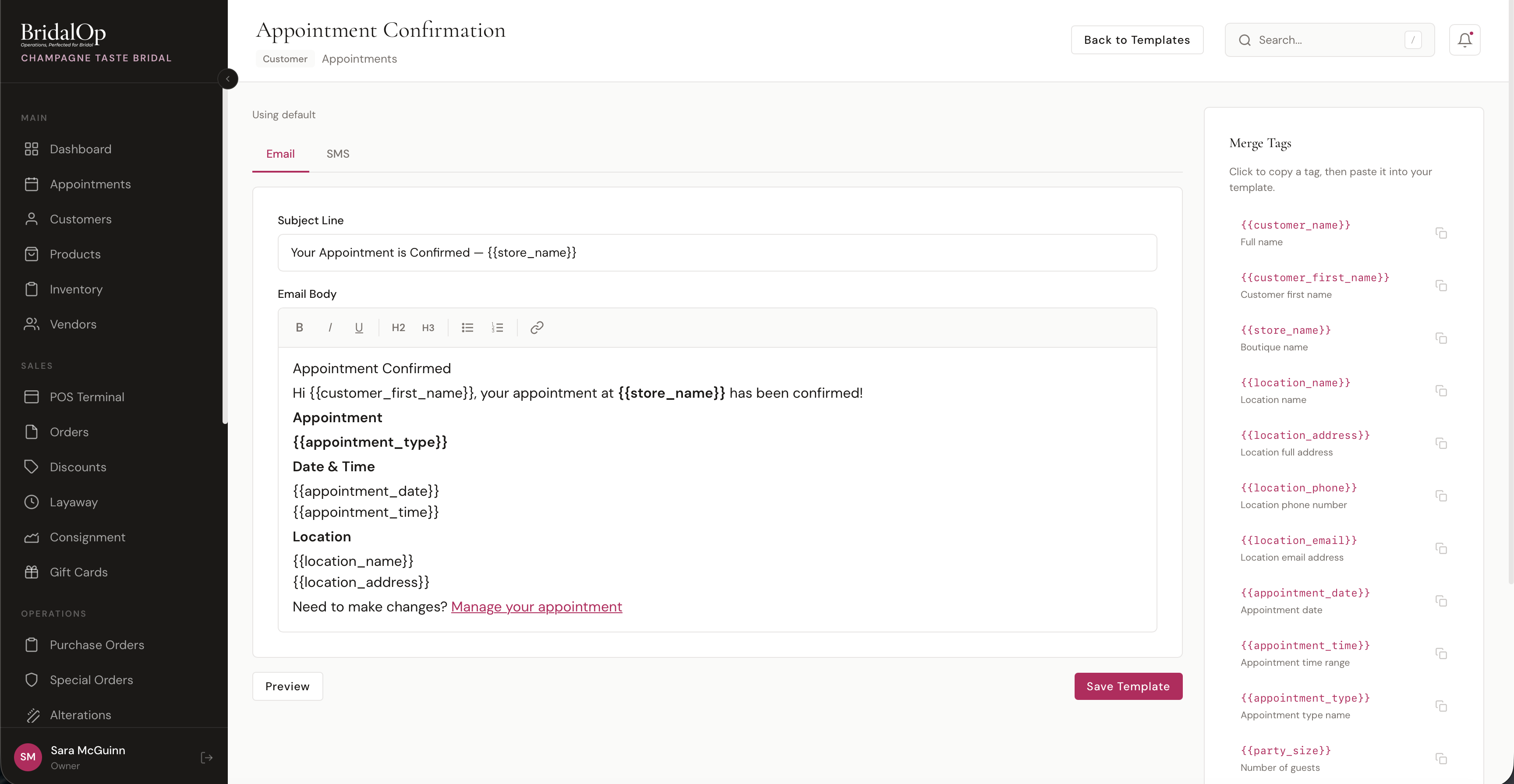
- Subject Line — the email subject. You can use merge tags here (e.g.,
Your Appointment is Confirmed — \{\{store_name}}) - Email Body — a rich text editor with formatting tools: Bold, Italic, Underline, H2, H3, Bullet list, Numbered list, and Link
Click Preview to see how the email will look with sample data filled in.
SMS Tab
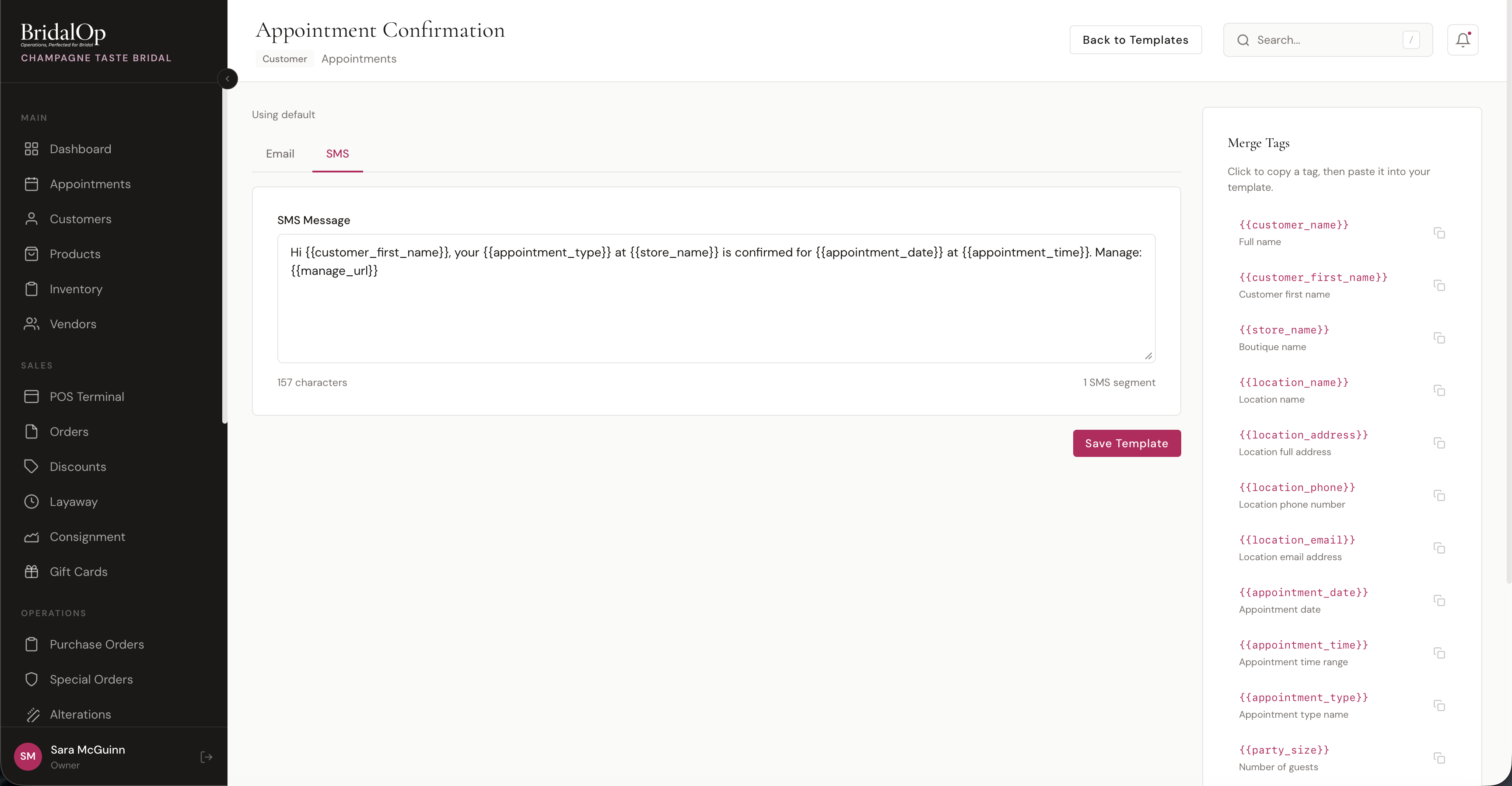
- SMS Message — plain text field (no formatting). The character count and SMS segment count update in real-time as you type.
- 1–160 characters = 1 SMS segment
- 161–320 characters = 2 SMS segments
Segments are how the phone carrier splits a long message, not what you're charged: a text costs 1 credit whatever it splits into. SMS messages use credits from your SMS balance. Purchase more at Settings > SMS Credits.
Merge Tags
The right sidebar shows all available Merge Tags for the current template. These are dynamic placeholders that get replaced with real data when the message is sent.
To use a merge tag: Click any tag to copy it to your clipboard, then paste it into your template. A "Copied!" confirmation appears briefly.
Common Tags (available in most templates)
| Tag | Replaced With |
|---|---|
{{customer_name}} | Customer's full name |
{{customer_first_name}} | Customer's first name |
{{store_name}} | Your boutique name |
{{location_name}} | Location name |
{{location_address}} | Location full address |
{{location_phone}} | Location phone number |
{{location_email}} | Location email address |
Appointment Tags
| Tag | Replaced With |
|---|---|
{{appointment_date}} | Appointment date |
{{appointment_time}} | Time range (e.g., "2:00 PM - 3:30 PM") |
{{appointment_type}} | Appointment type name |
{{party_size}} | Number of guests |
{{manage_url}} | Link for customer to reschedule or cancel |
Order Tags
| Tag | Replaced With |
|---|---|
{{order_number}} | Order reference number |
{{order_total}} | Total amount |
{{order_date}} | Purchase date |
{{payment_method}} | How the customer paid |
{{order_items_table}} | Formatted table of items (email only) |
Layaway Tags
| Tag | Replaced With |
|---|---|
{{installment_amount}} | Amount per payment |
{{total_installments}} | Total number of payments |
{{frequency}} | Payment frequency (e.g., Monthly) |
{{next_due_date}} | When the next payment is due |
{{balance_remaining}} | Outstanding balance |
Customer Form Tags
These tags are available on the Customer Form Invitation template.
| Tag | Replaced With |
|---|---|
{{form_name}} | The form's name (e.g., "Bridal Style Preferences") |
{{form_link}} | The tokenized fill URL — valid for 30 days |
{{accent_color}} | Your brand accent color from Settings > General |
{{accent_text_color}} | Black or white, picked automatically based on the accent's luminance so button text stays WCAG-readable even with light brand colors |
Quote Tags
These tags are available on the Quote Sent template.
| Tag | Replaced With |
|---|---|
{{quote_number}} | Quote reference number (e.g., QT-2026-0001) |
{{quote_total}} | Quote total |
{{quote_expires}} | Expiration date (blank if no expiry was set) |
{{quote_url}} | Tokenized public URL the customer uses to view, accept, or decline |
{{accent_color}} / {{accent_text_color}} | Brand accent + matched contrast color for the CTA button (same logic as Customer Forms) |
Each template type has its own set of relevant tags — the sidebar always shows exactly which tags are available for the template you're editing.
Email Branding
Every transactional email goes through a shared wrapper that applies your boutique's brand:
- The tenant logo from Settings > General is rendered at the top of the email card
- A brand-colored accent bar is drawn across the top of the card
The Customer Form Invitation email goes one step further — its CTA button uses the brand color as the background and the matched contrast color (black or white, picked by luminance) as the text color, via the and merge tags.
Inline text links in BridalOp's default email templates render in near-black (#1C1917) with an underline rather than the brand accent. This keeps links readable when a tenant's brand color is too light to meet WCAG contrast requirements against a white email background.
Location-Specific Overrides
If you have multiple locations, you can customize templates per location. For example, your downtown location might have different messaging than your suburban location.
How It Works
- Open any template
- Select a specific location from the dropdown at the top (default is "All Locations")
- Customize the subject, email body, or SMS message for that location
- Click Save Template
When a notification is sent, BridalOp resolves the template in this order:
- Location-specific custom template — if one exists for the appointment's location
- Tenant-wide default — your customized "All Locations" template
- System default — BridalOp's built-in template
This means you only need to create location overrides where the messaging actually differs. All other locations automatically use your default.
The template list page shows "X location override(s)" next to templates that have location-specific versions.
Using Default vs. Customized
- "Using default" — appears when you haven't customized a template. BridalOp uses its built-in version.
- "Customized" badge — appears once you've saved any changes.
Reset to Default
If you want to undo your customizations, click Reset to Default below the editor. This removes your custom template and reverts to BridalOp's built-in version. You'll be asked to confirm before the reset happens.
Resets are per-location — resetting a location-specific template doesn't affect your default template or other locations.