

Appearance
QuickBooks Integration
Sync your sales, invoices, and payments to QuickBooks Online automatically. BridalOp pushes financial data to QuickBooks as it happens — so your books stay up to date without manual data entry.
Go to Settings > QuickBooks to connect.
Connecting
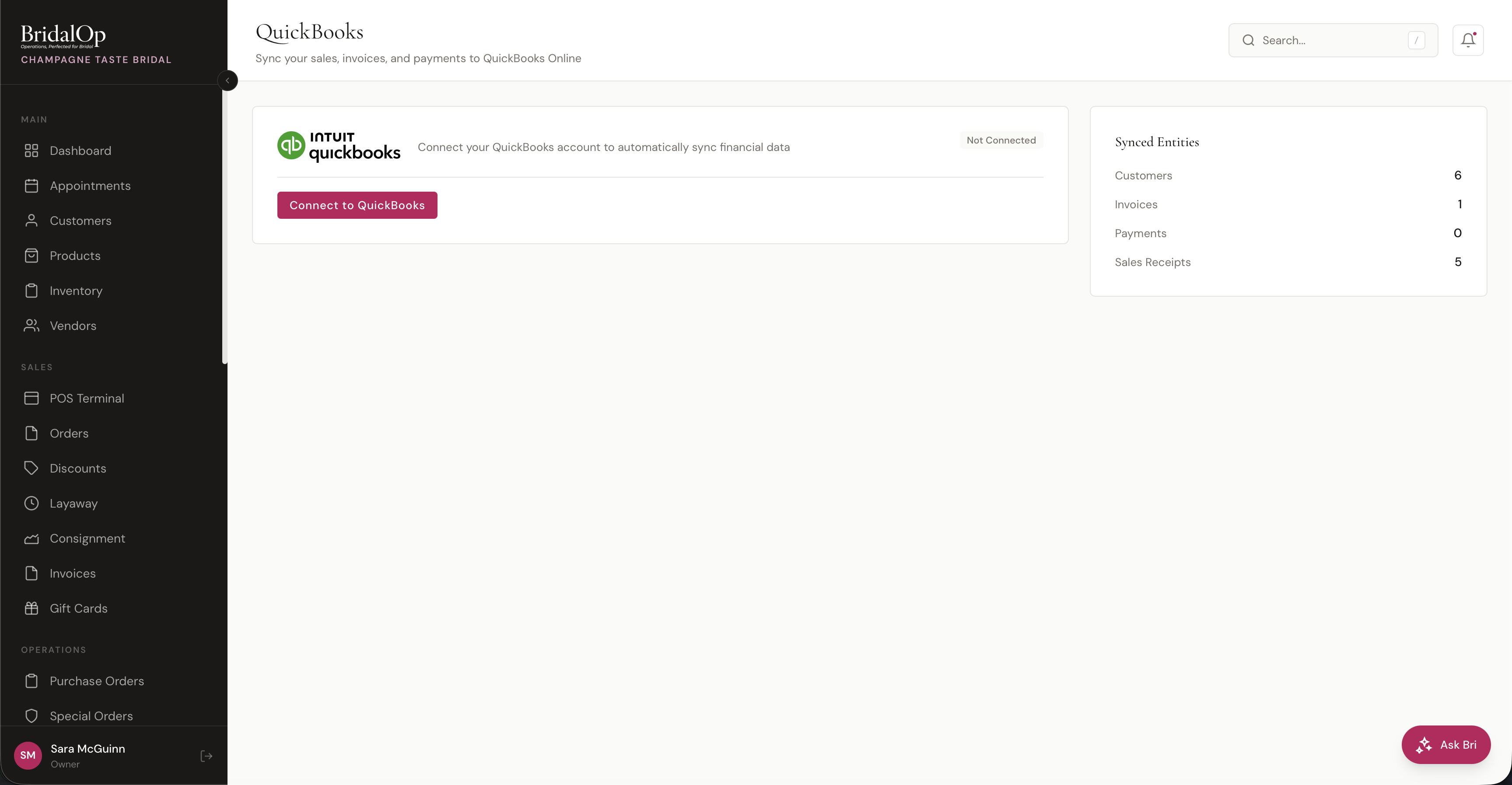
Click Connect to QuickBooks to link your QuickBooks Online account. You'll be redirected to Intuit to authorize the connection. Once connected, the page shows your company name and connection status.
What Syncs
BridalOp automatically syncs the following data to QuickBooks:
| Entity | Synced As | When It Syncs |
|---|---|---|
| Customers | QBO Customer | When a customer is created or updated in BridalOp |
| Orders | QBO Sales Receipt | When an order is completed at the POS |
| Invoices | QBO Invoice | When an invoice is created and sent |
| Invoice Payments | QBO Payment | When a payment is recorded on an invoice |
| Refunds | QBO Refund Receipt | When a refund is processed |
Each entity is mapped between BridalOp and QuickBooks so updates flow correctly and duplicates are prevented.
Automatic Syncing
Syncing happens automatically in the background. When you complete a sale, create an invoice, or receive a payment, BridalOp queues a sync job that pushes the data to QuickBooks within seconds.
You don't need to manually trigger syncs during normal use.
Manual Sync
If you need to push all data at once (for example, after first connecting), click Sync All Now on the QuickBooks settings page. This syncs all customers, sent/paid invoices, and completed orders to QuickBooks.
Synced Entities
The sidebar shows a count of how many records have been synced to QuickBooks:
- Customers — BridalOp customers synced as QBO customers
- Invoices — BridalOp invoices synced as QBO invoices
- Payments — invoice payments synced as QBO payments
- Sales Receipts — completed POS orders synced as QBO sales receipts
Sync Log
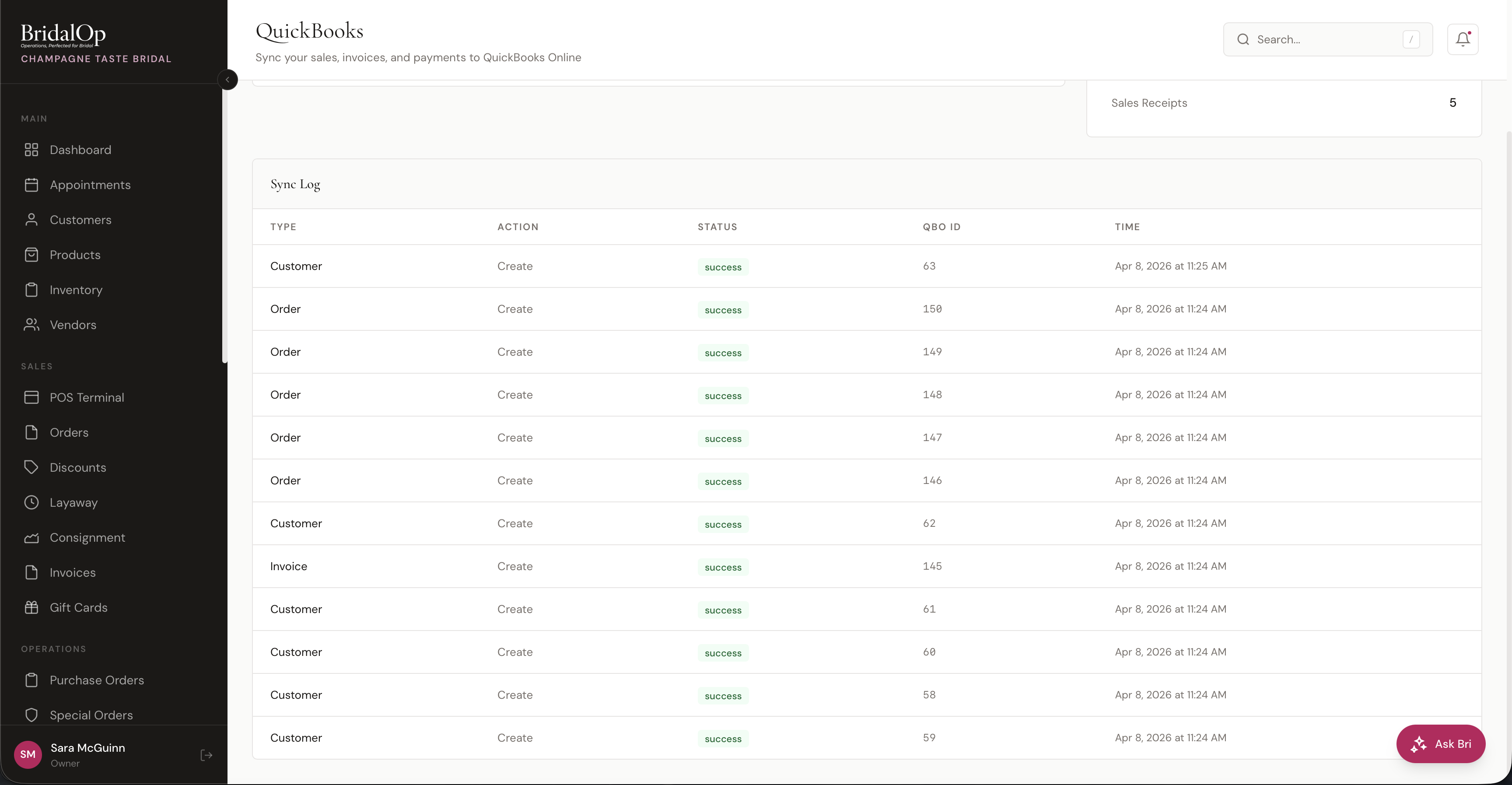
The Sync Log shows the most recent sync activity. Each entry includes:
| Column | Description |
|---|---|
| Type | What was synced (Customer, Order, Invoice, Payment, Refund) |
| Action | Create, Update, or Delete |
| Status | Success (green), Failed (red), or Skipped |
| QBO ID | The QuickBooks Online entity ID |
| Time | When the sync occurred |
If a sync fails, the error is logged here so you can troubleshoot. Failed syncs are retried automatically up to 3 times before being marked as failed.
Disconnecting
Click Disconnect on the QuickBooks settings page to unlink your account. A confirmation dialog appears before disconnecting. This stops all future syncs but doesn't delete any data already in QuickBooks.
You can reconnect at any time by clicking Connect to QuickBooks again.