

Appearance
Policies
Create store policies that are presented to customers during booking, checkout, layaway setup, and other customer-facing flows. Policies support rich text formatting, versioning, and acknowledgment tracking.
Go to Settings > Policies to manage them.
Policy List
The list shows all your policies with:
- Title — policy name
- Status — Active or Inactive
- Version — version number (v1, v2, etc.)
- When to Show — badges showing which flows display this policy
- Acknowledgments — number of customer signatures
Click View Signatures to see who has acknowledged the policy, or Edit / Delete to manage it.
Creating a Policy
Click New Policy to open the creation form.
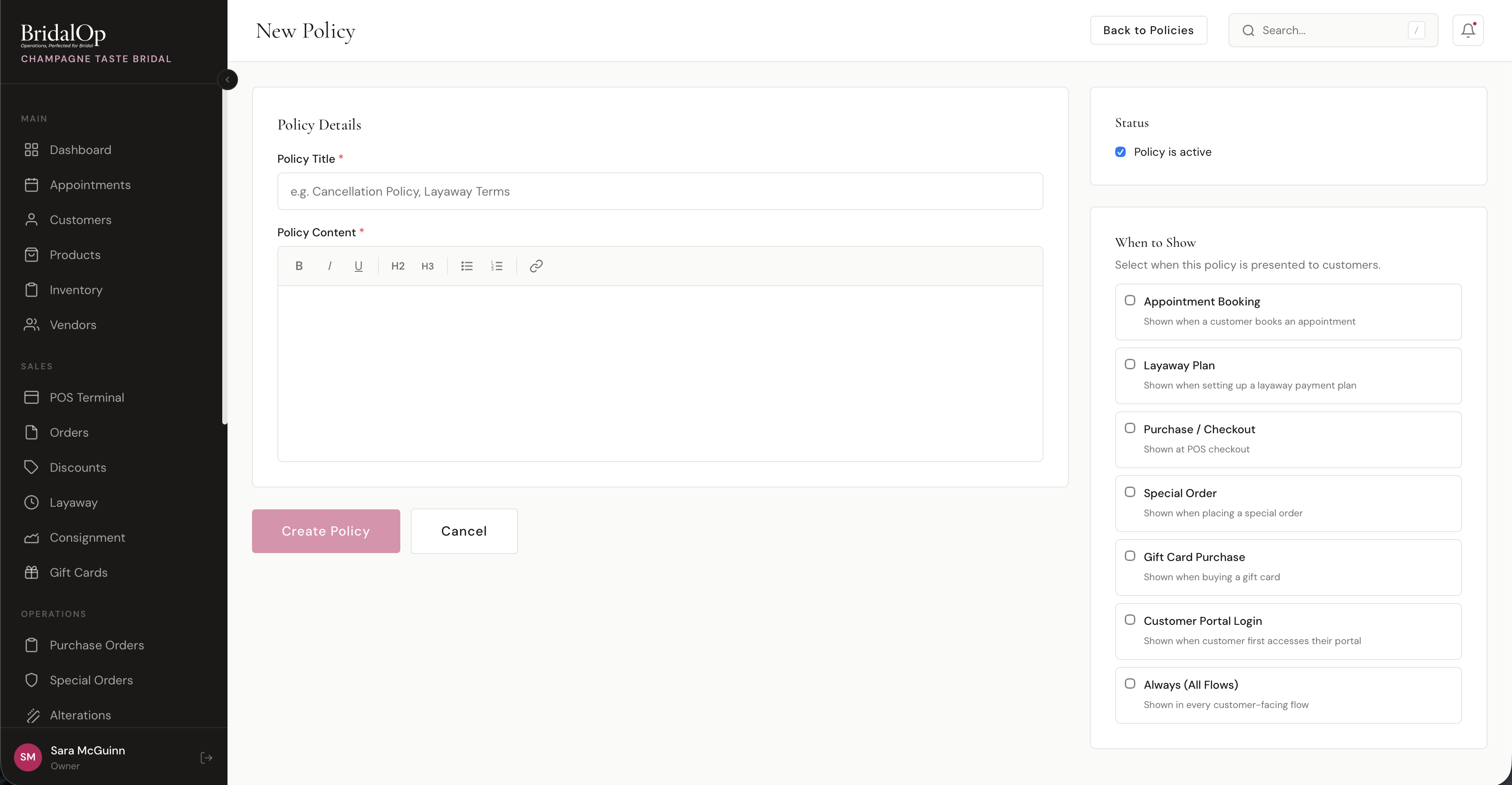
Policy Details
| Field | Required | Description |
|---|---|---|
| Policy Title | Yes | Name of the policy (e.g., "Cancellation Policy", "Layaway Terms") |
| Policy Content | Yes | The full policy text, written using the rich text editor |
Rich Text Editor
The policy content editor supports:
- Bold, Italic, Underline — standard text formatting
- H2 and H3 — section headings
- Bullet list and Numbered list — for listing terms or conditions
- Link — insert clickable URLs within the policy text
Status
- Policy is active — toggle on to show the policy to customers. Toggle off to hide it without deleting.
When to Show
Select one or more customer-facing flows where this policy should be presented. You can assign the same policy to multiple flows, and multiple policies can be assigned to the same flow.
| Flow | When It's Shown |
|---|---|
| Appointment Booking | When a customer books an appointment through your public booking page |
| Layaway Plan | When setting up a layaway payment plan |
| Purchase / Checkout | At POS checkout |
| Special Order | When placing a special order |
| Gift Card Purchase | When a customer purchases a gift card online |
| Customer Portal Login | When a customer first accesses their portal |
| Always (All Flows) | Shown in every customer-facing flow listed above |
Selecting Always automatically covers all flows. At least one flow must be selected.
How Customers See Policies
Appointment Booking — a tick, and it's kept
If you have any active policy assigned to Appointment Booking, the last step of your booking page shows a checkbox:
☐ I have read and agree to the store policies, including the cancellation policy.
She can't book without ticking it, and the booking is refused on our side too, not only in the page — so it can't be skipped by anyone clever with a browser.
Ticking it writes an acknowledgment against every policy shown, with the time, her IP address, her browser, and a snapshot of the policy exactly as it read at that moment. That snapshot is the part that matters later: if you edit the policy next spring, the record still shows what she actually agreed to.
This matters most if you charge a cancellation or no-show fee. "By booking, you agree" is thin under a fee somebody disputes; a tick with a timestamp and the text she was shown is not.
Gift Card Purchase
Gift card purchases still show the passive line during the review step:
"By purchasing, you agree to our store policies."
No acknowledgment is recorded there — nothing about a gift card turns on proving consent.
In both flows, the "store policies" link opens a dedicated page showing all active policies for that flow, rendered with full formatting. Customers can review the complete policy text before proceeding.
Versioning
When editing an existing policy, you can check "Save as new version" instead of overwriting the current text. This:
- Deactivates the previous version
- Creates a new version (v2, v3, etc.) with your updated content
- Preserves all existing acknowledgments on the old version
This is important for compliance — if a customer acknowledged v1 of your cancellation policy, that record stays intact even after you update to v2.
Acknowledgments
Acknowledgments come from the booking-page tick described above. Click View Signatures on any policy to see a detailed log:
- Customer name and email
- Signed at — exact date and time
- Context — which flow triggered the acknowledgment (Booking, Gift Card, etc.)
- IP address — for compliance records
- View Snapshot — expands to show the exact policy text the customer agreed to at the time of signing, plus their browser/device info
The snapshot ensures you have a record of exactly what the customer saw and agreed to, even if the policy has been updated since.