

Appearance
Locations
Locations represent your physical boutique locations. If you operate from one store, you'll have a single location. If you have multiple locations, each one gets its own settings for address, tax rate, timezone, and more.
Go to Settings > Locations to manage them.
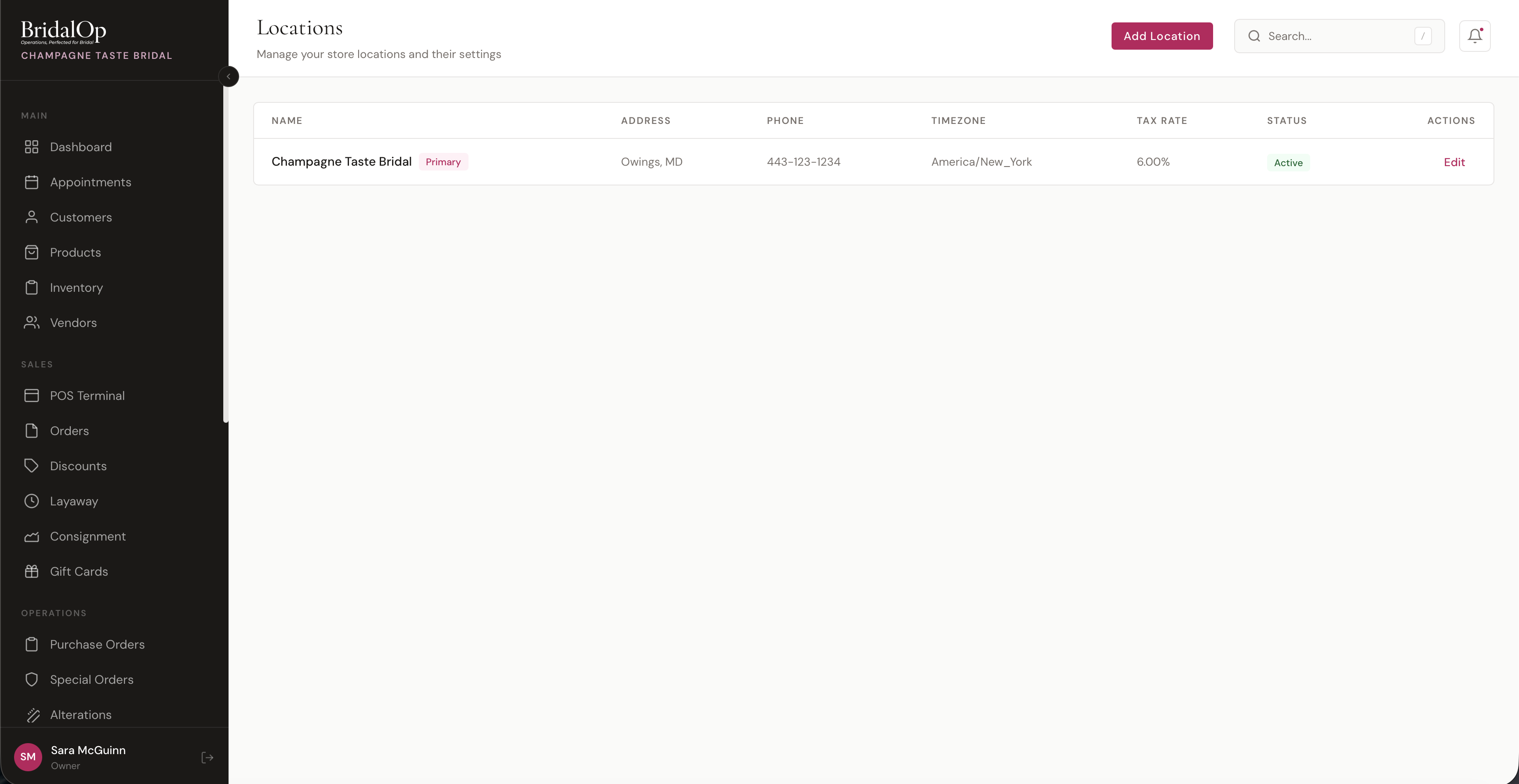
Location List
The table shows all your locations with:
| Column | Description |
|---|---|
| Name | Location name, with a Primary badge on your main location |
| Address | City and state |
| Phone | Location phone number |
| Timezone | Timezone used for scheduling and time tracking |
| Tax Rate | Sales tax percentage applied to POS transactions |
| Status | Active or Inactive |
| Actions | Edit (and Delete for non-primary locations) |
Your primary location always appears first in the list.
Adding & Editing a Location
Click Add Location or Edit to open the location form.
| Field | Required | Description |
|---|---|---|
| Location Name | Yes | Display name for this location |
| Address | No | Street address (with autocomplete) |
| City, State, ZIP | No | Location address details |
| Phone | No | Location phone number |
| No | Location email address | |
| Timezone | Yes | Used for appointments, time clock, and scheduling (US timezones: Eastern, Central, Mountain, Pacific, Alaska, Hawaii) |
| Tax Rate (%) | No | Sales tax percentage — applied automatically to POS transactions at this location |
| Booking Slug | Auto | Auto-generated from the location name (e.g., "main-boutique"). Used in per-location booking links — see Booking Settings. |
| Active | — | Toggle the location on or off |
| Primary Location | — | Mark as the primary location (only one can be primary at a time) |
Primary Location
One location is designated as Primary. The primary location:
- Sets the timezone for time-sensitive features like the time clock, timesheets, and dashboard
- Cannot be deleted (you can deactivate it, but not remove it)
- Appears first in the locations list
When you mark a new location as primary, the previous primary is automatically unset.
Tax Rate
Each location has its own tax rate. When an order is created at the POS, the location's tax rate is copied to the order and used to calculate sales tax. Changing the tax rate later only affects future orders — existing orders keep the rate they were created with.
Where Locations Are Used
Locations are referenced throughout BridalOp. Here's where they appear:
Staff
Each staff member is assigned to a location. This determines which location appears on their time clock entries and profile.
Appointments & Booking
- Customers select a location when booking online through your public booking portal (only active locations are shown)
- Appointment availability is calculated per location based on business hours, fitting rooms, and calendar blocks
- Fitting rooms belong to a specific location
POS & Orders
Every order is tied to a location. The location's tax rate is applied to the transaction at checkout.
Inventory
Inventory items are tracked per location. The same product can have different stock levels at different locations.
Time Clock & Timesheets
Time clock entries are recorded at the staff member's assigned location. The primary location's timezone is used for all time calculations and displays.
Alterations
Each alteration job is associated with a location, and printed alteration tickets show the location name.
Purchase Orders & Special Orders
Purchase orders and special orders are placed at a specific location, tracking where received inventory is headed.
Active vs. Inactive
Setting a location to Inactive hides it from the public booking portal — customers won't be able to book appointments there. Historical data (orders, appointments, time entries) at that location is preserved.