

Appearance
Customer Portal Settings
Choose a theme and control what customers can see and do in their Customer Portal.
Go to Settings > Customer Portal to configure.
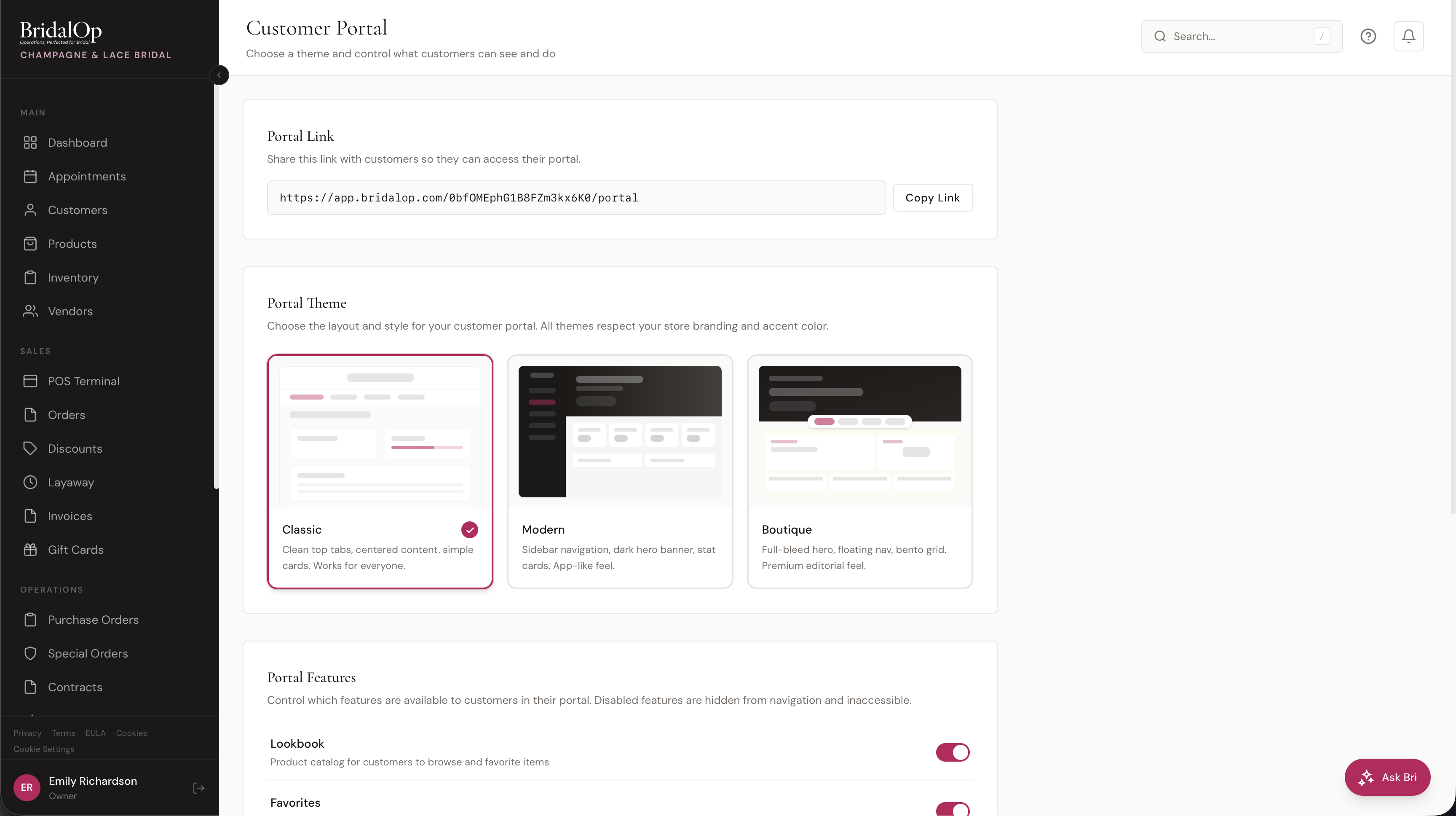
Portal Link
Your portal URL is displayed at the top of the page. Share this link with customers — on your website, in emails, or in appointment confirmations — so they can log in and access their account. Click Copy Link to copy it to your clipboard.
Portal Theme
Choose the layout and style for your customer portal. All themes respect your store branding and accent color set in General Settings.
| Theme | Description |
|---|---|
| Classic | Clean top tabs, centered content, simple cards. Works for everyone. |
| Modern | Sidebar navigation, dark hero banner, stat cards. App-like feel. |
| Boutique | Full-bleed hero, floating nav, bento grid. Premium editorial feel. |
Click a theme card to select it. The change takes effect immediately after saving.
TIP
The Modern and Boutique themes display your logo on a dark background. For best results, make sure you have a white/light version of your logo uploaded in General Settings.
Portal Features
Control which features are available to customers in their portal. Disabled features are hidden from navigation and inaccessible.
| Feature | Default | Description |
|---|---|---|
| Lookbook | On | Product catalog for customers to browse and favorite items |
| Favorites | On | Saved items from the lookbook with customer notes |
| Orders | On | Order history and details with receipt downloads |
| Invoices | On | Outstanding and paid invoices with online payment |
| Appointments | On | Appointment history and upcoming appointment details |
| Payment Methods | On | Saved cards for faster checkout and payments |
| Measurements | Off | Lets customers view their saved measurements |
| Profile Editing | On | Lets customers update their own contact information |
INFO
If you disable the Lookbook but keep Favorites enabled, customers can still see favorites that staff have added to their profile — they just can't browse and add new ones themselves.